
Upgrade applications
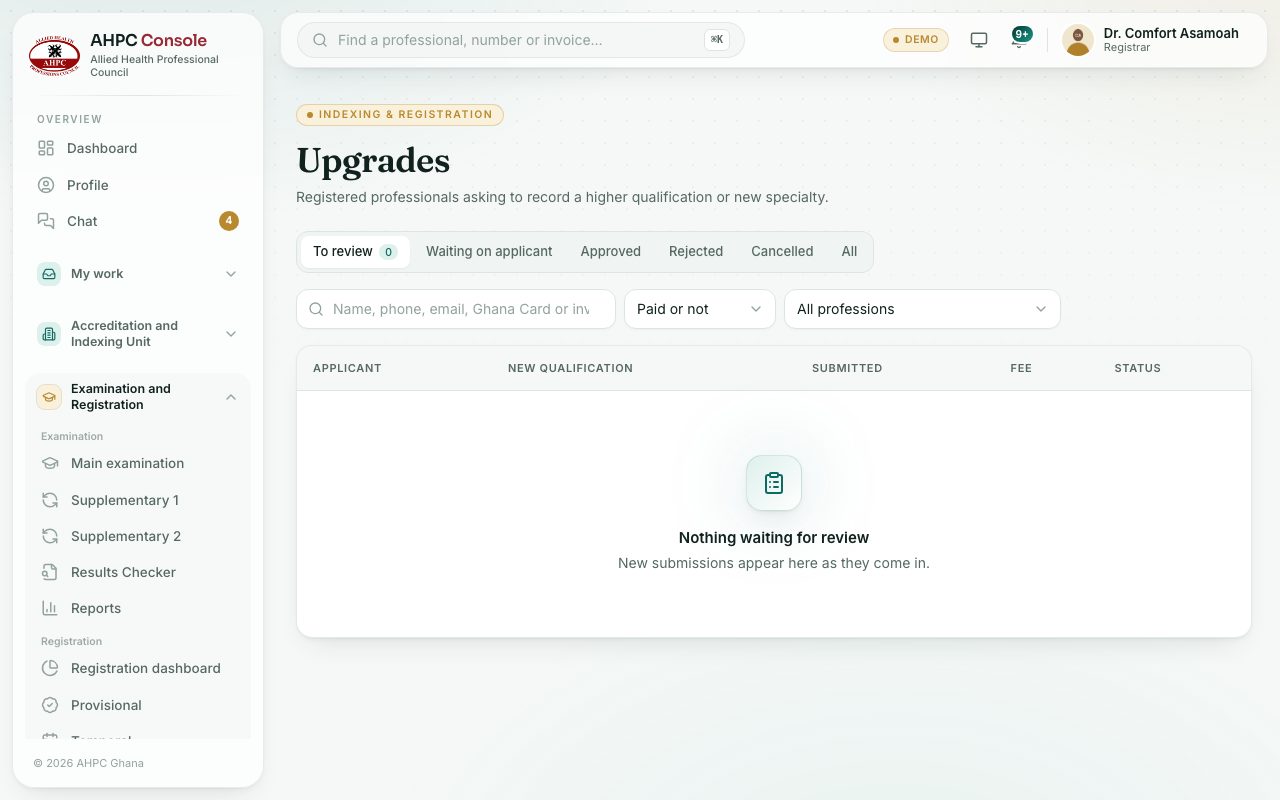
Registered professionals apply to record a higher qualification or a new specialty. Check the evidence and decide.
What you will learn
- Open the Upgrade queue
- Check the new qualification and the supporting documents
- Approve, reject or ask for more
demo.ahpcghana.com/staff/upgrades
Step by step
- In the left menu, choose Upgrade.
- Use the same tabs as the registration queues: To review, Waiting on applicant, Approved, Rejected, Cancelled and All.
- Click an application. The Application panel shows Current qualification, New qualification, New specialty, Reason and the Supporting qualification.
- Open and verify the documents, as for a registration.
- Press Approve, Ask for more or Reject.
What you will see
- On approval, the new qualification (and specialty, if any) is recorded on the professional’s profile, and they are told.
- The upgrade fee must be paid before you can approve.
Check yourself
Pick an answer for each question, then press Check my answers. Nothing is saved or sent.