
ID cards: from request to collection
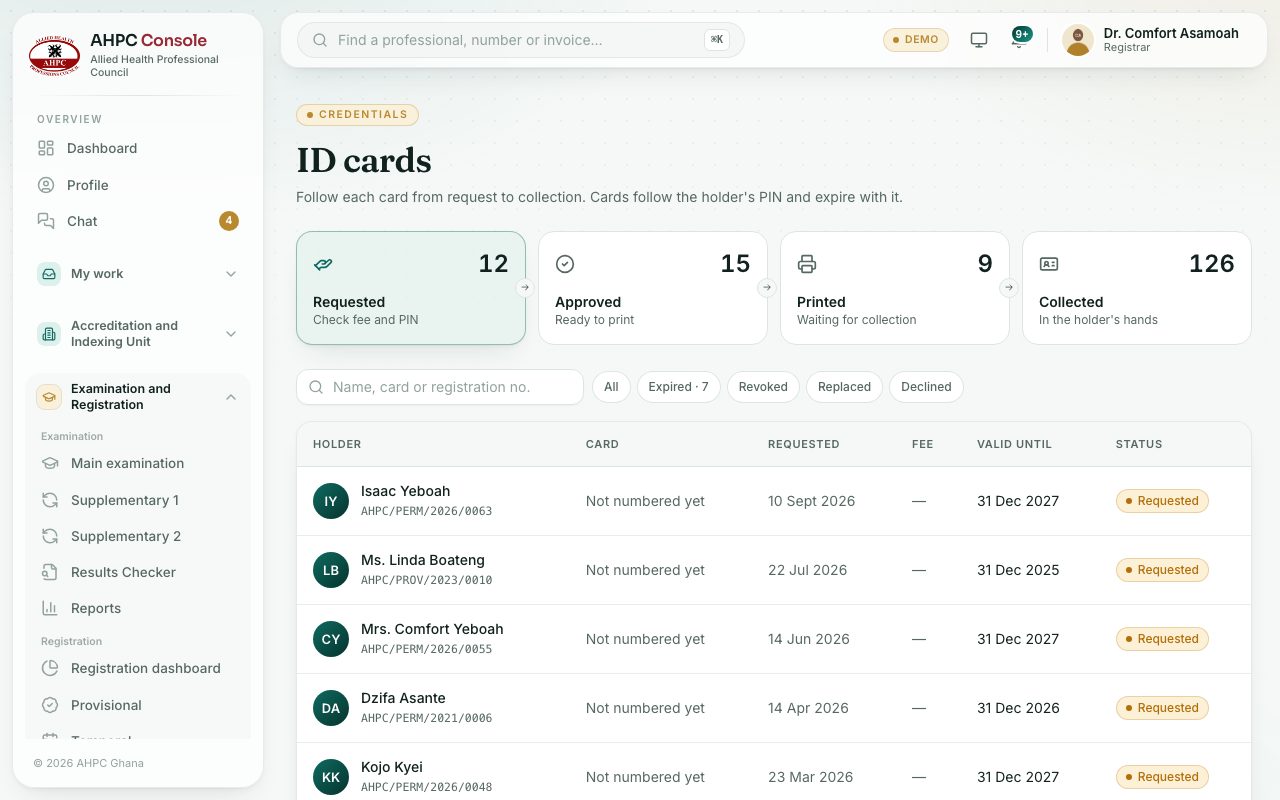
Follow each ID card through its stages: Requested, Approved, Printed and Collected.
What you will learn
- Use the four stage boxes to find cards
- Approve a paid request
- Mark a card printed and then collected
- Decline or revoke a card
A registered professional requests a card from their portal. They need a passport photo and a current PIN. The card follows the PIN: it is valid until the PIN expires. An indexed student can request a student index card in the same way; they need a passport photo but no PIN.
demo.ahpcghana.com/staff/id-cards
Step by step
- In the left menu, choose ID Cards.
- Click a stage box at the top:
- Requested: check the fee and PIN.
- Approved: ready to print.
- Printed: waiting for collection.
- Collected: in the holder’s hands.
- Click a card to open it.
- For a request, press Approve. The card gets its number and its expiry date.
- Print the card, then press Mark printed. The holder is told by SMS and email that it is ready to collect.
- When the holder collects it, press Mark collected.
- To refuse a request, press Decline and give a reason. The request and any unpaid fee are cancelled.
- To withdraw a card that is approved, printed or collected, press Revoke and give a reason.
Card colours
Every card has the same layout, with a colour for each category so it can be told apart at a glance. The category is printed in the header and on a ribbon across the photo:
- Permanent: green, PROFESSIONAL LICENSE.
- Provisional: blue, PROVISIONAL LICENSE.
- Temporary: wine red, TEMPORARY LICENSE.
- Indexed student: purple, STUDENT INDEX CARD.
- Suspended: grey, with a SUSPENDED ribbon.
The colour follows the holder’s status at the moment you open Card PDF, so a card printed after a suspension comes out grey.
What you will see
- The smaller buttons All, Expired, Revoked, Replaced and Declined show cards in those states.
- A yellow note The card fee isn’t paid yet, so the card can’t be approved.
- Anyone who scans a revoked card is told it is no longer valid.
Check yourself
Pick an answer for each question, then press Check my answers. Nothing is saved or sent.