
The Registration dashboard
See the register, good standing, revenue and certificates at a glance. Every number opens the list of people behind it.
What you will learn
- Open the Registration dashboard and move between its tabs
- Filter the figures by year, profession, region and more
- Open the list behind any number and download it
- Get the summary emailed to you every week or month
The dashboard reads the live register, so the figures change as soon as an application is approved, a PIN is renewed or a certificate is printed. Use it to answer questions such as “how many permanent physiotherapists are in the Ashanti Region?” without asking anyone for a report.
Step by step
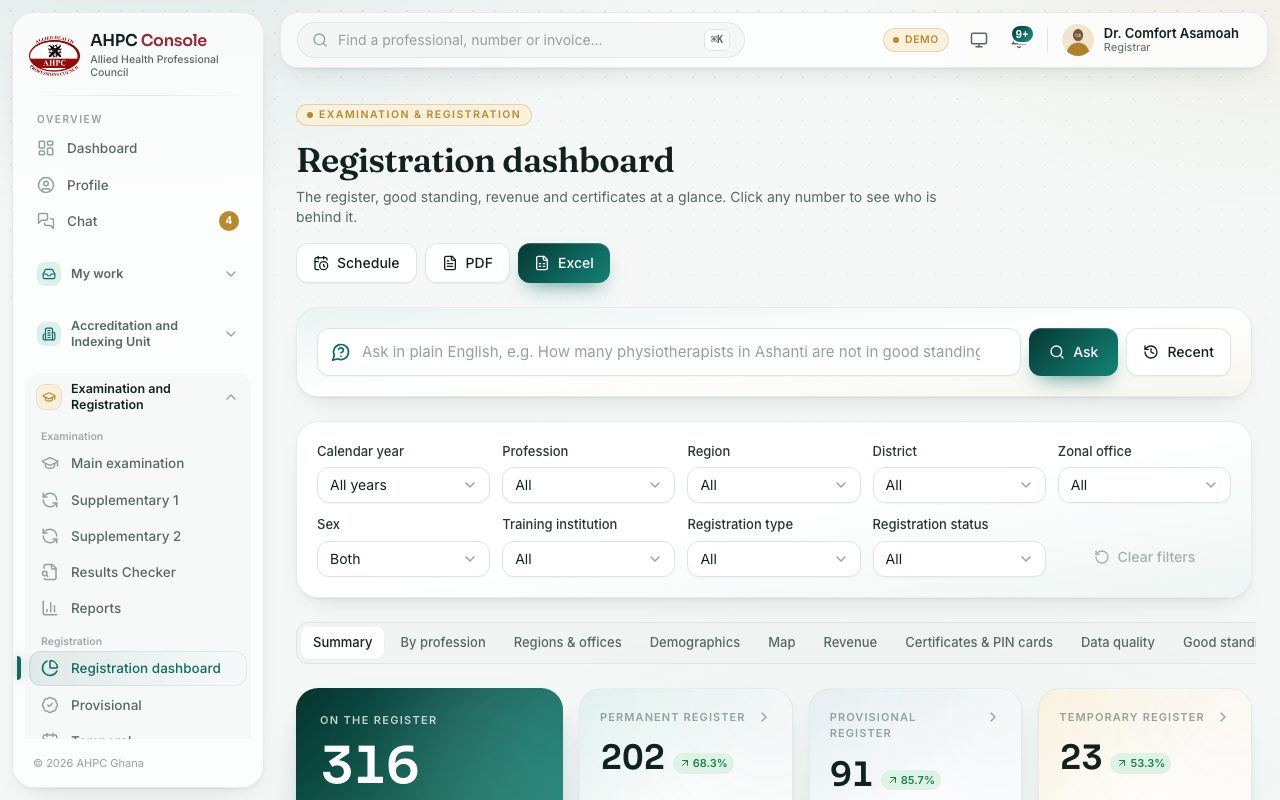
- In the left menu, open Examination and Registration and, under Registration, choose Registration dashboard.
- Pick a tab along the top:
- Summary: the register, new registrations each month and good standing.
- By profession and Regions & offices: the register split by profession, region and zonal office.
- Demographics: sex, age group, disability, employment and nationality.
- Map: the register on a map of Ghana.
- Revenue: fees collected in GH₵, by month and by type.
- Certificates & PIN cards: how many were requested, printed and still waiting.
- Data quality: records with missing or doubtful details that need correcting.
- Good standing: the Good Standing List and the Outstanding list for the year.
- To narrow the figures, use the filter boxes: Calendar year, Profession, Region, District, Zonal office, Sex, Training institution, Registration type and Registration status. On a small screen, press Filters first.
- Click any number, bar or slice. A panel opens on the right with the people (or invoices, certificates or cards) behind it.
- In that panel, press Excel or PDF to download the list.
- To start again, press Clear filters.
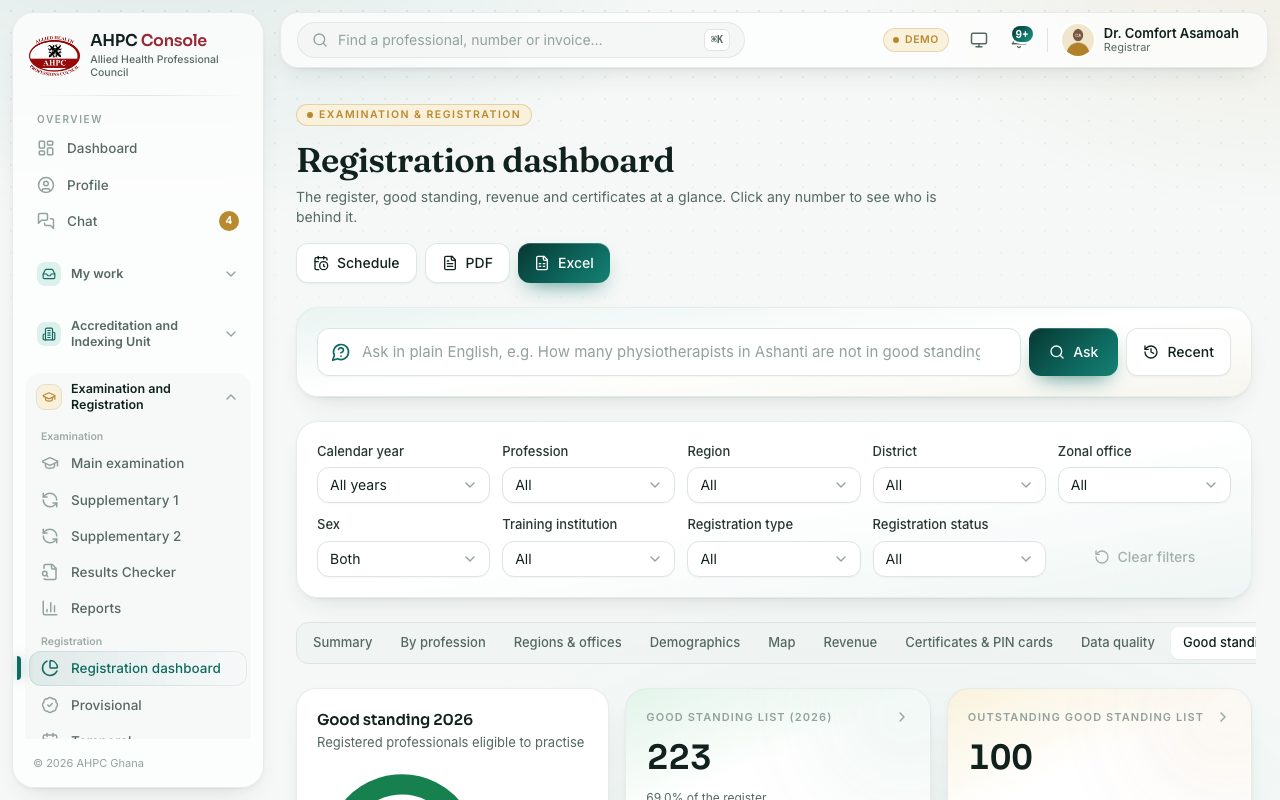
Get the summary by email
Press Schedule at the top. Choose Every week or Every month. Tick Use the filters I have chosen if you want only the figures you filtered. Press Schedule. The executive summary and good standing figures arrive as a PDF at your email address. Open Schedule again to press Send one now, change it with Save changes, or stop it with Stop emails.
What you will see
- A line at the bottom says which filters are on (for example “Year 2026 · Physiotherapy”) and when the figures were last updated.
- On the Data quality tab, a red card shows records to fix; a green card says Nothing to fix.
- In the Certificates & PIN cards tab, open Waiting under Registration certificates, tick the certificates you have printed and press the Mark … printed button (for example Mark 3 printed).
Check yourself
Pick an answer for each question, then press Check my answers. Nothing is saved or sent.