
Annual subscriptions (PIN renewals)
Registered professionals renew their PIN every year. Approve each renewal once the fee is paid and the CPD points are in.
What you will learn
- See who is ready to renew in the next 90 days
- Filter renewals by period, fee, CPD, lateness and face check
- Open a renewal and see what is missing, including the passport photo and face check
- Approve one renewal, or every ready renewal at once
- Find PINs that are about to expire
The page is called PIN renewals on screen. Each approval issues a new PIN and an annual licence, valid until the date set for that renewal period. To renew, a professional needs a passport photo on their profile, the CPD points for the year and a paid renewal fee.
Step by step
- In the left menu, choose Annual subscriptions.
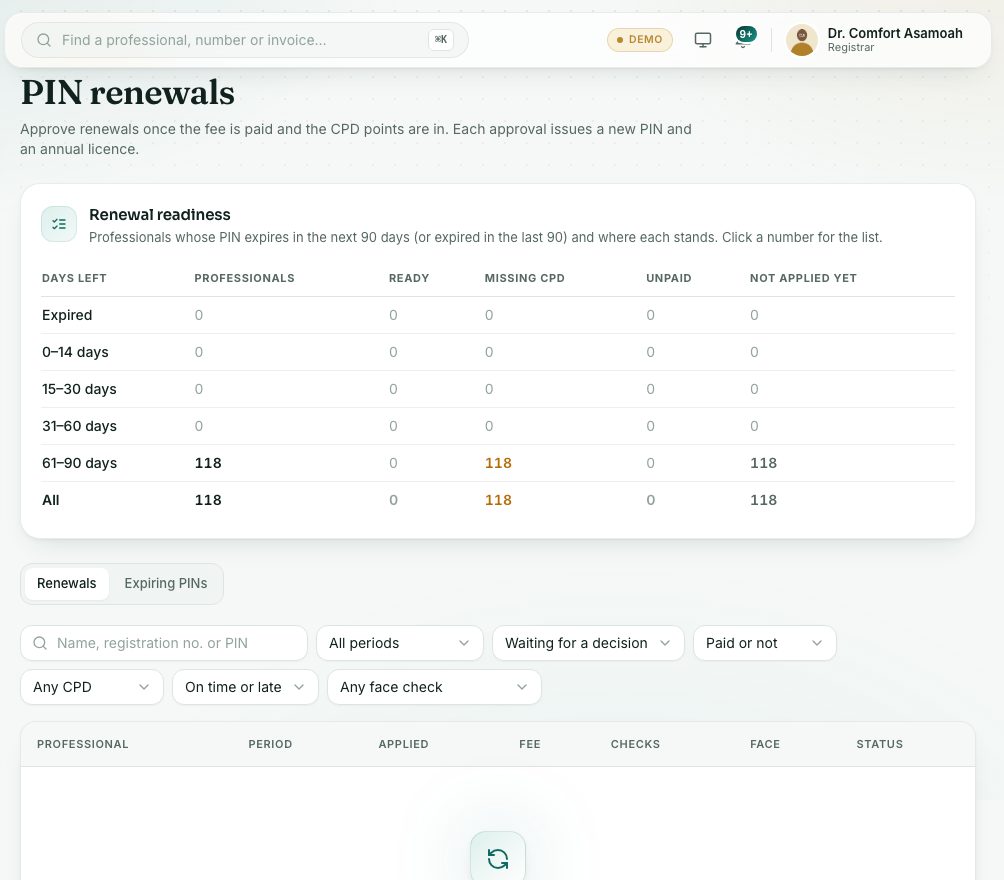
- Read Renewal readiness at the top: everyone whose PIN expires in the next 90 days (or ran out in the last 90), by days left, with how many are Ready, Missing CPD, Unpaid or have Not applied yet. Click a number for the list and what each person still has to do.
- On the Renewals tab, choose a period in All periods, and a status such as Waiting for a decision.
- Narrow the list with Paid or not, Any CPD (CPD met or CPD short), On time or late and Any face check.
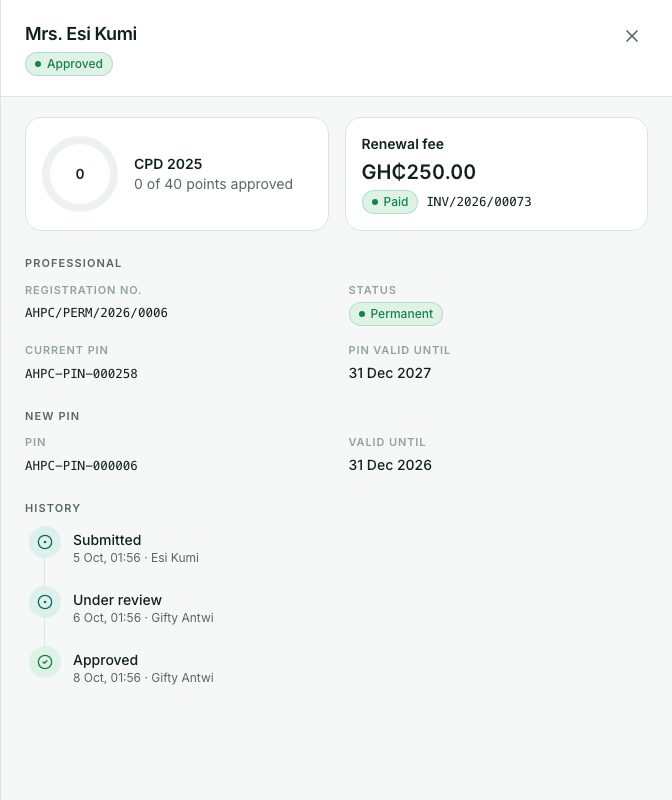
- Click a renewal. A panel opens with the CPD points, the Renewal fee, the face check (if one was taken), the current PIN and the history.
- Press Approve and issue PIN. Add a note if you like and press Approve. The professional gets the new PIN by SMS and email.
- If something is wrong, press Ask for more or Reject and type your note.
- To approve many at once, choose a period and press Approve all ready, then Approve all ready again. A list shows who was approved and who is still waiting, and why.
The face check
When the Council asks for it, the professional takes a live selfie when they renew, and the portal compares it with their passport photo. A doubtful result doesn’t stop the renewal: it is flagged Needs a look for staff. In the renewal panel, the Face check section shows the passport photo and the selfie side by side. Look at both and press Same person or Not the same person. You can also work through all of them on the Face checks page (next lesson).
Renewal reminders
Professionals see a renewal checklist in their portal with a countdown to their PIN expiry. The portal reminds them by SMS and email 90, 60, 30, 14, 7 and 1 days before the PIN expires, listing only what is still missing (CPD points, the fee, the passport photo). Nothing is sent once everything is done. A professional short of CPD points is also told when a new CPD opportunity could fill the gap.
Expiring PINs
The Expiring PINs tab lists registered professionals whose PIN has run out or will soon, and who haven’t applied to renew. Choose Within 30 days, Within 60 days, Within 90 days or Already expired. Reminders go out to them automatically.
What you will see
- Ready to approve (green) in the Checks column means the fee is paid and the CPD points are met.
- A yellow Not ready to approve box lists what is missing, such as The renewal invoice isn’t paid, CPD 2025: 12 of 20 points approved or No passport photo on the profile.
- A Late badge marks a renewal sent in the late window.
- The Face column: Needs a look (amber), Same person or Checked (green), Not the same person (red), or a dash when no selfie was taken.
Check yourself
Pick an answer for each question, then press Check my answers. Nothing is saved or sent.