
Open, close and mark a session as held
Move a session through its stages: open it for applications, close it, mark the exam as held, or cancel it.
What you will learn
- Open a session for applications
- Close it or reopen it
- Mark the exam as held
- Cancel a session
demo.ahpcghana.com/staff/exams?status=open
Step by step
- Open the session.
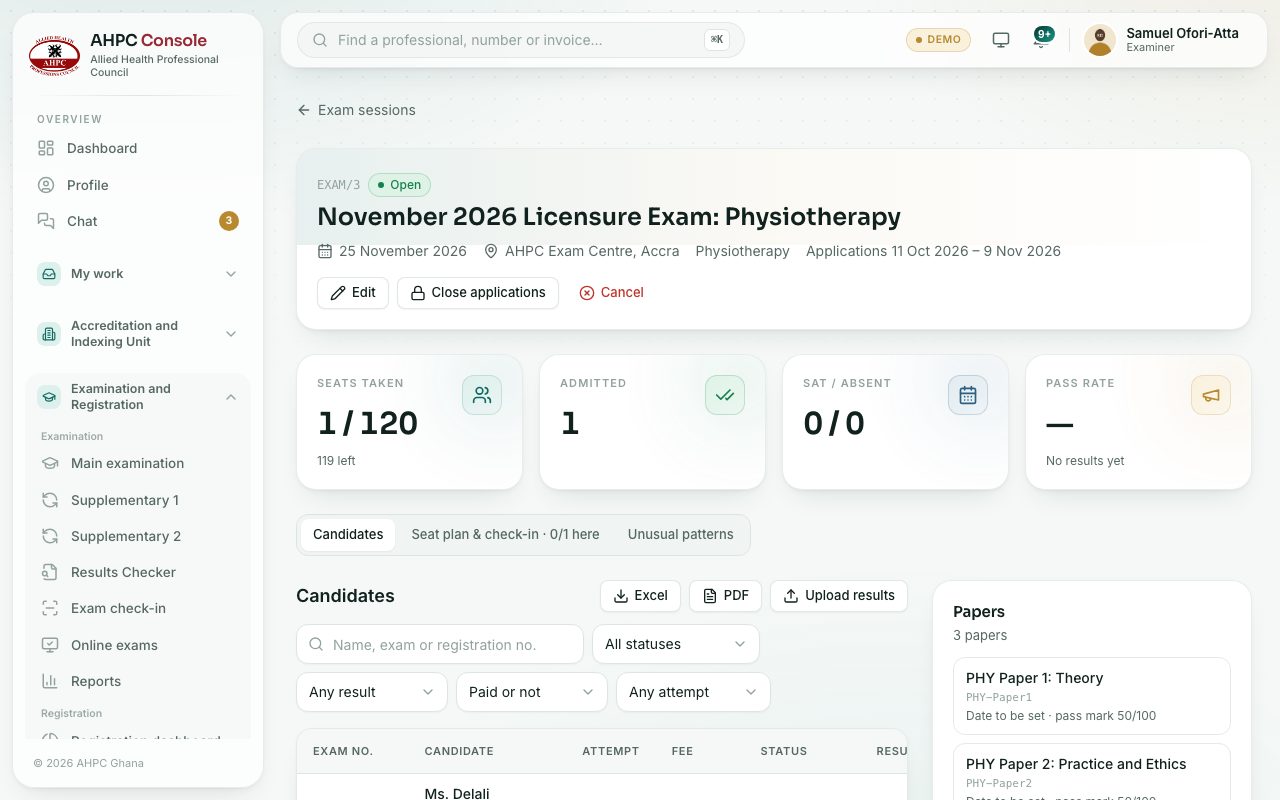
- Press Open applications, then Open. Eligible professionals can apply and pay until the deadline or until the seats are taken.
- When the deadline has passed, press Close applications, then Close. Candidates already admitted keep their seats.
- Need more applications? On a closed session, press Reopen.
- After the exam day, press Exam held, then Mark as held. The status becomes Completed.
- To call it off, press Cancel, type the Reason (sent to candidates) and press Cancel session.
What you will see
- The figures Seats taken, Admitted, Sat / absent and Pass rate.
- Under the title: the exam date, venue, profession and the application dates.
Check yourself
Pick an answer for each question, then press Check my answers. Nothing is saved or sent.