
Upload the documents and submit
Upload each document on the checklist, use the blank forms, and submit the application to your zonal office.
What you will learn
- Read the checklist
- Download a blank form and upload documents
- Remove a wrong file
- Submit the application
demo.ahpcghana.com/partner/accreditation
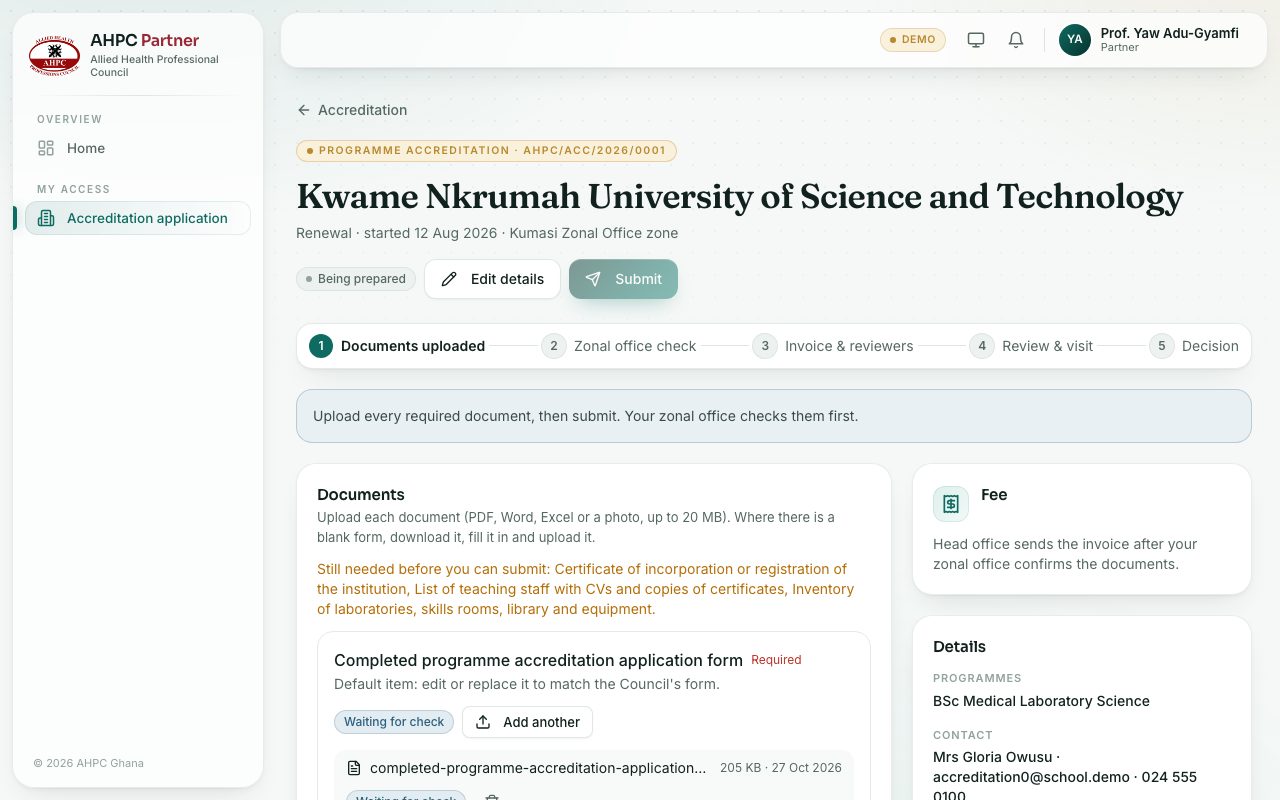
Step by step
- Open My access → Accreditation application and press your application in the list.
- Read the Documents checklist. Each item says Required or Optional and what to upload.
- Where an item has Blank form, download it, fill it in and sign it.
- Press Upload next to the item and choose the file (PDF, Word, Excel or a photo, up to 20 MB). Press Add another for a second file.
- To remove a wrong file, press the bin next to it and confirm.
- Use Other documents for anything else you want the Council to see.
- When every required document is there, press Submit at the top and confirm. It goes to your zonal office.
Changing the details or withdrawing
Press Edit details to change the type, zonal office, programmes or contact while you are preparing the application. Press Withdraw this application at the bottom right to withdraw it; you can start a new one later.
What you will see
- Still needed before you can submit: lists the required documents not uploaded yet. Submit stays grey until there are none.
- Each document shows Not uploaded, Waiting for check, Confirmed or Not accepted.
Check yourself
Pick an answer for each question, then press Check my answers. Nothing is saved or sent.