
Check a professional ID card
Scan the QR code on the back of an ID card and type its tamper-check code to confirm the card is genuine, unaltered and current.
What you will learn
- Scan the QR code on an ID card
- Type the tamper-check code
- Read the three security checks
- Know the card colours
demo.ahpcghana.com/verify/card/C86EEEAUSQ?t=2W2W-ASR6&s=Sz_ZU-tXxZAb1ThQ
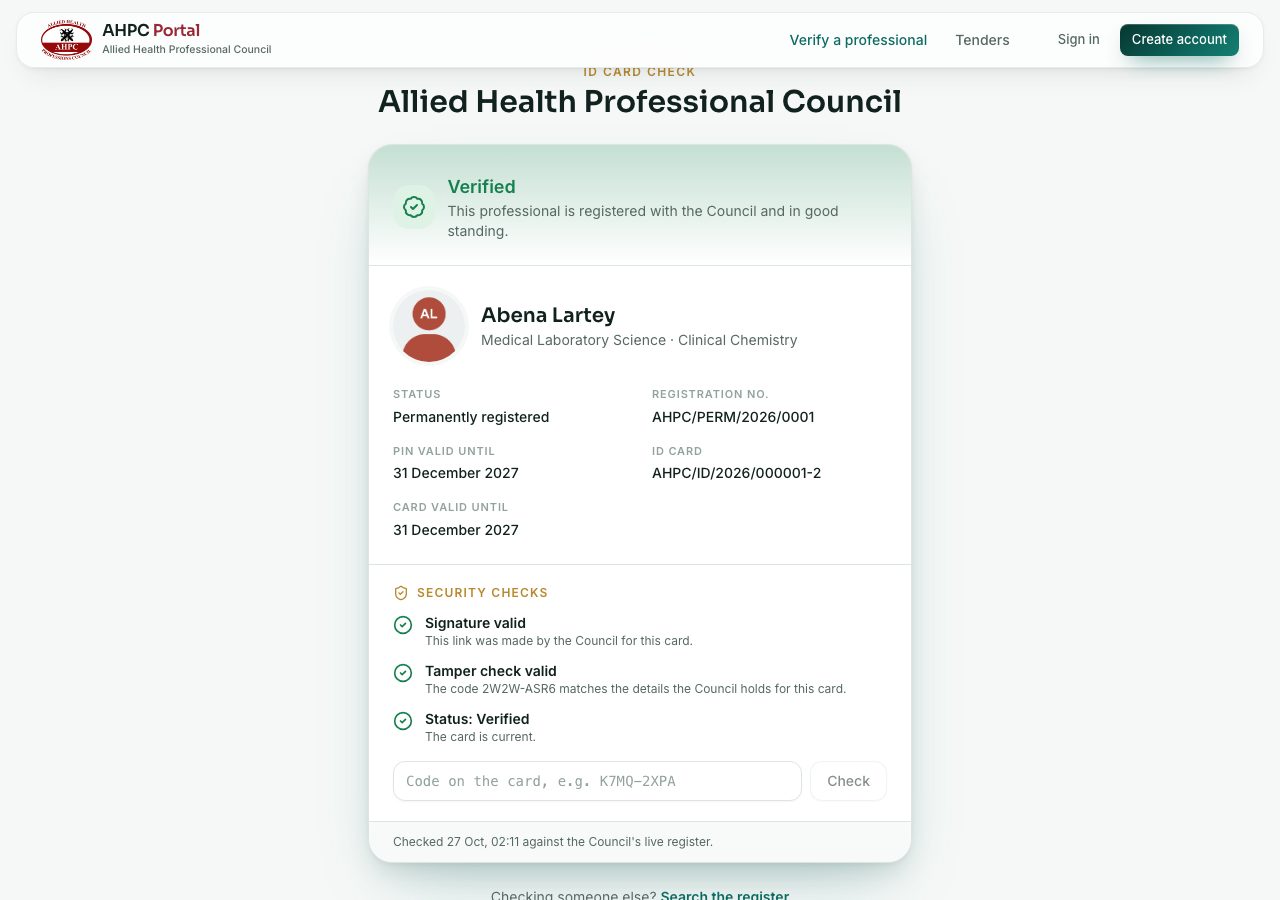
Step by step
- Scan the QR code on the back of the card with your phone camera, and tap the link. It opens ID card check on portal.ahpcghana.com.
- Compare the photo, name and profession on the page with the card and the person.
- Read the three security checks. Scanning checks the signature and the tamper-check code held in the QR code.
- To check the printed card too, find the TAMPER CHECK code on the front of the card, type it in the box under Security checks, for example K7MQ-2XPA, and press Check.
Card colours
Each kind of card has its own colour, with the kind written in the header and on a ribbon across the photo: permanent green, provisional blue, temporary wine red, indexed student purple (a student index card) and suspended grey. A card whose colour doesn’t match the status on the check page is suspicious.
What you will see
- Signature valid: the link was made by the Council for this card. Signature not valid: the card may be forged.
- Tamper check valid: the code matches the details the Council holds. Tamper check failed: the card may have been altered.
- Status: Verified: the card is current. Any other status says Do not accept this card.
- Signature not checked and Tamper check not done: you opened the check without scanning (for example from a typed link). Scan the QR code, or type the code printed on the card.
Check yourself
Pick an answer for each question, then press Check my answers. Nothing is saved or sent.