
Sign in to the staff console
Staff and professionals use the same sign-in page. Your staff account opens the staff console. This lesson also covers a forgotten password and what happens after too many wrong tries.
What you will learn
- Sign in with your Council email and password
- Reset a forgotten password with a 6-digit code
- Know what happens after five wrong passwords
- Change your password and sign out
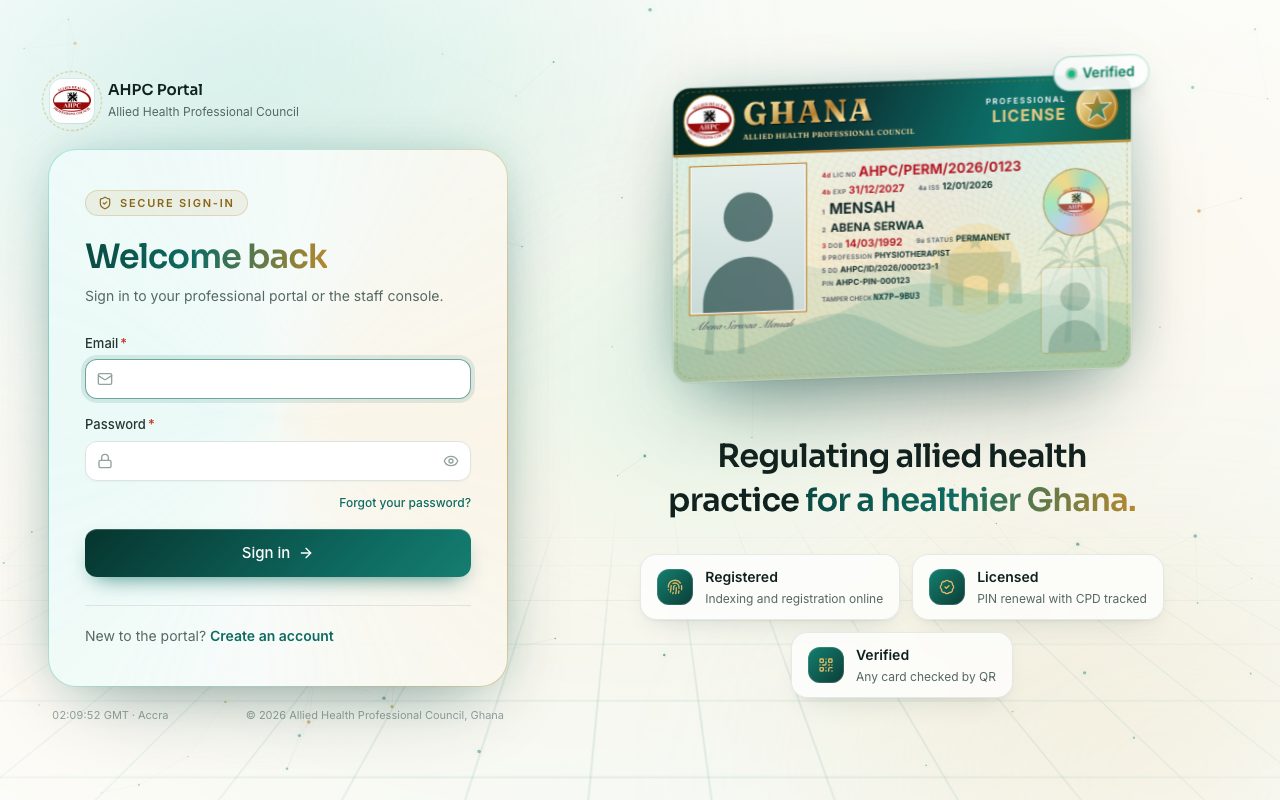
There is one sign-in page for everyone. When you sign in with a staff account, the portal takes you to the staff console (addresses starting /staff). Professionals who sign in on the same page go to their own portal instead.
Step by step
- Go to portal.ahpcghana.com/login.
- In Email, type your Council email address, for example k.mensah@ahpc.gov.gh.
- In Password, type your password.
- Press the eye button at the end of the box to show or hide what you typed.
- If Caps Lock is on appears under the box, turn Caps Lock off first.
- Press Sign in. The staff console opens on your Dashboard.
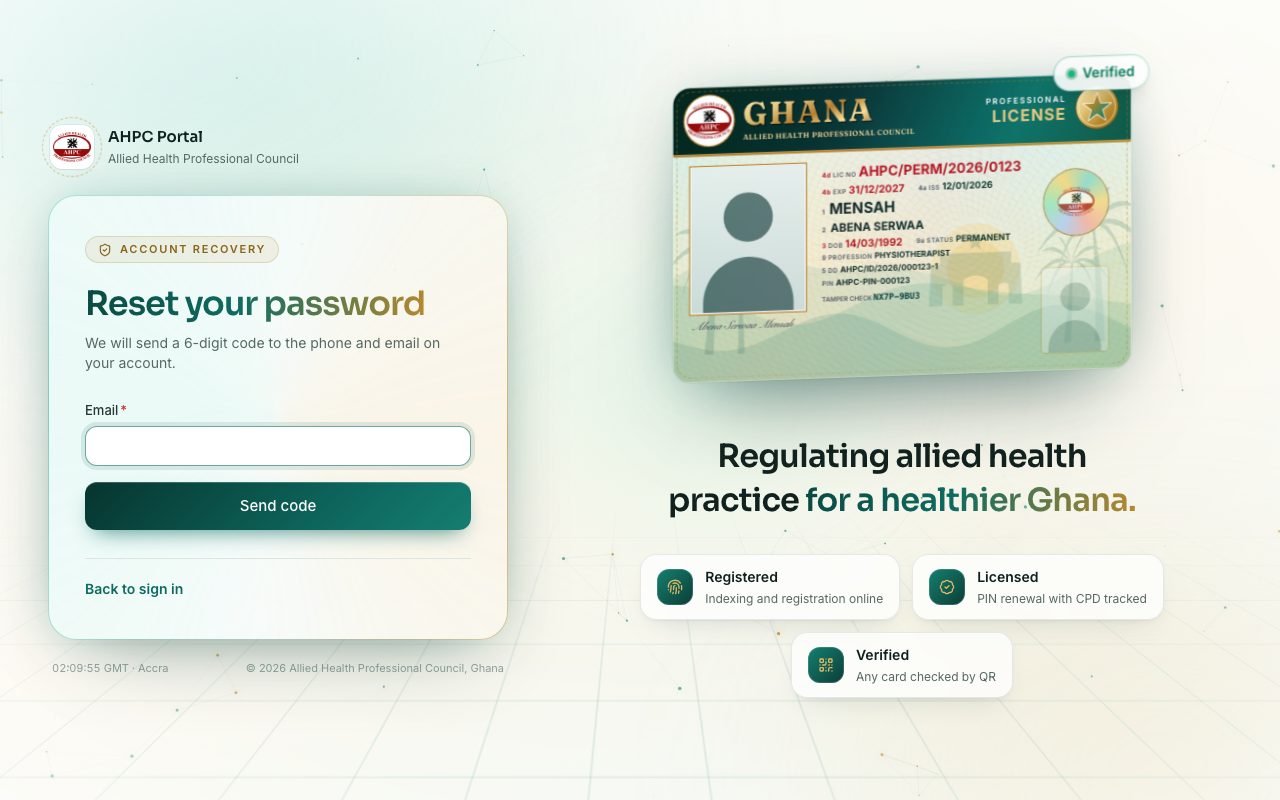
Forgot your password?
On the sign-in page, press Forgot your password?. Type your email and press Send code. A 6-digit code is sent by SMS and email to the phone and email on your account. It works for 15 minutes.
Type the code in 6-digit code, choose a New password of at least 10 characters, and press Change password. Then sign in with the new password. If the code doesn't arrive, press Didn't get it? Send again.
Too many wrong passwords
After five wrong passwords in a row, the account is locked for 15 minutes. The page says Too many wrong passwords. Try again in … minute(s). Wait, then try again. Resetting your password with Forgot your password? also unlocks the account.
Change your password or sign out
Press your name or picture at the top right. Choose Change password to set a new one: type your Current password and a New password (at least 10 characters, mixing letters with numbers or symbols). When you change it, any other device where you are signed in is signed out. Choose Sign out when you finish, especially on a shared computer.
What you will see
- Wrong email or password: the email or password is not right. Check for typing mistakes.
- You're already signed in on …: your account is in use on another device. See the next lesson, Staying signed in.
- The Dashboard, with a greeting and your first name: you are signed in to the staff console.
- A gold Demo label at the top right: you are on the demo, not the real portal.
Check yourself
Pick an answer for each question, then press Check my answers. Nothing is saved or sent.