
Follow your application to the decision
See where your application is, fix and resubmit a returned one, pay the invoice and read the decision.
What you will learn
- Read the step bar
- Fix and submit again after a return
- Download and pay the invoice
- Read the decision
demo.ahpcghana.com/partner/accreditation
demo.ahpcghana.com/partner/accreditation
Step by step
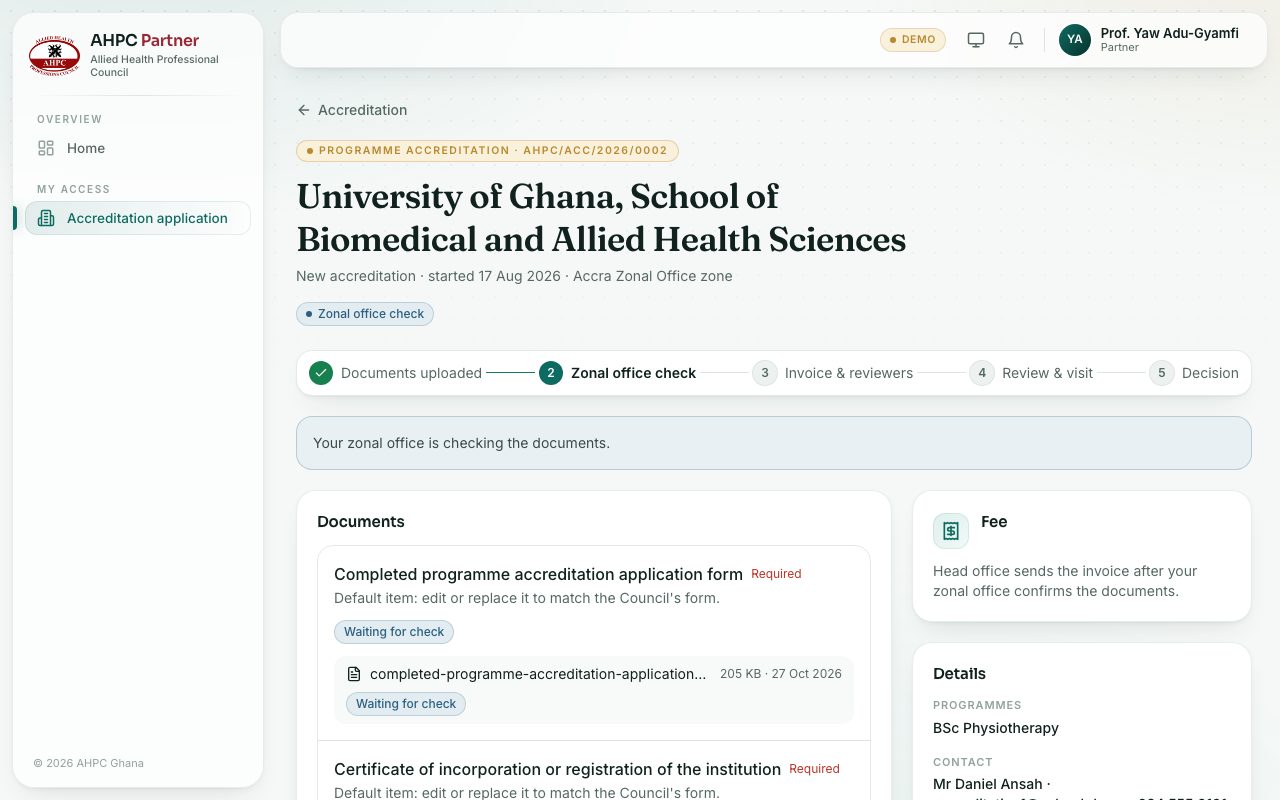
- Open your application. The step bar shows where it is:
- Documents uploaded: you are preparing it.
- Zonal office check: your zonal office is checking each document.
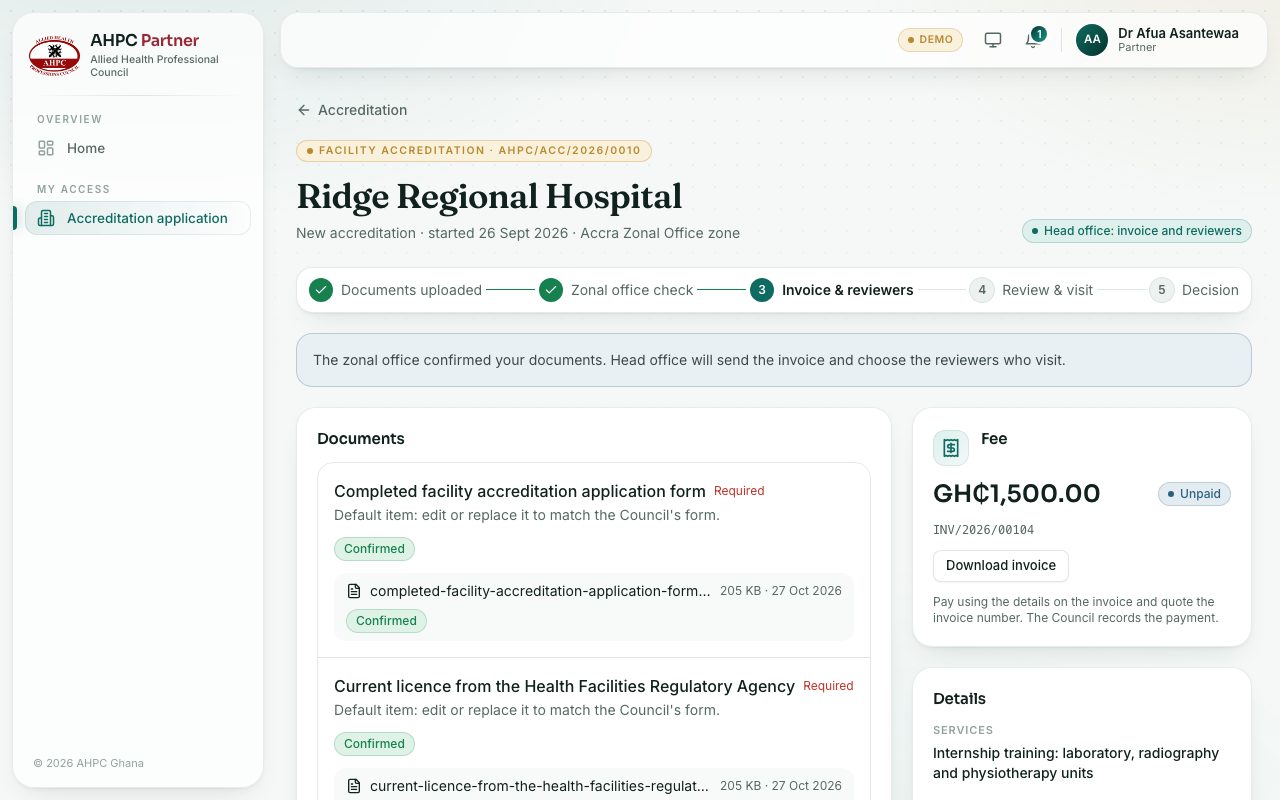
- Invoice & reviewers: head office sends the invoice and chooses the reviewers who visit.
- Review & visit: the reviewers score your institution or facility and arrange the visit.
- Decision: the Council decides.
- If it was Returned to you, read what to fix in the box at the top. Upload the corrected documents, then press Submit again.
- When the invoice arrives, press Download invoice in the Fee box. Pay using the details on the invoice and quote the invoice number. The Council records the payment; then the button says Download receipt.
- When the decision is made, it shows at the top: Approved (with the date it is accredited until), Approved with conditions (with the conditions), or Not approved with the reasons.
What you will see
- The blue box under the step bar says what happens next, for example Your zonal office is checking the documents.
- The History box lists every step and when it happened. You are also told by email.
- A document marked Not accepted shows why under it.
Check yourself
Pick an answer for each question, then press Check my answers. Nothing is saved or sent.