
Look up store items
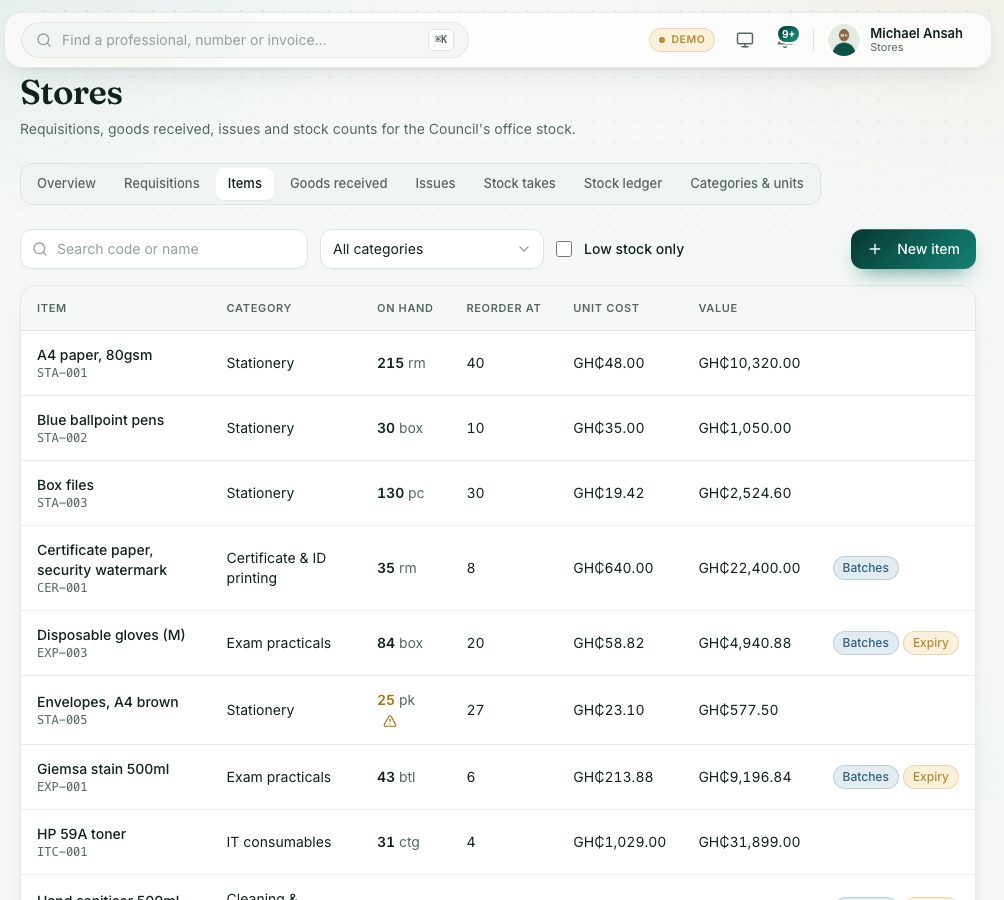
Store Items lists everything the Council keeps in stock, with what is on hand, the reorder level, the cost and the value. Open an item to see its batches and full history.
What you will learn
- Search and filter the item list
- Spot low-stock items
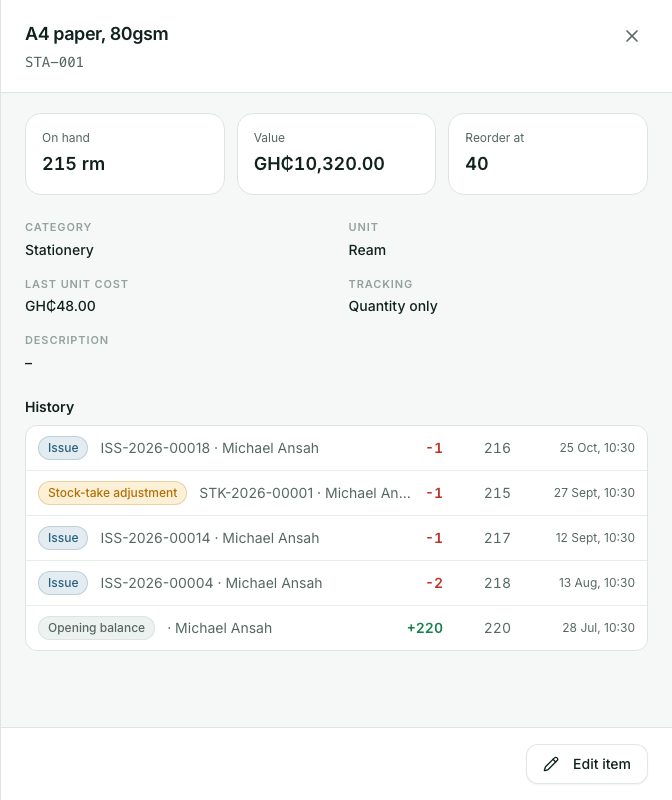
- Open an item and read its history
demo.ahpcghana.com/staff/stores/items
Step by step
- In the left menu, open Stores → Store Items.
- Type in Search code or name, choose a category in All categories, or tick Low stock only.
- Read the columns:
- Item and its code, and Category.
- On hand with the unit. Amber with a warning sign means it is low.
- Reorder at, Unit cost and Value (in GH₵).
- Badges: Batches (tracked by batch), Expiry (expiry dates kept) and Inactive.
- Click an item to open it. You see On hand, Value and Reorder at, the details, any batches with their expiry dates, and the History of every movement.
- Stores staff can press Edit item at the bottom to change it.
demo.ahpcghana.com/staff/stores/items
What you will see
- At or below the reorder level. Store staff get an alert.: shown on a low item.
- In History, green numbers are stock in and red numbers are stock out, with the balance after each one.
Check yourself
Pick an answer for each question, then press Check my answers. Nothing is saved or sent.