
ID cards: photo, PDF and replacement
Add or change the passport photo printed on a card, open the card PDF for printing, and replace a lost or damaged card.
What you will learn
- Set a professional’s passport photo
- Open the card PDF
- Replace a collected card, with or without the fee
demo.ahpcghana.com/staff/id-cards
Step by step
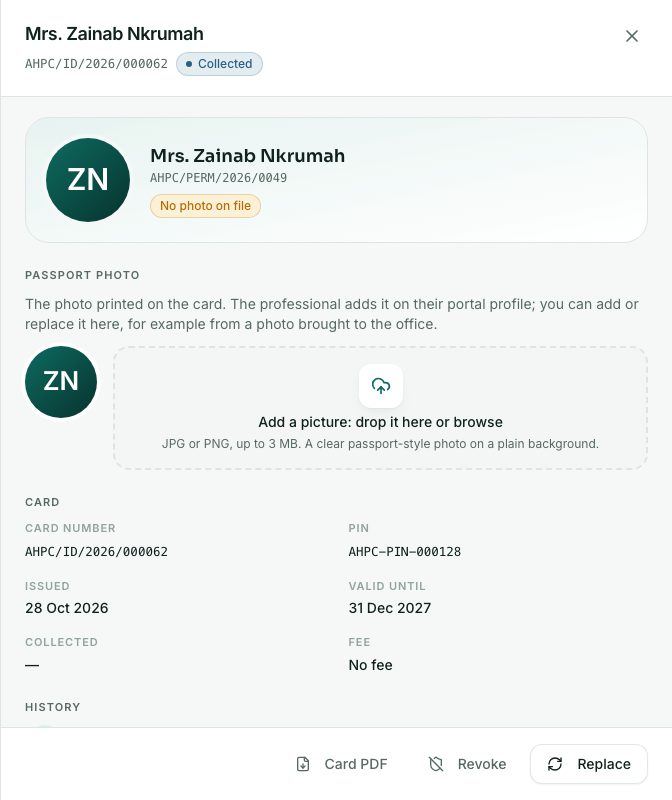
- Open the card from ID Cards.
- To set the photo, use the Passport photo section:
- Choose a JPG or PNG file of up to 3 MB: a clear passport-style photo on a plain background.
- This is useful when the professional brings a photo to the office. The new photo shows at once.
- The same photo is used for PIN renewal and the face check, so a professional with no photo can renew once you have added it.
- To print, press Card PDF. It opens the card ready for the printer. It is available once the card is approved.
- To replace a collected card, press Replace:
- Type the Reason, for example Lost, Damaged or Name changed.
- Leave Charge the replacement fee ticked, or untick it to waive the fee (for example when the Council made a mistake).
- Press Replace card.
What you will see
- A No photo on file badge when the professional has no photo yet.
- After a replacement, the old card shows as Replaced and stops being valid. The new card opens, already approved.
- The replacement fee invoice is in GH₵ under Accounts → Other payments → Replacement: Cards.
Check yourself
Pick an answer for each question, then press Check my answers. Nothing is saved or sent.