
Prepare the annual procurement plan
The procurement plan lists what the Council will buy in the year, how, when and at what estimated cost. It is submitted for approval, and shows how actual spending compares.
What you will learn
- Create the year's plan and add lines
- Submit it for approval, and approve or send it back
- Update a line's progress
- Start a tender from a plan line
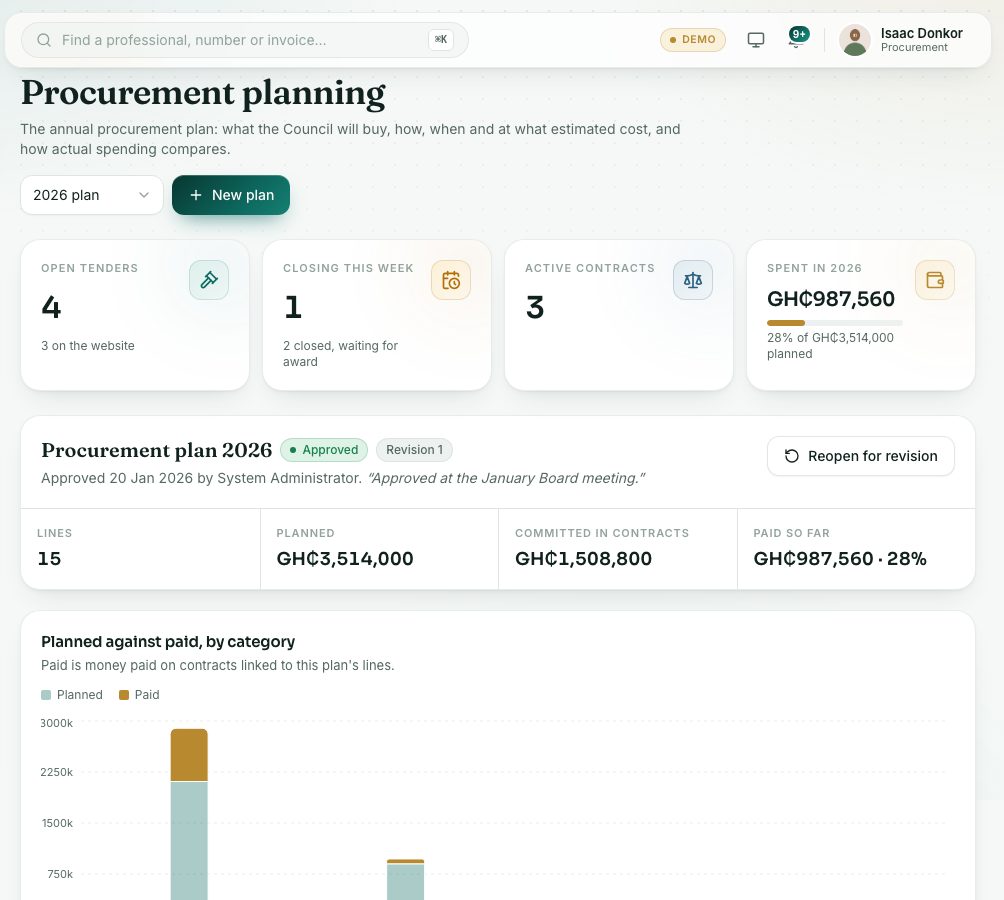
demo.ahpcghana.com/staff/procurement/plans
Step by step
- In the left menu, open Procurement → Procurement Planning. Pick another year with the year box at the top right.
- For a new year, press New plan, choose the Year, give it a Title and press Create plan.
- Press Add line for each purchase:
- What is being bought, Category (Goods, Works, Services or Consultancy) and Method (for example National Competitive Tendering or Request for Quotations).
- Estimated cost (GH₵), Requesting unit and Source of funds.
- Quarter, Planned start and Planned completion, and Notes.
- When every line is in, press Submit for approval.
- An approver opens the plan and presses Approve, or Send back with what needs to change.
- Through the year, click a line to update its Progress (Planned, In progress, Completed or Cancelled).
- Press Start tender on a line to open a new tender already filled in from it.
What you will see
- Draft, Waiting for approval or Approved, with who submitted or approved it and when.
- The totals: Lines, Planned, Committed in contracts and Paid so far.
- Each line's Actual bar shows what is committed and paid on contracts linked to it, and its tenders appear in the Tender column.
Check yourself
Pick an answer for each question, then press Check my answers. Nothing is saved or sent.