
Create a staff account
Give a new member of staff a sign-in to the staff console with the roles they need. The portal makes a temporary password for you to pass on.
What you will learn
- Create a staff account
- Choose the right roles
- Hand over the temporary password safely
Staff accounts are for Council staff only. Professionals don’t need one: they create their own account in the portal.
demo.ahpcghana.com/staff/users
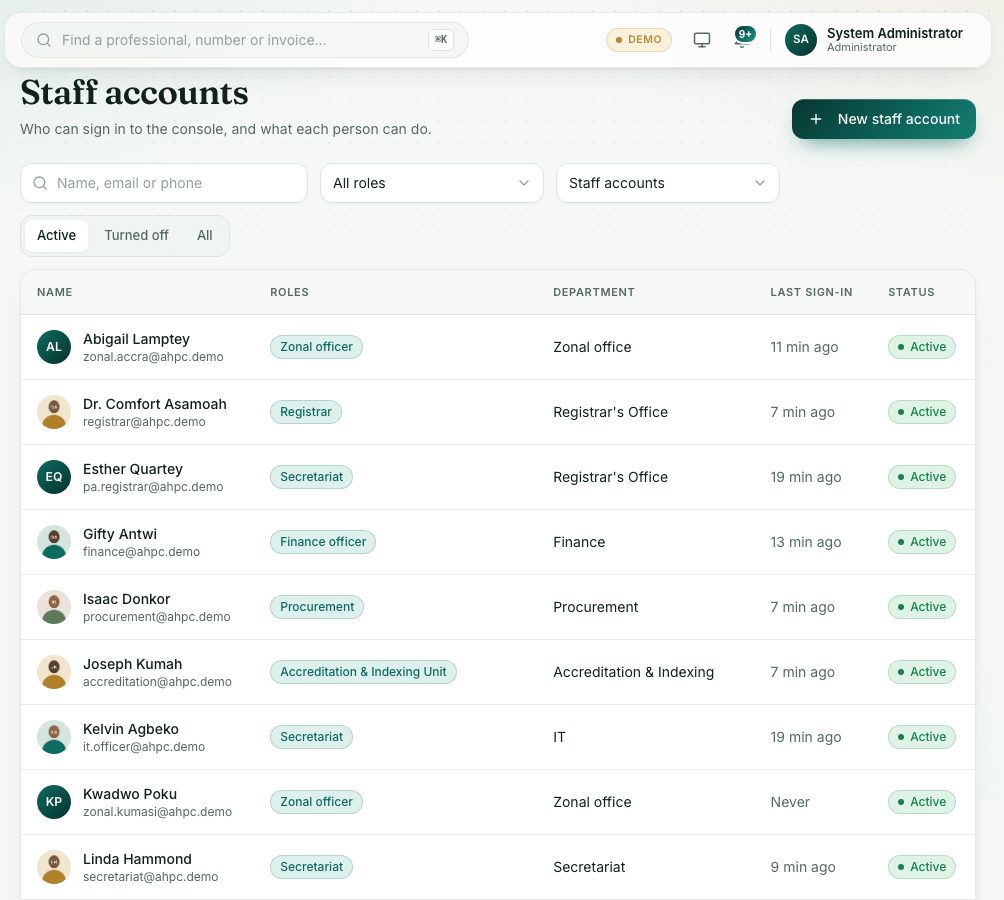
demo.ahpcghana.com/staff/users
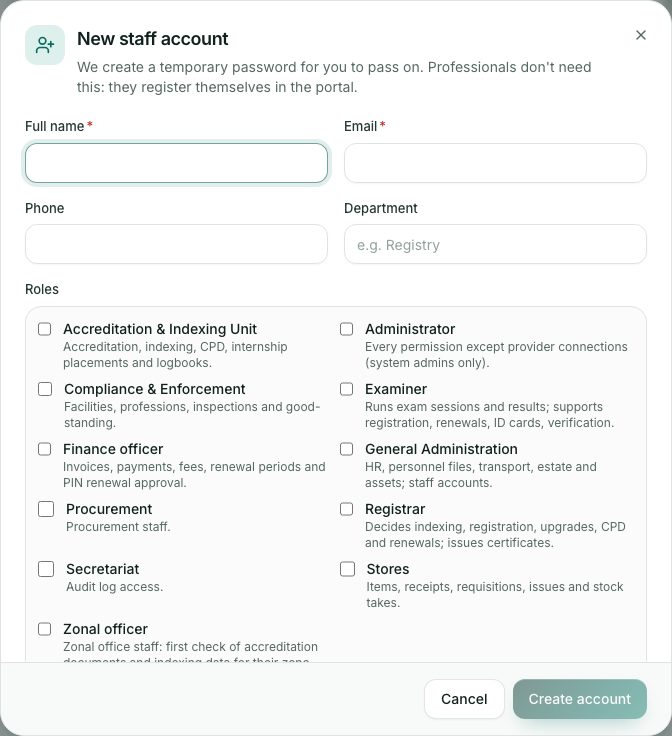
Step by step
- In the left menu, open System administration and press Staff accounts.
- Press New staff account at the top right.
- Type the Full name and Email. Add the Phone and Department if you have them.
- Under Roles, tick one or more roles. Each role shows a short description of what it covers.
- Only a system administrator sees the System administrator switch. Turn it on only for someone who must have full access, including Connections & system.
- Press Create account.
- A box called Temporary password shows the password once. Press Copy, give it to the person privately, then press I’ve saved it.
What you will see
- The new account opens straight away so you can check it.
- In the list, the status shows Active, Locked or Turned off.
Check yourself
Pick an answer for each question, then press Check my answers. Nothing is saved or sent.