
Registration windows
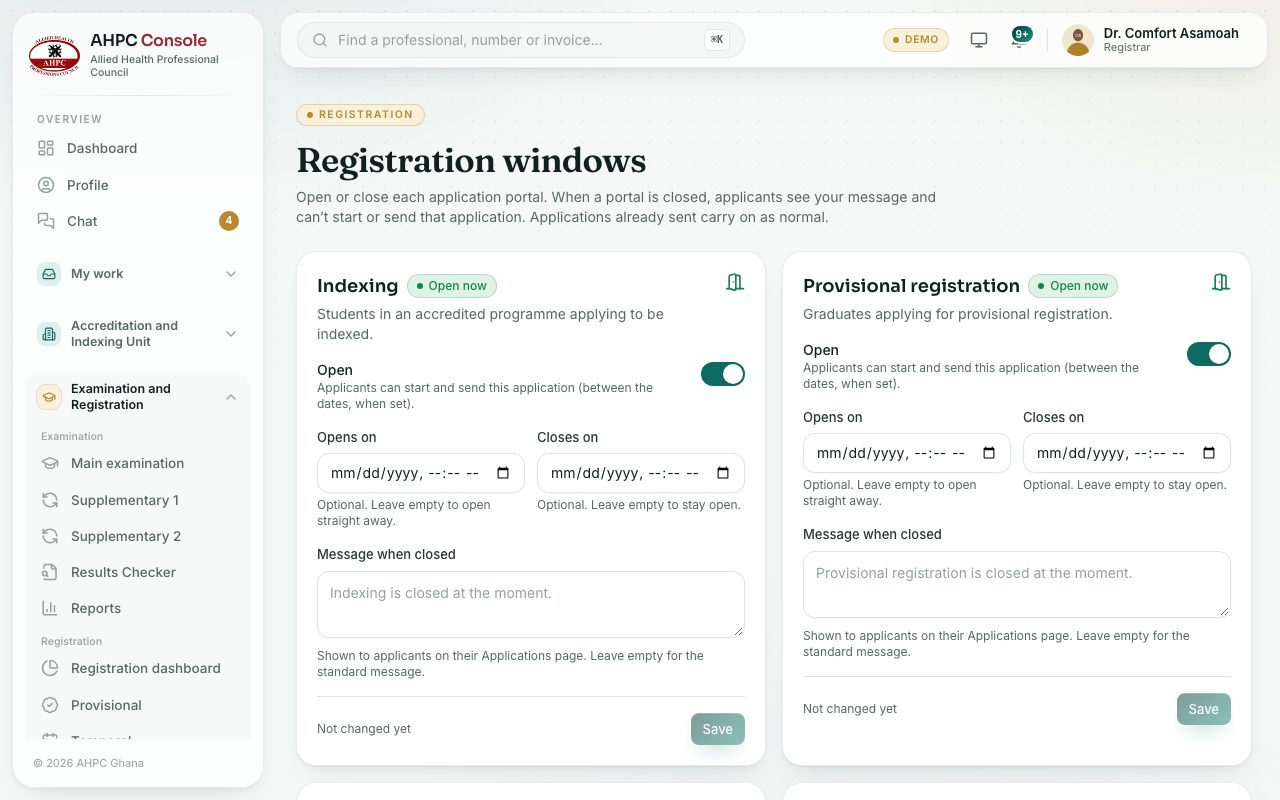
Open or close each application portal, set dates, and write the message applicants see while it is closed.
What you will learn
- Open or close a portal
- Set opening and closing dates
- Write the closed message
- See the renewal periods
demo.ahpcghana.com/staff/registration-windows
Step by step
- In the left menu, choose Registration windows.
- Find the card: Indexing, Provisional registration, Temporary registration, Permanent registration, Registration upgrade, Foreign-trained registration or Licensure exam applications.
- Use the switch to set it Open or Closed.
- If you like, set Opens on and Closes on. Leave them empty to open straight away or stay open.
- In Message when closed, type what applicants should see, or leave it empty for the standard message.
- Press Save. Press Undo to go back to what was saved.
What you will see
- A yellow box Applicants see now shows the exact message while a portal is closed.
- Under each card: who last changed it and when.
- The Renewal / Good Standing card lists the renewal periods open today.
Check yourself
Pick an answer for each question, then press Check my answers. Nothing is saved or sent.