
Find accounts without a staff role
Staff accounts lists only accounts with a staff role. Show the other accounts to find someone who has a sign-in but no staff role, and make them staff.
What you will learn
- Show accounts without a staff role
- Find a staff member whose email “already exists”
- Give an account a staff role
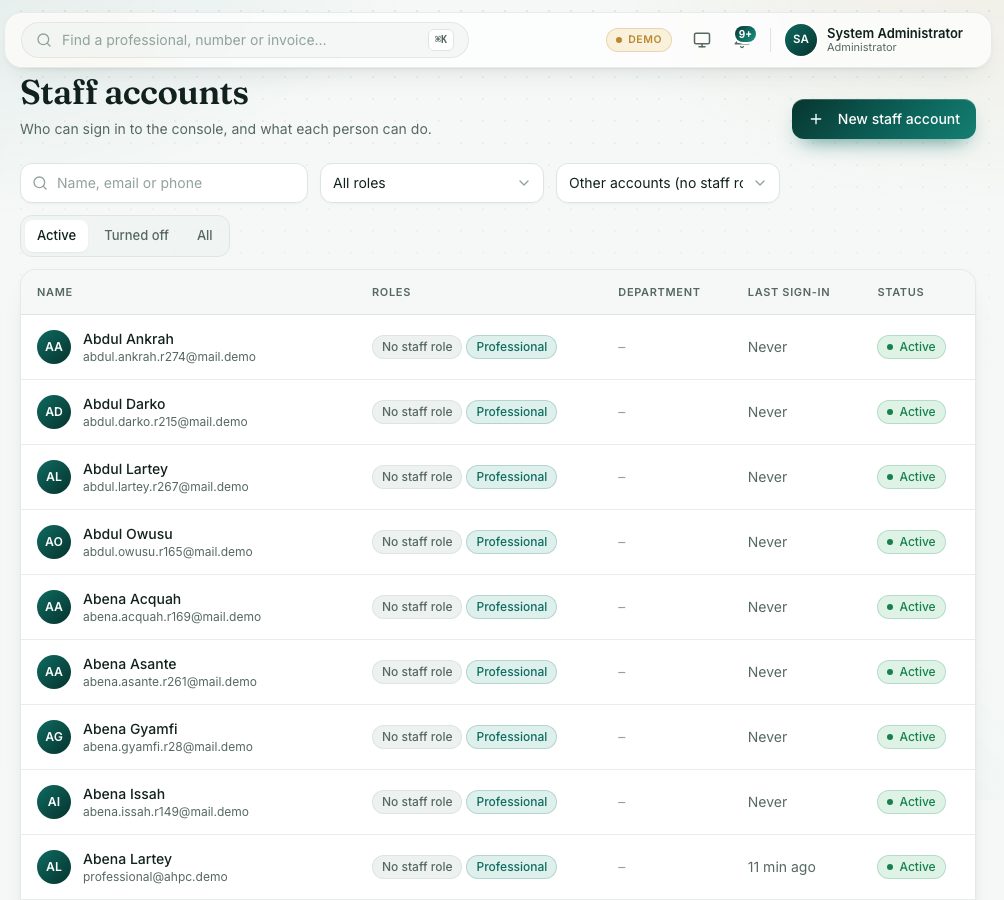
Some people have a sign-in but no staff role: for example staff brought over from the old system, or someone who first made a portal account with their work email. They don’t appear in the normal list, and New staff account says An account with this email already exists. Show the other accounts to find them.
demo.ahpcghana.com/staff/users
Step by step
- Open System administration → Staff accounts.
- Next to All roles, open the list box that says Staff accounts and choose:
- Other accounts (no staff role): only accounts without a staff role.
- All accounts: staff and other accounts together.
- Search by name, email or phone. Accounts without a staff role show a grey No staff role label.
- Click the account. A yellow note says This account has no staff role, so it can’t use the console. Tick a role under Roles and save to make it a staff account.
- Check it is the right person: the name, email and phone.
- Tick the roles they need under Roles, fill in the Department if it is empty, and press Save changes.
- Set the list box back to Staff accounts. The person is now in the staff list and can sign in to the staff console with their usual password.
What you will see
- A migrated member of staff you couldn’t find before, now listed under Other accounts.
- After you save, the No staff role label is gone.
Check yourself
Pick an answer for each question, then press Check my answers. Nothing is saved or sent.