
Meeting appointments, minutes and actions
See every meeting, book Council and committee meetings and rooms, record minutes and turn action items into tasks.
What you will learn
- See all meetings and room bookings
- Book a Council or committee meeting
- Record minutes, attendance and action items
- Cancel or change a meeting
demo.ahpcghana.com/staff/secretariat/meetings
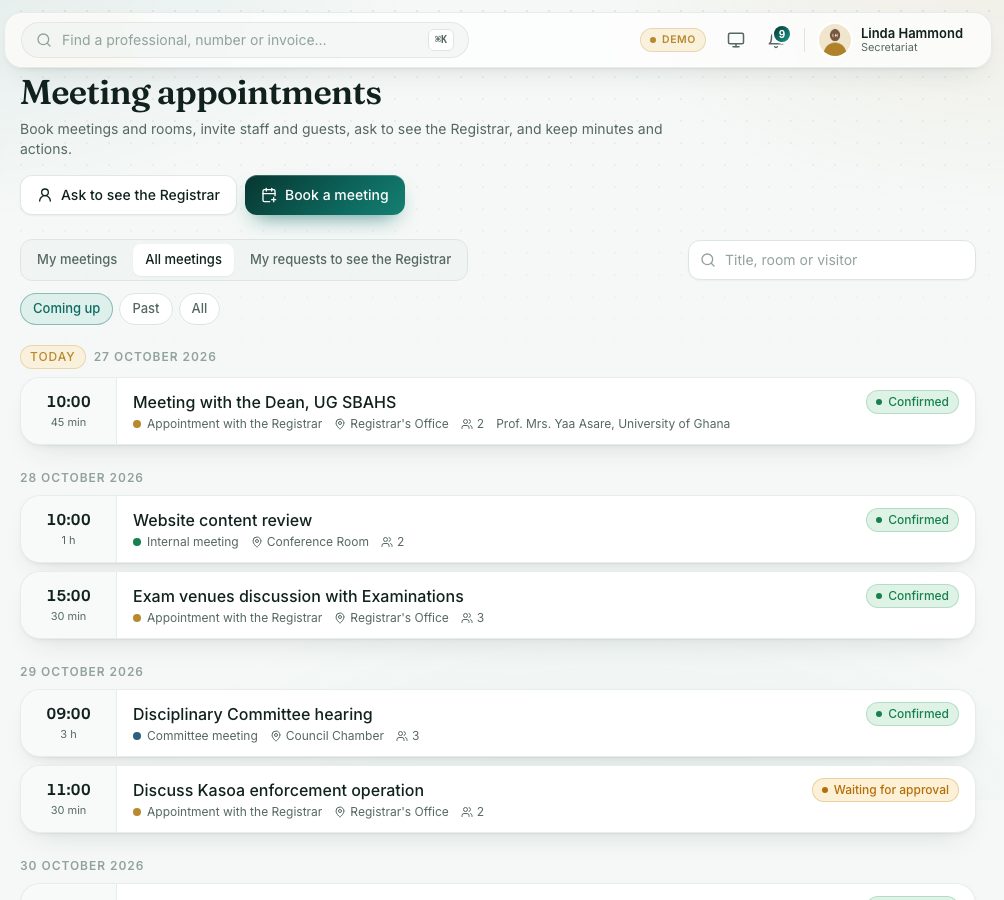
demo.ahpcghana.com/staff/secretariat/meetings
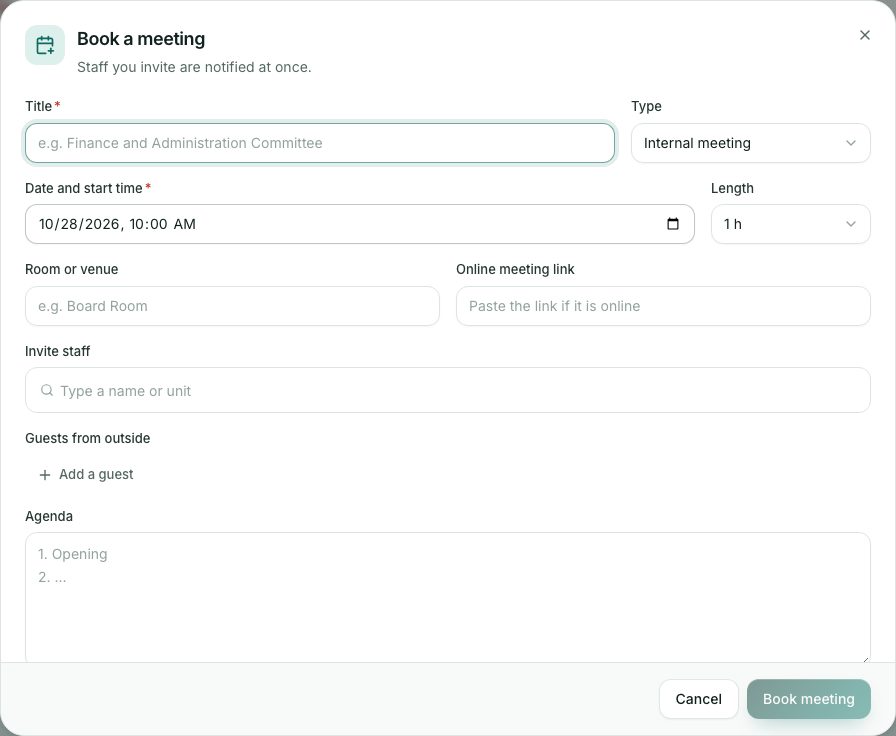
Step by step
- In the left menu, open Secretariat and press Meeting appointments. You see All meetings.
- Use Coming up, Past or All, or search by title, room or visitor.
- Press Book a meeting.
- Choose the Type: Internal meeting, Appointment with the Registrar, External visitor, Committee meeting or Council meeting.
- Fill in Title, Date and start time, Length, Room or venue or Online meeting link, and the Agenda.
- For a visitor, fill in Visitor's name (if booking for a visitor) and Organisation.
- Invite colleagues in Invite staff and outside people with Add a guest.
- Tick Put it on the Registrar's schedule if the Registrar is attending.
- Press Book meeting. If the room is taken, the form says so: choose another room or time.
- After the meeting, open it and press Record minutes.
- Tick Who attended and write the Minutes.
- Under New action items, write what must be done, who (staff, or the name of someone outside the staff) and a Due date. Press Add an action for more.
- Tick Mark the meeting as held and press Save minutes. Attendees are told, and actions given to staff become tasks under their assignments.
- To change or call off a meeting, open it and press Edit or Cancel meeting. Everyone invited is told.
What you will see
- Statuses: Waiting for approval, Confirmed, New time, Held, Cancelled.
- Each attendee's reply: Invited, Coming or Can't come.
- The Registrar is busy around then: the Registrar already has something at that time.
Check yourself
Pick an answer for each question, then press Check my answers. Nothing is saved or sent.