
Your profile, photo and staff ID card
See your details and roles, add your staff photo, and preview and download your staff ID card.
What you will learn
- Check your details and roles
- Add or replace your profile picture
- Preview both sides of your staff ID card and download it
Your profile is your staff account. Your name, unit (department) and roles are set by an administrator. You can add your own profile picture. The Secretariat uses that picture on your staff ID card.
demo.ahpcghana.com/staff/profile
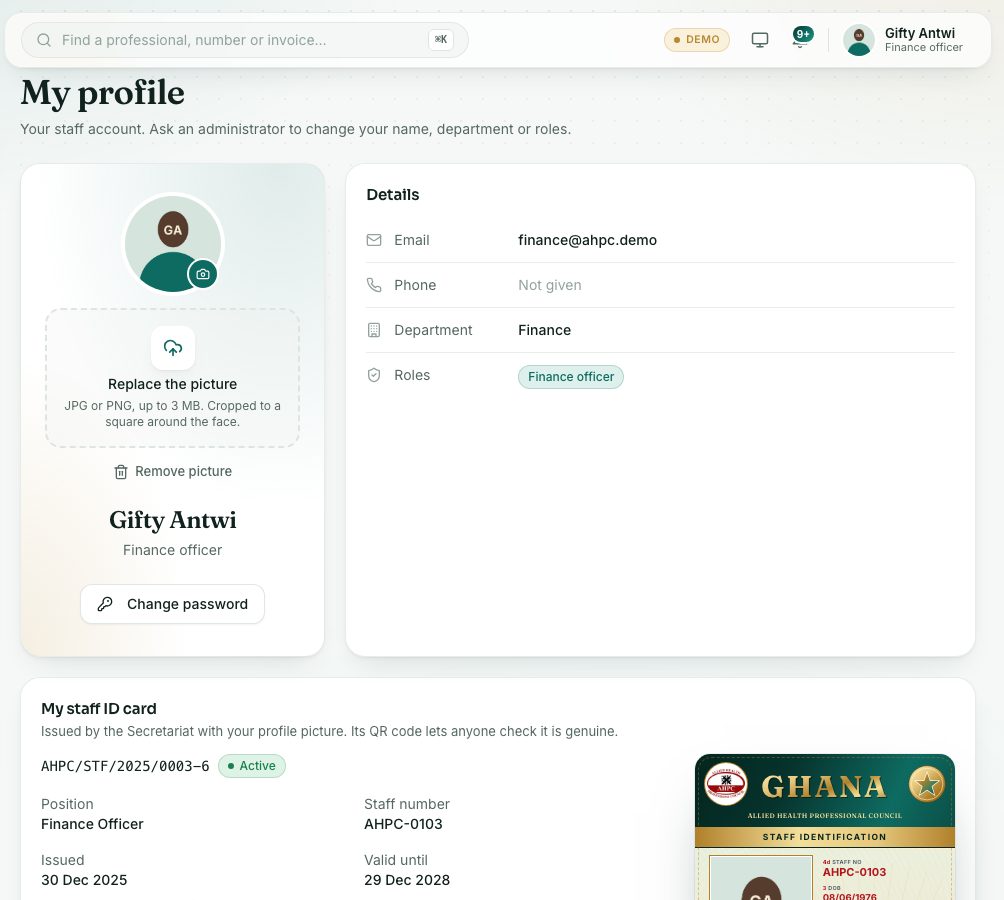
demo.ahpcghana.com/staff/profile
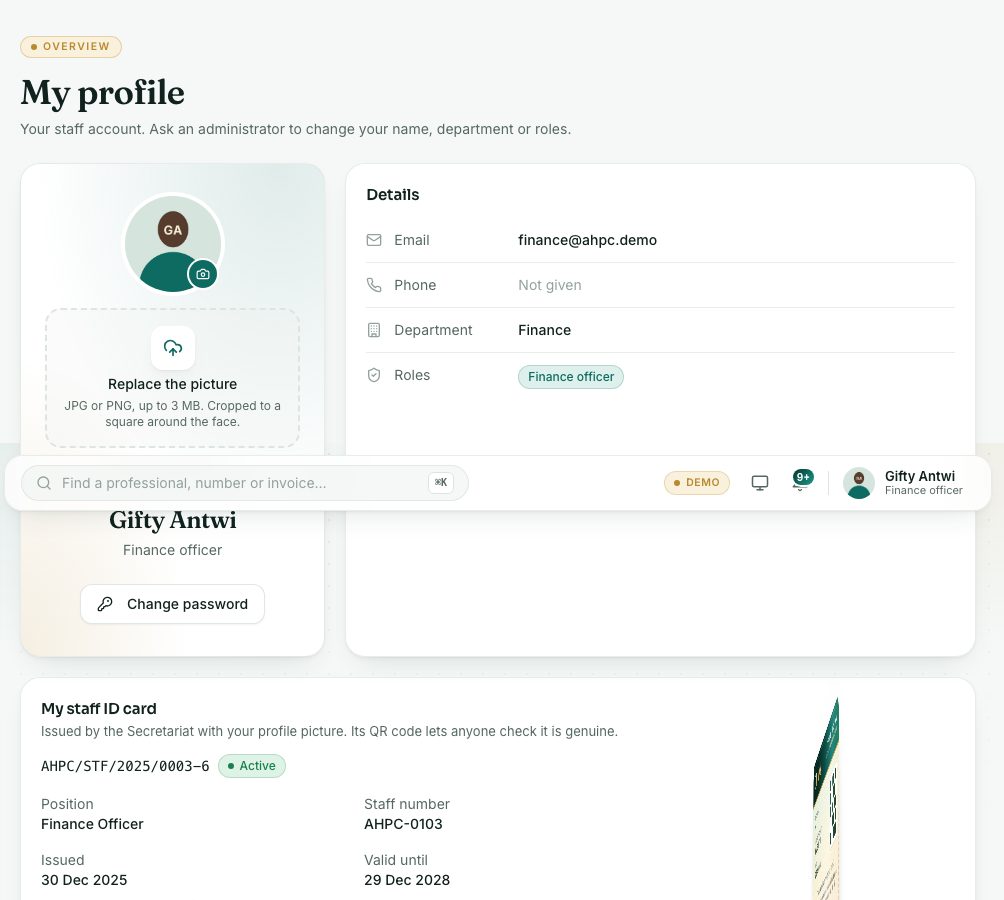
Step by step
- In the left menu, under Overview, press Profile. The page is called My profile.
- Check the Details card: Email, Phone, Department and Roles. Not given means nothing is on file.
- To add your picture, drop a photo on Add a picture: drop it here or browse under your name, or press it to choose a file.
- Use a JPG or PNG of up to 3 MB. It is cropped to a square around the face.
- Use a clear, recent head-and-shoulders photo: it goes on your staff ID card.
- To change it later, use Replace the picture. To take it off, press Remove picture.
- Look at My staff ID card at the bottom.
- It shows the card number, its status, your Position, Staff number, Issued and Valid until dates.
- The picture on the right is a preview. Press Turn over to see the back (blood group, emergency contact and the QR code), and press it again for the front.
- Press Download my card to save a copy.
What you will see
- You don't have a staff ID card yet.: ask the Secretariat to issue one. If you have no picture, add one first.
- A status of Active: the card is valid. Expired, Replaced, Reported lost or Revoked: it is no longer valid. Ask the Secretariat for a new one.
- You can also press Change password here, under your picture.
Check yourself
Pick an answer for each question, then press Check my answers. Nothing is saved or sent.