
Record a payment made at the office or bank
When a professional pays cash, by cheque, by bank transfer or at the office, record it on the invoice. The invoice is marked paid and the receipt is ready at once.
What you will learn
- Record an office or bank payment on an invoice
- Fill in the method, date and reference correctly
- Know what happens after you record it
demo.ahpcghana.com/staff/invoices?status=issued
Step by step
- Find the invoice: type the invoice number, name or registration number in the search box of any invoice list.
- Click the invoice. It must be Unpaid or Overdue.
- Press Record payment at the bottom of the panel.
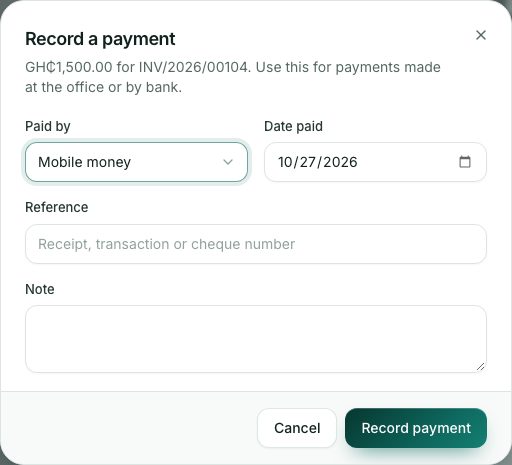
- Fill in the form:
- Paid by: Mobile money, Card, Bank transfer, Cash or Cheque.
- Date paid: today, or the day the money was paid. It can't be in the future.
- Reference: the receipt, transaction or cheque number, for example CHQ 004512.
- Note (optional): anything a colleague should know.
- Press Record payment. You see Payment recorded. The receipt is ready.
What you will see
- The invoice changes to Paid, and the payment shows in Live Payments as Recorded by staff.
- The professional is told the invoice is paid, and the application it was for moves on (for example an exam candidate is admitted).
- The Receipt button appears on the invoice.
Check yourself
Pick an answer for each question, then press Check my answers. Nothing is saved or sent.