
Record bids, evaluate and award
Record each sealed bid as it is opened, mark late bids, evaluate the responsive ones with scores, and award the tender to the successful bidder.
What you will learn
- Record a bid and attach it
- Start and save the evaluation
- Award the tender
- Know which bids can't be awarded
demo.ahpcghana.com/staff/procurement/tenders
Step by step
- Open the tender from Procurement → Current Tenders list and press the Bids tab.
- Press Record a bid for each bid:
- Supplier: if they are not listed, add them on Approved Suppliers List first (they can stay pending).
- Bid amount (GH₵) as read out at the opening, and when it was Received.
- Tender security: Not checked yet, In order, or Missing or not valid.
- Press Record bid. Then use Attach the bid to add the scanned bid.
- After closing, press Start evaluation at the bottom and confirm.
- On the Evaluation tab, mark each bid Responsive or Not responsive, give technical and financial scores if the tender uses them, add notes, fill in Evaluation panel notes and press Save evaluation. The bids are ranked.
- Press Award. The top-ranked bid is chosen for you. Change the Contract sum (GH₵) only after arithmetic corrections, add Notes (for example the tender committee approval) and press Award.
- Then write the award notice (Notices tab → Write a notice) and press Create contract.
What you will see
- A bid received after the closing time shows Late: rejected and can't be awarded.
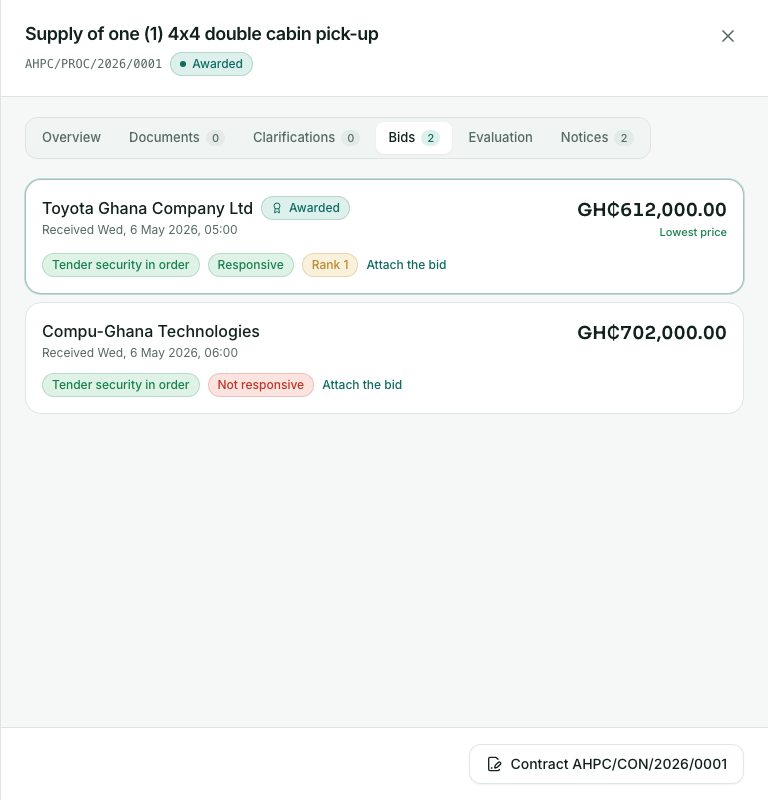
- Badges such as Tender security in order, Responsive, Rank 1 and Lowest price.
- After the award, the tender shows Awarded to … with the amount and date.
Check yourself
Pick an answer for each question, then press Check my answers. Nothing is saved or sent.