
Approve trips and assign vehicles
Staff book an official vehicle for a trip. Transport approves it, assigns a vehicle and driver, and closes the trip with the mileage.
What you will learn
- See the trips waiting for approval
- Approve or turn down a trip
- Assign a vehicle and driver
- Close a trip with the mileage
demo.ahpcghana.com/staff/general-admin/transport
Step by step
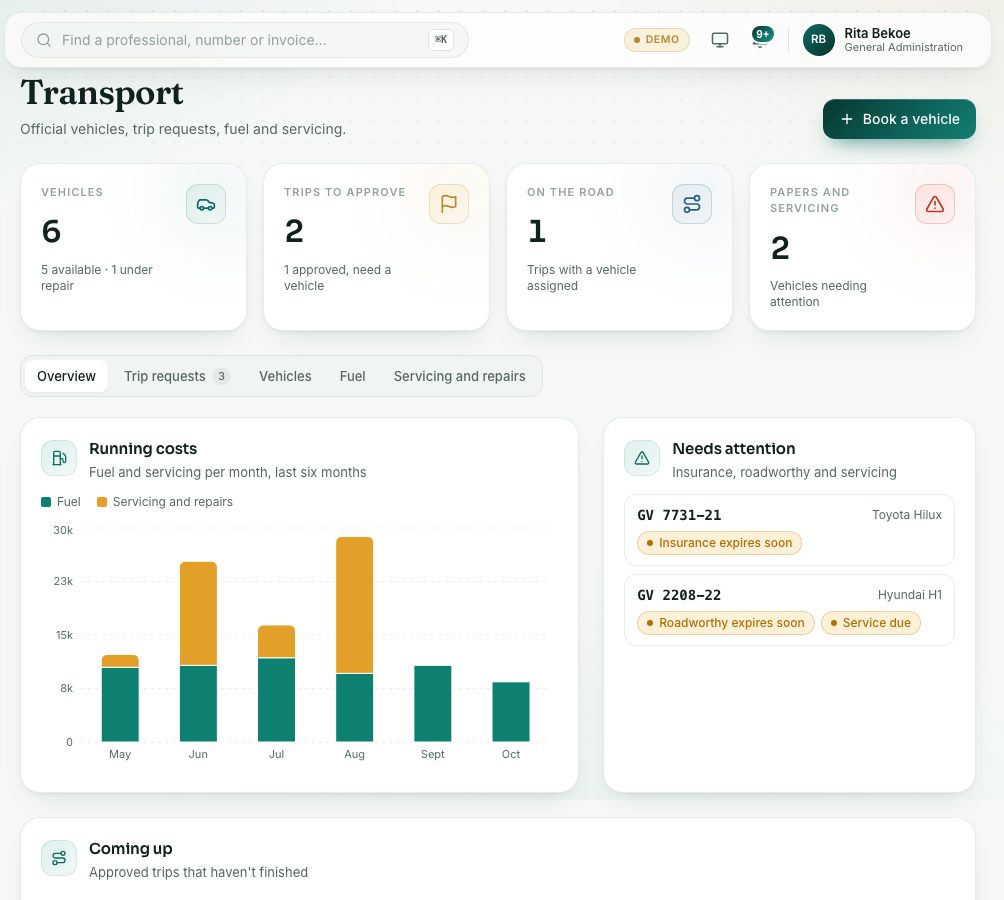
- Open General Administration → Transport. The Overview tab shows Trips to approve, what is on the road and what needs attention.
- Open the Trip requests tab. Filter by status or search by trip number, destination or purpose.
- Click a trip to see who asked, when, where and who is travelling.
- Press Approve, or Don’t approve with a reason.
- Press Assign vehicle. Choose the Vehicle and, if needed, the Driver (the vehicle’s usual driver is chosen for you), then press Assign.
- When the vehicle is back, open the trip and press Close trip. Type the Mileage back (km) and press Close trip.
- To book a trip yourself, press Book a vehicle at the top, fill in Destination, Leaving, Back and Purpose, and press Send request.
What you will see
- Waiting for approval, Needs a vehicle (approved), Vehicle assigned, Completed, Not approved and Cancelled.
- When you close a trip, the box shows the distance. It warns you if the mileage back is lower than the mileage out.
Check yourself
Pick an answer for each question, then press Check my answers. Nothing is saved or sent.