
Sign-ins and activity
See who is signed in now, from which device and place, and sign someone out. Search every sign-in attempt, change and download with its IP address and place, and download the log.
What you will learn
- See who is signed in now and sign someone out
- Look through all sign-ins
- Search and filter the activity log
- Download the activity log as Excel or PDF
Every sign-in, sign-out, change and download in the portal is recorded with the person, the time, the device, the IP address (the computer’s network address) and the place (town or city) it came from. The place is worked out from the IP address, so it is only a guide: a mobile network may show a nearby city.
demo.ahpcghana.com/staff/sign-ins
demo.ahpcghana.com/staff/sign-ins
Step by step
- In the left menu, open System administration and press Sign-ins and activity. The page opens on the Sign-ins tab.
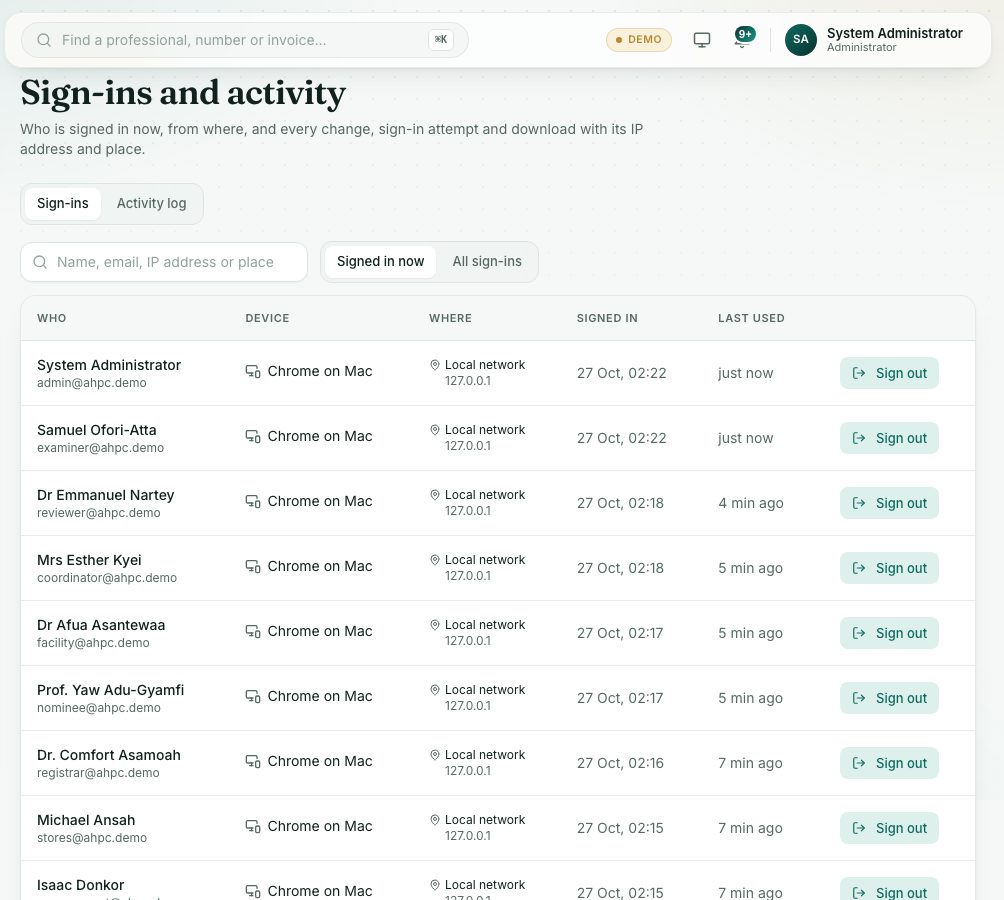
- Signed in now lists everyone using the portal at the moment: Who, Device, Where (place and IP address), Signed in and Last used.
- Search by name, email, IP address or place.
- The list refreshes by itself every 30 seconds.
- To end someone’s sign-in, press Sign out on their row.
- Add a reason if you like, then press Sign out to confirm. That device is signed out straight away.
- The person sees The Council signed you out. Sign in again. and can sign in again, on that device or another.
- Press All sign-ins to see older sign-ins too. Each one says how it ended, for example Signed out when idle or Signed out by an administrator.
- Open the Activity log tab.
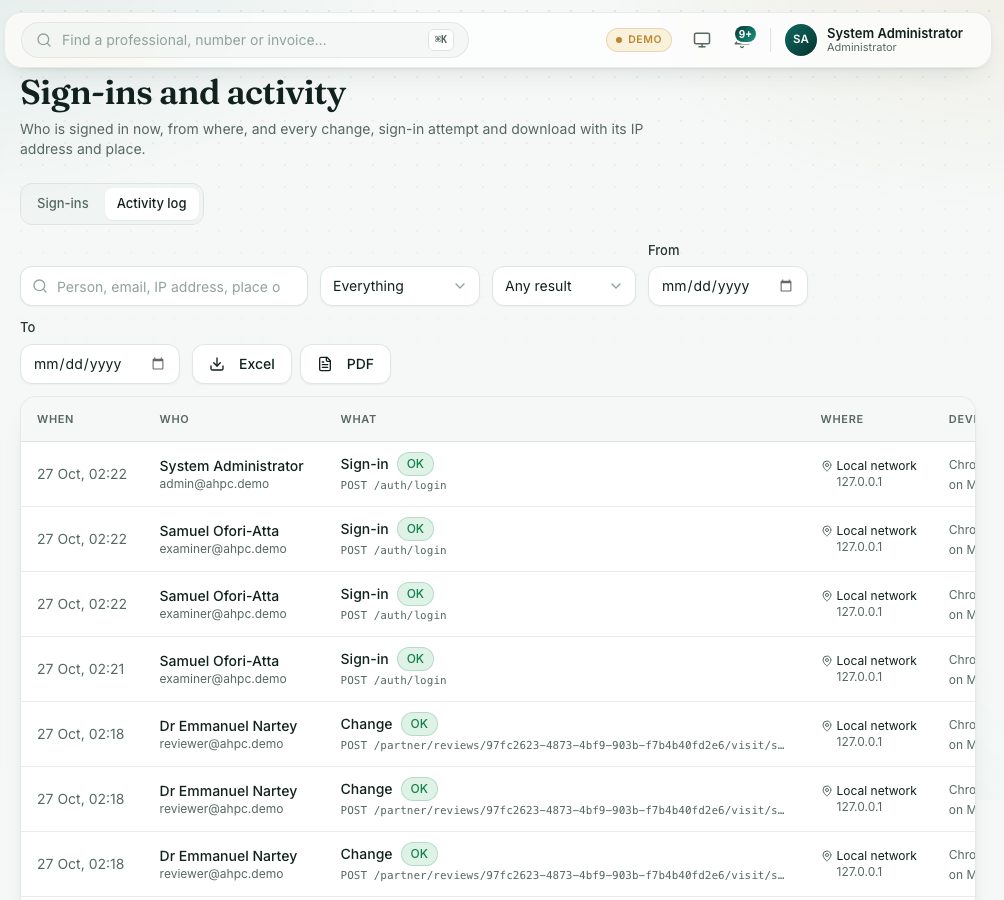
- Search by person, email, IP address, place or page address.
- Narrow it with Everything (choose Sign-in, Sign-out, Change, Delete or Download), Any result (OK or Refused), and the From and To dates.
- Each row shows When, Who, What (with OK or Refused), Where and Device.
- Press Excel or PDF to download every entry that matches your filters (up to 5,000). The download carries your name as a watermark.
What you will see
- Refused sign-ins: a wrong password, a locked account, or someone already signed in on another device.
- Local network: the computer was on the office’s own network, so there is no town to show. Place unknown: the place couldn’t be worked out from the IP address.
- Nobody is signed in right now. when the list is empty.
Check yourself
Pick an answer for each question, then press Check my answers. Nothing is saved or sent.