
Approve leave requests
Every leave request goes to the person’s supervisor first and then to HR. See what is waiting, approve it or say why not.
What you will learn
- Find the leave requests waiting for you
- Read a request and the person’s balance
- Approve a request, or turn it down with a reason
- Record leave for someone else
A leave request moves in two steps. The supervisor named on the person’s personnel file approves first. HR then gives the final approval, and only then do the days come off the balance. If no supervisor is on file, the request goes straight to HR.
Weekends and public holidays don’t count against anyone’s days.
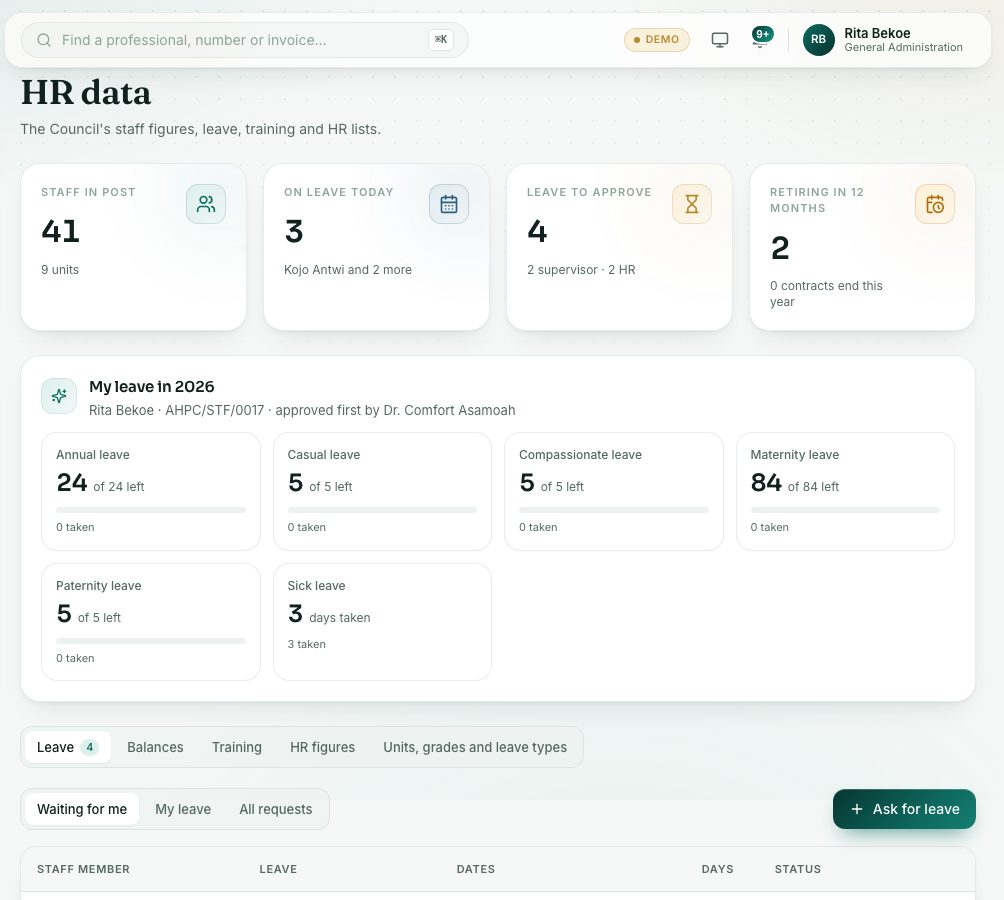
demo.ahpcghana.com/staff/general-admin/hr
Step by step
- In the left menu, open General Administration and press HR data.
- Look at the Leave to approve box at the top. It shows how many requests wait for a supervisor and how many wait for HR.
- On the Leave tab, pick the list you want:
- Waiting for me: requests you can decide now.
- My leave: your own requests.
- All requests: everyone’s requests. Filter by status, leave type and year, or search by name, staff number or request number.
- Click a request. A panel opens with the dates, the working days, who covers the work, the steps so far and the person’s balances for the year.
- Decide:
- Press Approve (or Approve as supervisor at the first step). You can add a note.
- Or press Don’t approve and type the reason. The person sees it.
- To record leave for someone else, press Ask for leave, choose the person in For, then the Leave type, First day and Last day, and press Send request.
What you will see
- Waiting for supervisor (amber) and Waiting for HR (gold): the request is on its way.
- Approved (green): the days are taken off the balance.
- Not approved (red) and Cancelled (grey): nothing comes off the balance.
- A blue box in the form shows about how many working days the dates cover, and how many days the person has left.
Check yourself
Pick an answer for each question, then press Check my answers. Nothing is saved or sent.