
Revenue on the dashboard
See the fees collected by month, type, profession, region, district and zonal office, for a calendar year or any paid-between dates.
What you will learn
- Open the Revenue tab
- Look at any period with the paid-between dates
- Read revenue by district and by zonal office
- Open the invoices behind a figure
Revenue is counted by the date each invoice was paid, in Ghana cedis (GH₵). By default it shows the calendar year chosen in the filters.
demo.ahpcghana.com/staff/registration-dashboard?tab=revenue
Step by step
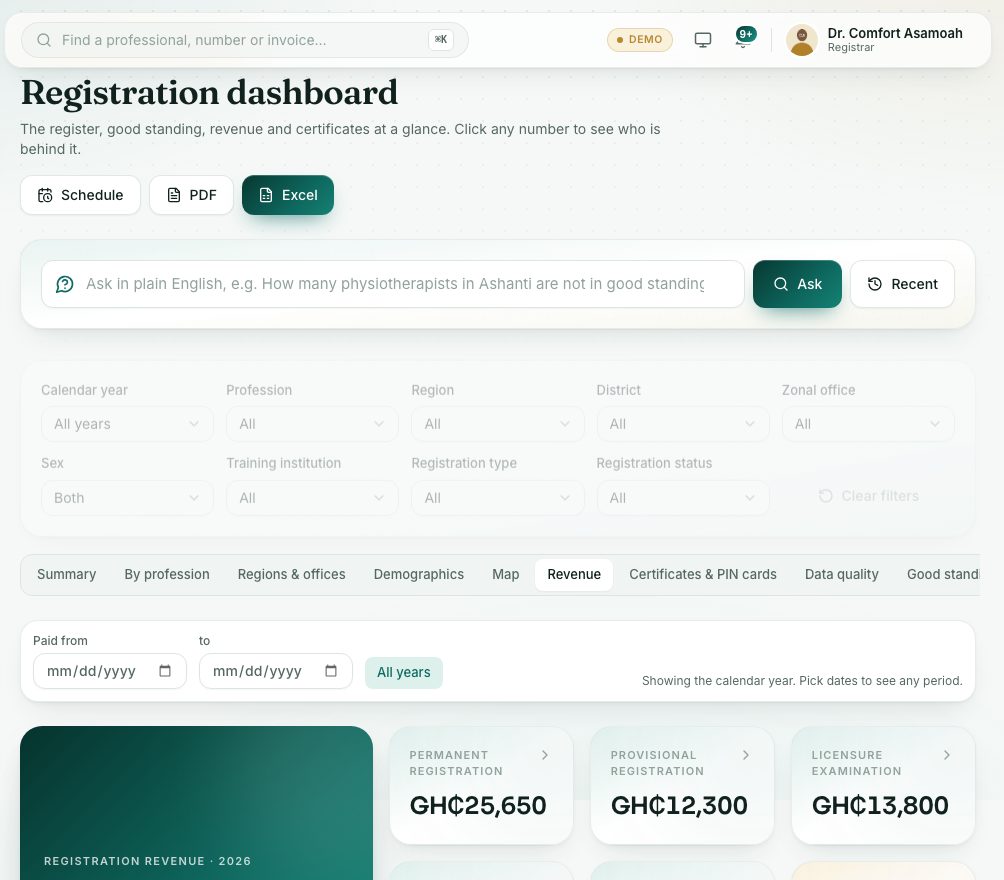
- Open the Registration dashboard and press the Revenue tab.
- Choose the period:
- Leave the dates empty to see the year in Calendar year.
- Or set Paid from and to to see any period, for example one quarter. The dates replace the calendar year for revenue only.
- Press All years to see everything ever collected. Press Back to the calendar year to undo the dates.
- Read the big figure at the top and the cards beside it: revenue by type (permanent, provisional and temporary registration, exams, renewals and late fees).
- The chart shows Revenue by month (or Revenue by year for a long period). Click a bar for the invoices paid then.
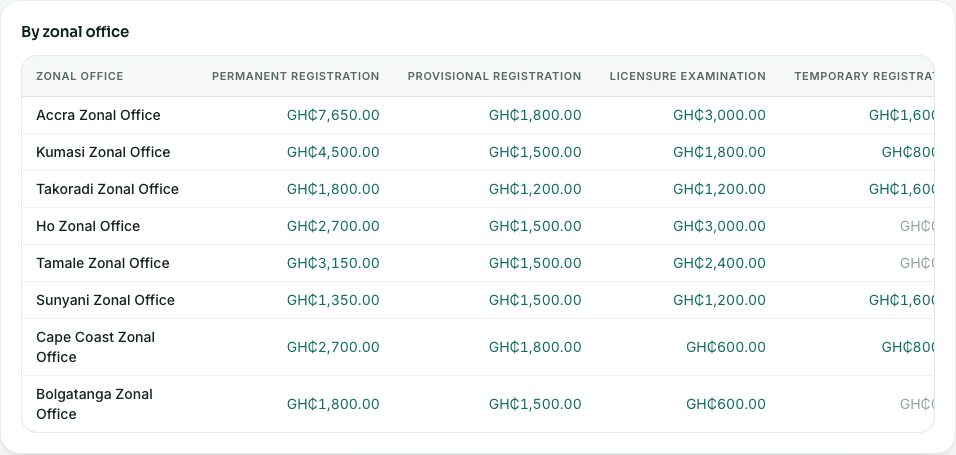
- Scroll down for the tables: by type, by month, by profession, by region, By district and By zonal office.
- Click any amount for the invoices behind it, and download them with Excel or PDF.
demo.ahpcghana.com/staff/registration-dashboard?tab=revenue
What you will see
- The other filters (profession, region, district, zonal office and so on) narrow the revenue too.
- A row such as Zonal office not given collects payments from people whose profile has no zonal office.
Check yourself
Pick an answer for each question, then press Check my answers. Nothing is saved or sent.