
Find your way round the console
The left menu, the search button, the phone menu, light and dark colours, notifications, the Dashboard and the description under each page title.
What you will learn
- Use the left menu: it shows only what your role can open
- Find a professional with the search button
- Open the menu on a phone
- Switch between light and dark
- Read your Dashboard and notifications
- Use the one-line description under each page title
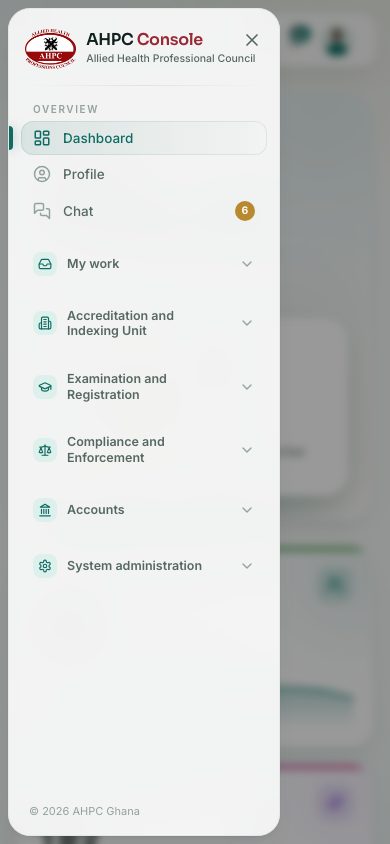
The menu on the left is the same for everyone, but each person only sees the parts their role allows. A Finance officer sees Accounts; a Stores officer sees Stores. Everyone sees Overview and My work.
Step by step
- Look at the left menu.
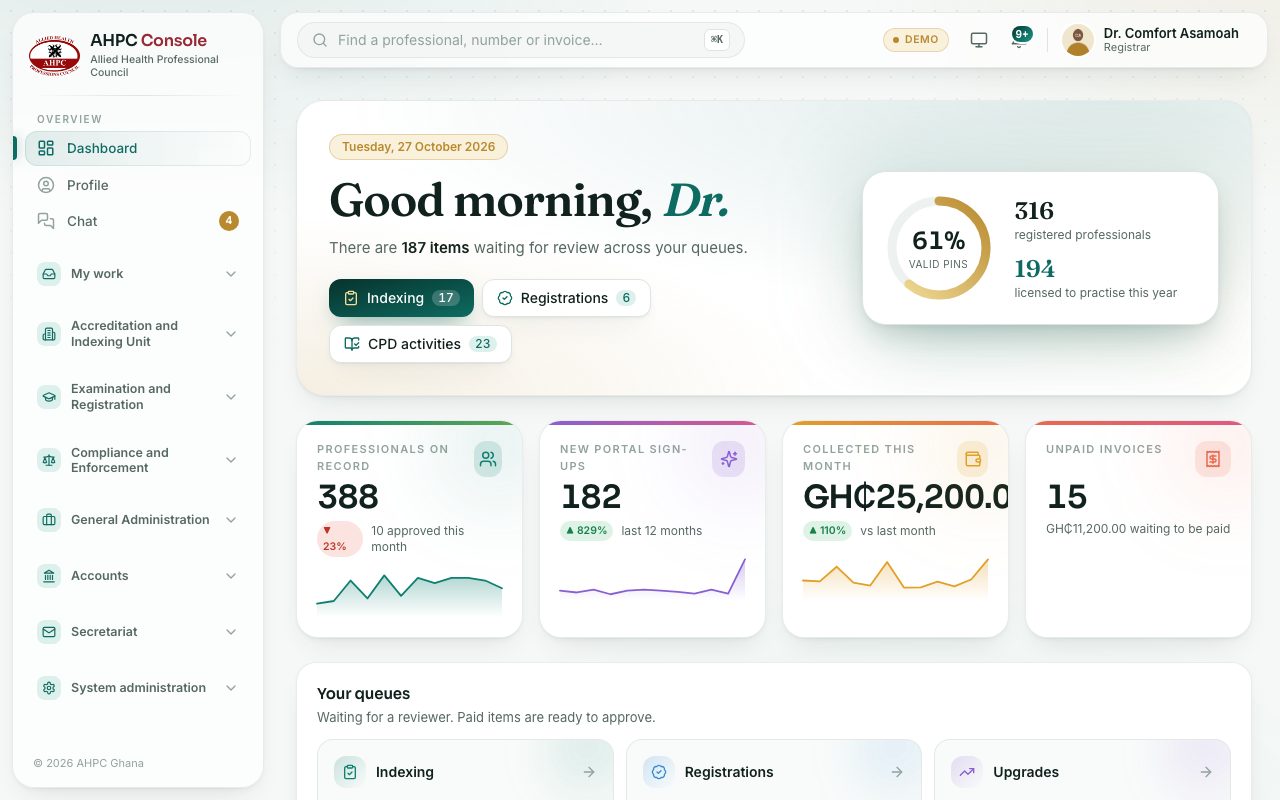
- Overview is always open: Dashboard, Profile and Chat.
- My work holds the everyday things every staff member does: memos, tasks, meetings, letters, documents, IT help, leave, vehicles and repairs.
- Below it are the units your role can use, for example Accounts or Secretariat. Press a unit's name to open it. Opening one unit closes the others.
- To find a professional, press the search bar at the top: Find a professional, number or invoice… (or press Ctrl + K, or ⌘ + K on a Mac).
- Type at least two characters of a name, registration number, PIN, phone or email.
- Use the arrow keys or the mouse to pick a result. Press Enter to open the professional's record.
- This works only if your role can see professionals. Otherwise the search finds nothing.
- On a phone or small screen, the menu is hidden. Press ☰ at the top left to open it, and ✕ to close it.
- To change the colours, press the sun or moon button at the top right. Each press moves through light, dark and system (follows your device).
- Press the bell at the top right to see your notifications. Press one to open the page it is about, or Mark all read.
- Read the line under each page's title. Every page has a one-line description that says what it is for, for example Who can sign in to the console, and what each person can do. under Staff accounts.
Your Dashboard
The Dashboard greets you by first name and says how many items are waiting for review in your queues. The cards at the top show Professionals on record and New portal sign-ups. Staff in Accounts also see Collected this month and Unpaid invoices; staff who check documents see Documents to check and References to confirm.
If your role reviews work, the Your queues card lists each queue (Indexing, Registrations, Upgrades, PIN renewals, CPD activities, Document checks) with the number waiting. Press a queue to open it. Further down are charts: The register, Sign-ups and approvals, Work waiting and Recent activity. Amounts are in Ghana cedis (GH₵).
What you will see
- A small grey line under every page title: what the page is for.
- A unit you expected is missing from the menu: your role doesn't include it. Ask a system administrator.
- A gold number next to Chat: unread messages.
- You're all caught up. in the bell: no new notifications.
Check yourself
Pick an answer for each question, then press Check my answers. Nothing is saved or sent.