
Create an exam session
Set up a new sitting: title, type, dates, profession, venue, seat limit and the papers.
What you will learn
- Create a session as a draft
- Set the application dates and the exam date
- Set the seat limit
- Add the papers
demo.ahpcghana.com/staff/exams?exam_type=primary
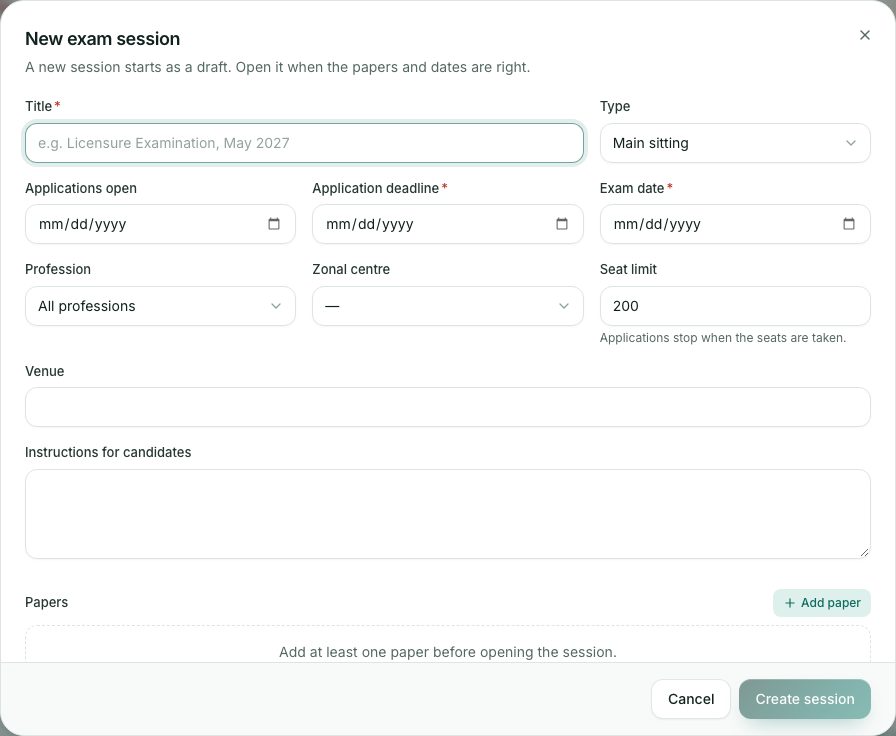
Step by step
- Open Main examination (or a supplementary list) and press New session.
- Type a Title, for example Licensure Examination, May 2027.
- Choose the Type: Main sitting or Resit (supplementary).
- Set Applications open (optional), Application deadline and Exam date.
- Choose a Profession, or leave All professions. Choose the Zonal centre if there is one.
- Set the Seat limit. Applications stop when the seats are taken.
- Type the Venue and any Instructions for candidates.
- Under Papers, press Add paper for each paper. Choose the subject and its date.
- Press Create session. The session opens as a Draft.
Date rules
- Applications must open before the deadline.
- The application deadline must be on or before the exam date.
- You can’t lower the seat limit below the number of seats already taken.
What you will see
- The new session page, with Draft status and the papers on the right, each with its date and pass mark.
Check yourself
Pick an answer for each question, then press Check my answers. Nothing is saved or sent.