
Open an invoice
Open any invoice to see who it is for, what it is for, every payment attempt, and to download the invoice or its receipt.
What you will learn
- Open an invoice from a list
- Read the Billed to, Details and Payments sections
- Download the invoice PDF and, once paid, the receipt
demo.ahpcghana.com/staff/invoices?status=issued
Step by step
- Open an invoice list (for example Accounts → Other payments → Renewal Payment) and click the row. From Live Payments, clicking a payment opens its invoice too.
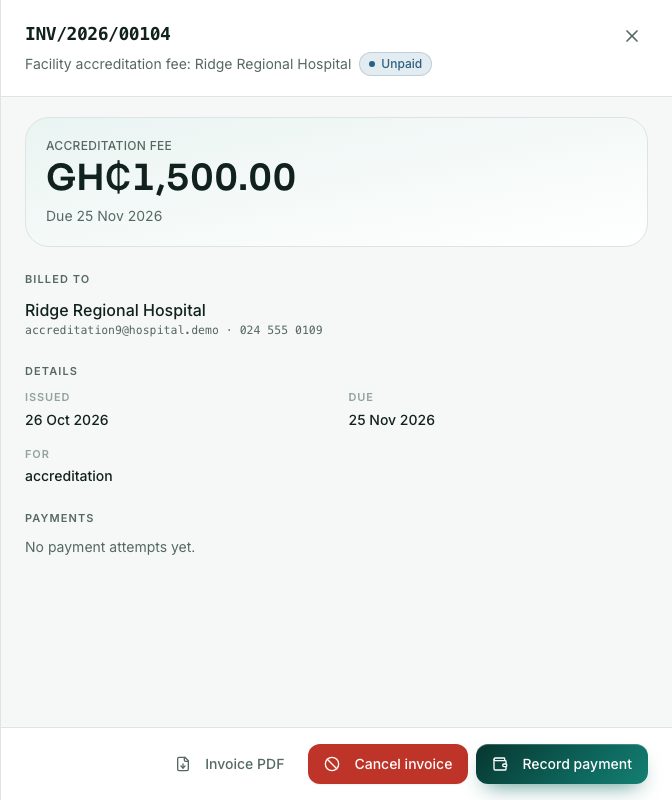
- The panel opens on the right. At the top: the invoice number, what it is for, its status, the fee, the amount in GH₵ and either Due … or Paid … by ….
- Read the sections:
- Billed to: the professional (click to open their record) or the organisation.
- Details: Issued, Due and For (what raised it, or Direct invoice for one raised by hand).
- Payments: each attempt with its amount, status, where it came from, method, reference and time.
- Press Invoice PDF to download the invoice.
- When the invoice is paid, press Receipt to download the receipt.
What you will see
- Cancelled with a reason: the invoice was cancelled and the reason is shown.
- Brought over from the old system.: an invoice copied across from the Council's previous system.
- No payment attempts yet.: nobody has tried to pay it.
Check yourself
Pick an answer for each question, then press Check my answers. Nothing is saved or sent.