
Find invoices by fee type
Every fee the Council charges is an invoice. The Accounts menu has a link for each kind of fee, but they all open the same invoices page with a filter already set.
What you will learn
- Open the invoice list for a kind of fee
- Read the figures and charts at the top
- Use the filters, and clear a narrower list
- Know the invoice statuses
Most invoices are raised by the portal itself: when someone applies for registration, an exam, a renewal, accreditation, a replacement card and so on. The links in the Accounts menu are short cuts to that one invoices page:
Registration payments: Permanent Payment, Temporal payment, Provisional payment, Upgrade payment, Subscription payments and Foreign-trained applications.
Examinations: Main examination, Supplementary 1 and Supplementary 2.
Other payments: Renewal Payment, CPD Payment, Accreditation: Services, Accreditation: Training, Replacement: Cards, Replacement: Certificate, Verification payments and Indexing payments.
Step by step
- In the left menu, open Accounts and choose a link, for example Registration payments → Permanent Payment.
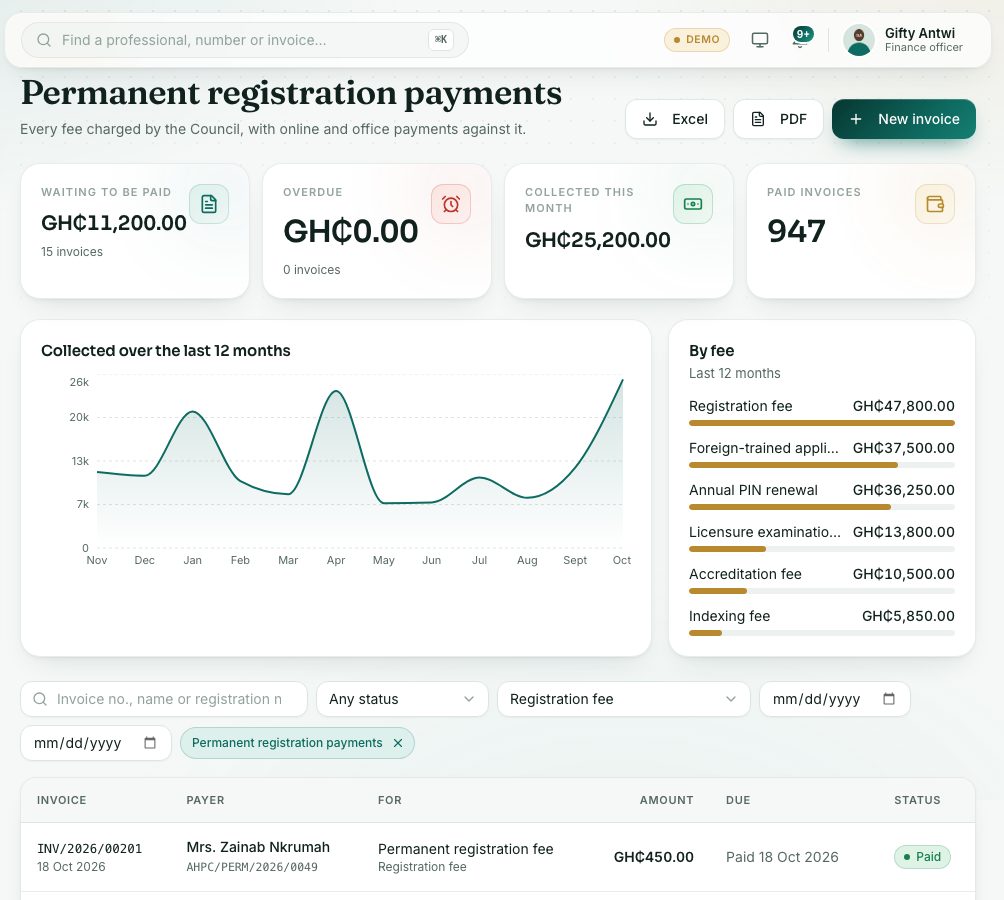
- The page title tells you which list you are looking at, for example Permanent registration payments.
- Read the four figures at the top. They cover every fee, not just this list:
- Waiting to be paid: unpaid and overdue invoices, in GH₵.
- Overdue: invoices past their due date.
- Collected this month and Paid invoices.
- Click a figure to show only those invoices.
- Below them, Collected over the last 12 months and By fee show what came in.
- To find one invoice, type in Invoice no., name or registration no..
- Use Any status, Any fee and the two Issued date boxes to narrow the list.
- A narrower list (for example permanent registration only) shows a blue chip next to the filters. Press the × on the chip to see every invoice of that fee.
- Press Excel or PDF to download the list exactly as filtered.
What you will see
- Unpaid (blue): issued and waiting for payment.
- Overdue (red): past the due date. The portal marks it overdue by itself, and it can still be paid.
- Paid (green): the Due column shows the date it was paid.
- Cancelled (grey): no longer owed.
Check yourself
Pick an answer for each question, then press Check my answers. Nothing is saved or sent.