
Watch payments as they come in
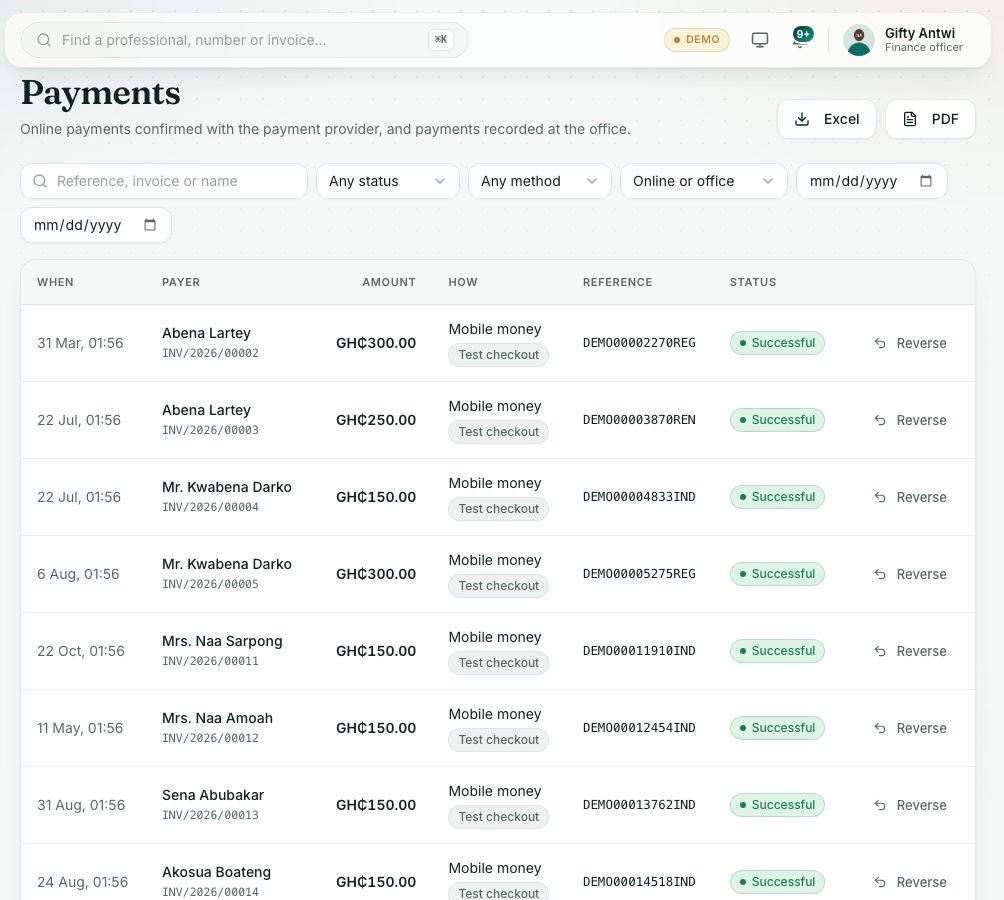
Live Payments lists every payment against a Council invoice: online payments through Hubtel and payments recorded at the office. Filter it, check a pending payment and open the invoice behind it.
What you will learn
- Open Live Payments and read each column
- Understand the four payment statuses
- Check a pending online payment straight away
- Filter the list and export it
Professionals pay their invoices online through Hubtel, by mobile money or card. A payment only counts once Hubtel confirms it. Money paid at the office or into the bank is recorded by staff on the invoice, and it shows here too, marked Recorded by staff.
demo.ahpcghana.com/staff/payments
Step by step
- In the left menu, open Accounts and choose Live Payments.
- Read the columns:
- When: when it was paid (or started, if it is still pending).
- Payer: the professional or organisation, with the invoice number underneath. Click the name to open the professional's record.
- Amount in GH₵, and How: the method (for example Mobile money) and where it came from (Hubtel or Recorded by staff).
- Reference and Status.
- To narrow the list, type in Reference, invoice or name, or use Any status, Any method, Online or office and the two date boxes.
- For a Pending online payment, press Check now on its row. The portal asks Hubtel again and tells you the result.
- Click any row to open the invoice it was paid against.
- To keep a copy of what is on screen, press Excel or PDF. The file follows the filters you have set.
What you will see
- Successful (green): the money arrived. The invoice is marked paid and the professional's application moves on.
- Pending (amber): the payer started paying but Hubtel has not confirmed it yet. The portal checks pending payments again by itself.
- Failed (red): the payment did not go through. The invoice is still unpaid and the professional can try again.
- Reversed (grey): staff reversed the payment. The reason shows under the status.
- After Check now you see Payment confirmed, Still waiting for the payer or The payment did not go through.
Check yourself
Pick an answer for each question, then press Check my answers. Nothing is saved or sent.