
Add a new item
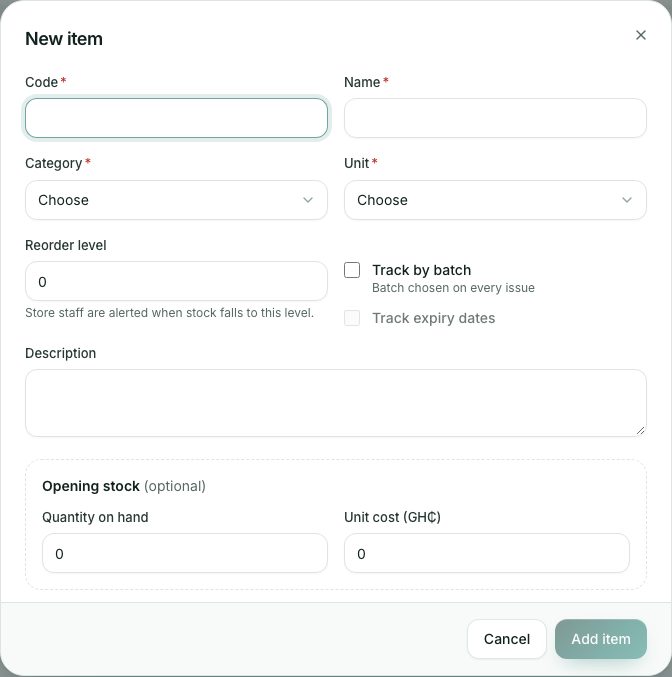
Add an item to the store: its code, name, category and unit, the reorder level, whether to track batches and expiry dates, and any opening stock.
What you will learn
- Add a new item with the right category and unit
- Decide on batch and expiry tracking
- Enter opening stock
- Edit or switch off an item later
demo.ahpcghana.com/staff/stores/items?new=1
Step by step
- In the left menu, open Stores → New Items. Or press New item on the Store Items page.
- Fill in the item:
- Code (unique, for example STA-0042) and Name, for example A4 paper, 80 gsm.
- Category and Unit. If the one you need is missing, add it first (next lesson).
- Reorder level: store staff are alerted when stock falls to this level.
- Track by batch if each delivery must be kept apart, and Track expiry dates (needs batch tracking).
- Description (optional).
- If you already hold some of it, fill in Opening stock:
- Quantity on hand and Unit cost (GH₵).
- For a batch-tracked item, the Batch number, and the Expiry date if expiry is tracked.
- Press Add item. You see Item added.
- To change an item later, open it and press Edit item. Untick Active to stop using it while keeping its history.
Check yourself
Pick an answer for each question, then press Check my answers. Nothing is saved or sent.