
Get the dashboard by email
Have the sections you choose emailed as a PDF every week, month, quarter or year, to you and anyone you add.
What you will learn
- Choose how often
- Pick the sections in the report
- Add other people to receive it
- Send one now or stop the emails
demo.ahpcghana.com/staff/registration-dashboard
Step by step
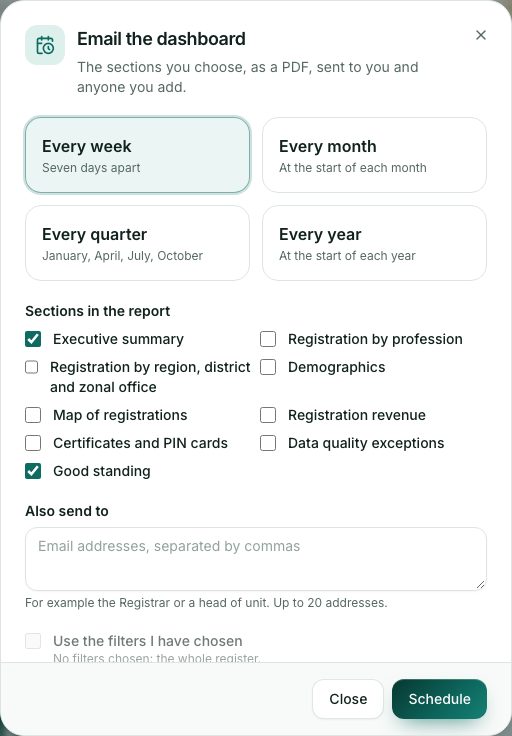
- Open the Registration dashboard and press Schedule.
- Choose Every week, Every month, Every quarter (January, April, July, October) or Every year.
- Under Sections in the report, tick what to include, for example Executive summary, Good standing and Registration revenue. At least one is needed.
- In Also send to, type other email addresses separated by commas, for example the Registrar or a head of unit (up to 20).
- Tick Use the filters I have chosen to send only the figures you filtered, for example one region.
- Press Schedule. The first email goes out within a day.
What you will see
- A green box You get this weekly (or monthly, quarterly, yearly) with who receives it and when it was last sent.
- Open Schedule again to press Send one now, change it with Save changes, or stop it with Stop emails.
Check yourself
Pick an answer for each question, then press Check my answers. Nothing is saved or sent.