
Create and publish a tender
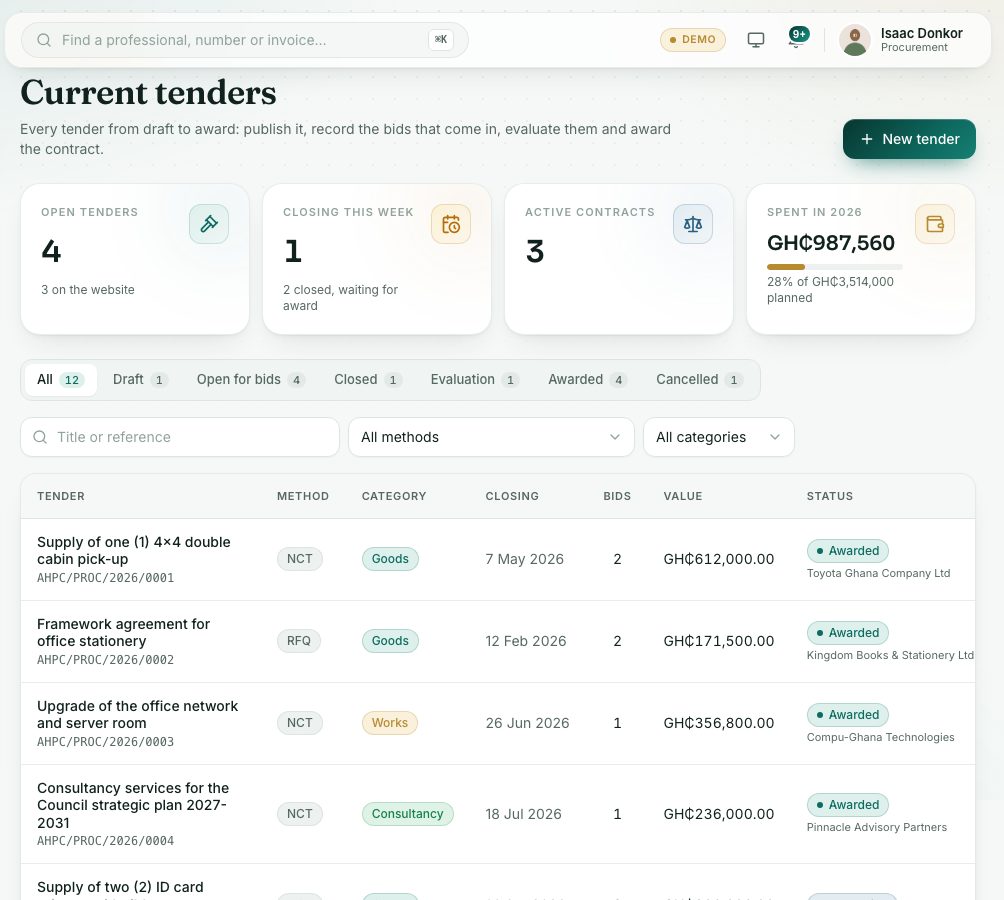
The Current Tenders list holds every tender from draft to award. Create a tender, upload its documents, answer bidders' questions and publish it.
What you will learn
- Read the Current Tenders list and its tabs
- Create a tender as a draft
- Upload tender documents
- Publish it, and add clarifications or addenda
demo.ahpcghana.com/staff/procurement/tenders
Step by step
- In the left menu, open Procurement → Current Tenders list. The tabs are All, Draft, Open for bids, Closed, Evaluation, Awarded and Cancelled.
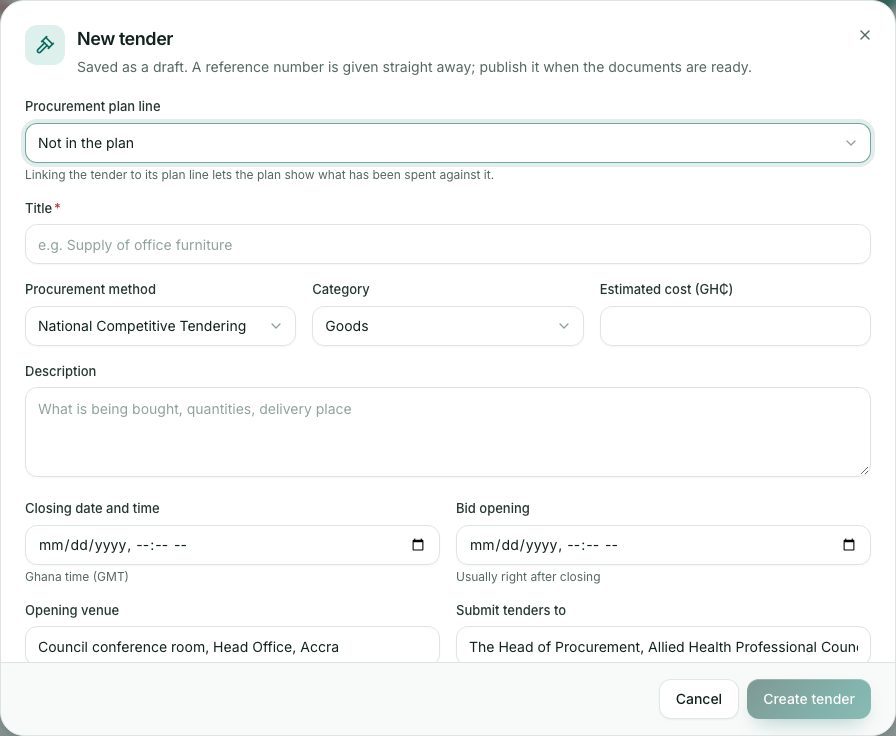
- Press New tender (or Start tender on a plan line).
- Fill in the tender:
- Procurement plan line: link it so the plan shows what is spent against it.
- Title, Procurement method, Category, Estimated cost (GH₵) and Description.
- Closing date and time (Ghana time) and Bid opening (usually right after closing), Opening venue and Submit tenders to.
- Tender document fee (GH₵) (leave empty if free), Tender security, Eligibility and Enquiries.
- Show on the public website while it is open.
- Press Create tender. It is saved as a Draft with its reference number, and opens.
- Press the Documents tab. Give each file a title and type (Tender document, Addendum, Drawings or specifications, Other), tick Bidders can download it from the website if the public may have it, and press Upload.
- Press Publish, then Publish again to confirm. Bids can be recorded from now until the closing time.
- To answer a bidder's question or change the documents, press the Clarifications tab and Add clarification or addendum. Don't name the bidder who asked.
demo.ahpcghana.com/staff/procurement/tenders
What you will see
- Open for bids with a countdown, such as Closes in 3 days 4 h, and On website under the title when the public can see it.
- At closing time the tender changes to Closed by itself.
Check yourself
Pick an answer for each question, then press Check my answers. Nothing is saved or sent.