
Upload questions from Excel
Add many questions at once from a spreadsheet, using the blank template.
What you will learn
- Download the template
- Fill it in, one question per row
- Upload it and fix rows that weren’t saved
demo.ahpcghana.com/staff/online-exams?tab=questions
Step by step
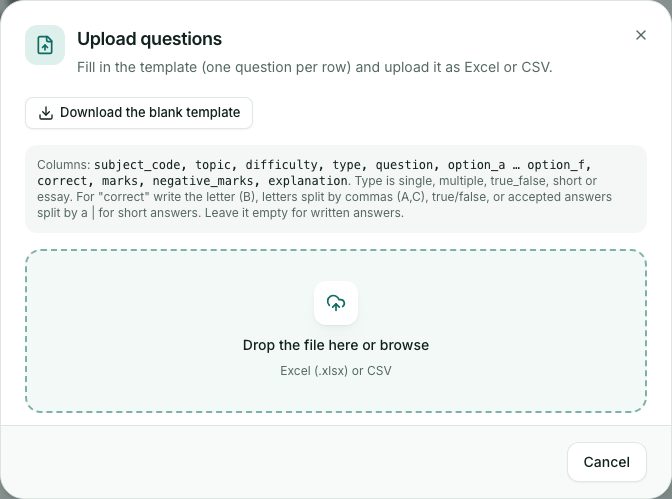
- On the Question bank tab, press Upload questions.
- Press Download the blank template and open it in Excel.
- Fill in one question per row. The main columns are:
- subject_code (the paper’s code), topic and difficulty (easy, medium or hard).
- type: single, multiple, true_false, short or essay.
- question, then option_a to option_f (leave unused ones empty).
- correct: the right letter (for example B), letters split by commas for more than one (A,C), true or false, or the accepted short answers split by a | sign. Leave it empty for written answers.
- marks, negative_marks and explanation.
- Save it as Excel (.xlsx) or CSV and drop it on the box (or click the box to browse to it). It uploads straight away.
- Read the result. Rows with problems are listed with the reason. Fix those rows and upload just them again; the others are already saved.
Check yourself
Pick an answer for each question, then press Check my answers. Nothing is saved or sent.