
The question bank
Keep every online exam question in one bank: five question types, an optional picture, a paper, a topic and a difficulty.
What you will learn
- Find your way round the Online exams page
- Add a question of each of the five types
- Add a picture to a question
- Know the question statuses: Draft, Ready to use and Retired
The Online exams page has three tabs: Question bank, Exams and Sittings. You fill the bank first, then build exams that draw questions from it, then schedule sittings when candidates take them. Staff who only watch sittings (for example zonal officers) see just the Sittings tab.
demo.ahpcghana.com/staff/online-exams?tab=questions
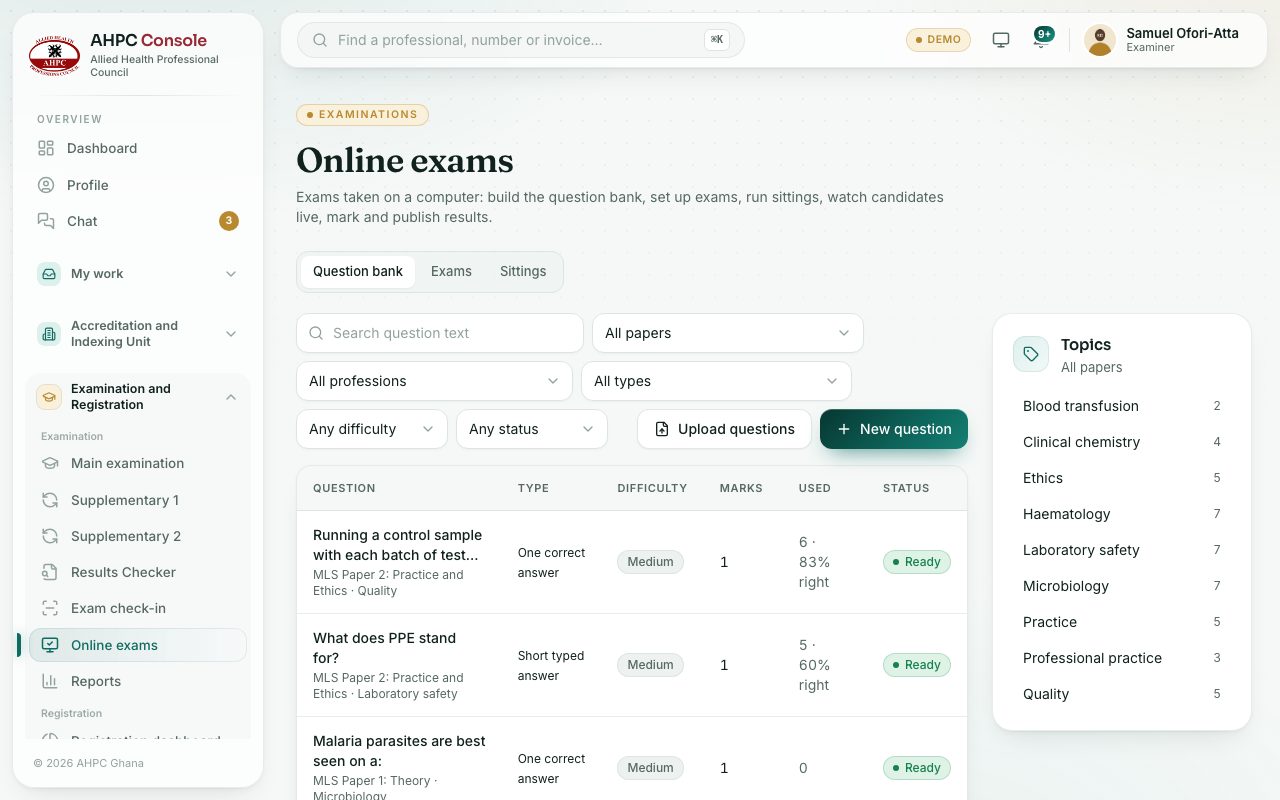
demo.ahpcghana.com/staff/online-exams?tab=questions
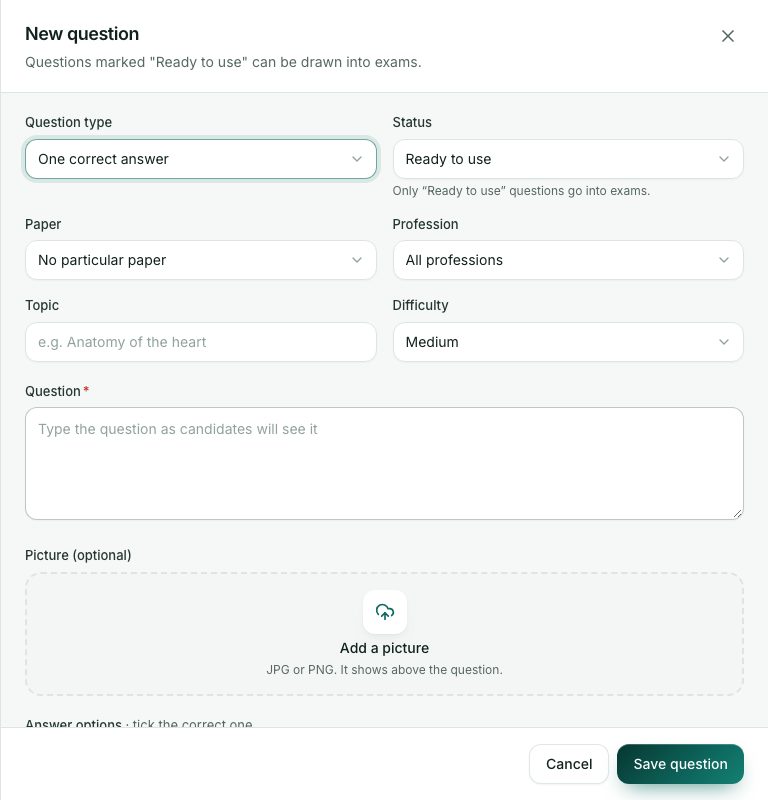
Step by step
- In the left menu, open Examination and Registration and, under Examination, choose Online exams.
- On the Question bank tab, press New question.
- Choose the Question type (see the table below).
- Choose the Paper and Profession if the question belongs to one, then type a Topic (for example Haematology) and pick the Difficulty.
- Type the Question as candidates will see it.
- To show a picture above the question, press Add a picture and choose a JPG or PNG.
- Fill in the answer options and press Mark as correct on the right one (or ones), or type the accepted answers for a short answer.
- Set the Marks, and Marks taken off for a wrong answer if you want wrong guesses to cost marks.
- Optional: an Explanation (optional) that candidates see after results are out, if the exam lets them review.
- Set the Status to Ready to use and press Save question.
The five question types
| Type | What the candidate does | How it is marked |
|---|---|---|
| One correct answer | Picks one option. | Automatically. |
| More than one correct answer | Ticks every answer that is right. | Automatically. Marks only if all choices are right. |
| True or false | Picks True or False. | Automatically. |
| Short typed answer | Types a word or short phrase. | Automatically, against the accepted answers you list. |
| Written answer (marked by hand) | Writes a longer answer. | By an examiner on the sitting’s Marking tab, without seeing names. |
Statuses
- Draft: still being written. It is never drawn into an exam.
- Ready to use: can be drawn into exams.
- Retired: kept for the record but never drawn again.
What you will see
- Filters: Search question text, All papers, All professions, All types, Any difficulty and Any status.
- For each question: its type, difficulty, marks, how often it was used, and the share of candidates who got it right.
- The Topics box with how many questions each topic has.
Check yourself
Pick an answer for each question, then press Check my answers. Nothing is saved or sent.