
Leave balances, training and HR lists
Check and change leave entitlements, record staff training, read the HR figures and keep the lists of units, grades, positions and leave types.
What you will learn
- Read everyone’s leave balances
- Change one person’s entitlement or carry-over
- Record a training course
- Add a unit, grade, position or leave type
demo.ahpcghana.com/staff/general-admin/hr?tab=balances
Step by step
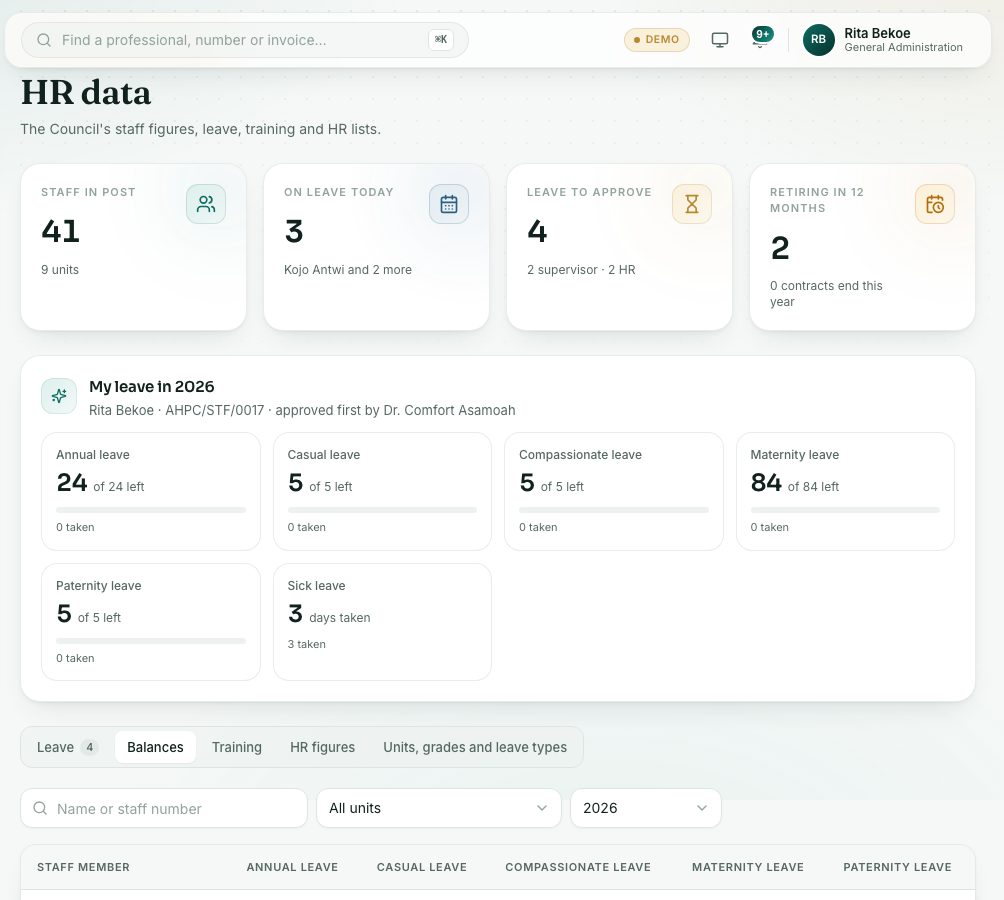
- Open General Administration → HR data and press the Balances tab.
- Search by name or staff number, or pick a unit and a year. Each column is a leave type: the big figure is the days left, the small one the year’s total.
- To change someone’s entitlement, click their figure. In the box:
- Type the Days for the year and any days Carried over (the hint shows the most allowed).
- Press Save. A small Set badge then marks a figure changed by hand.
- To record training, open the Training tab and press Record training. Choose the Staff member, type the Course or programme and the From date, add the provider, place and Cost (GH₵) if you know them, and press Save.
- The HR figures tab shows staff by unit, employment type, leave taken this year and training this year.
- On the Units, grades and leave types tab, press Add on a list, fill in the box and press Save. Press the pencil to change one.
What you will see
- A figure in amber on the Balances tab means 2 days or fewer are left.
- Leave types show their days a year. No yearly limit means 0 days, so the type is not counted down.
Check yourself
Pick an answer for each question, then press Check my answers. Nothing is saved or sent.