
Check the visit evidence
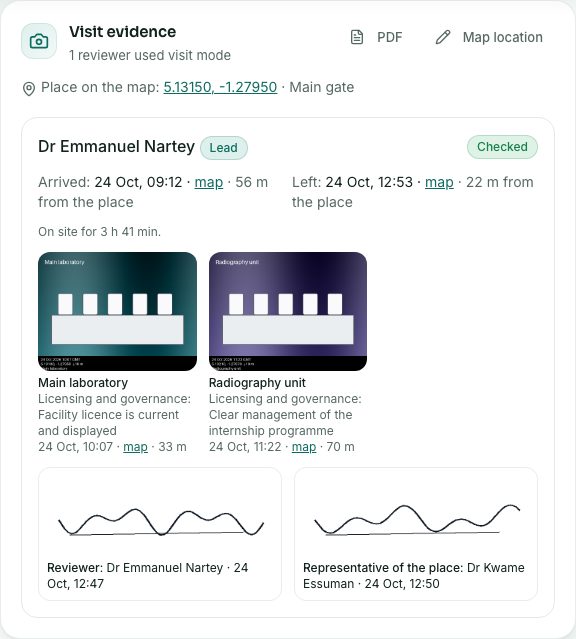
See when each reviewer arrived and left, their stamped photos and the signatures, with a warning for anything far from the place.
What you will learn
- Open the Visit evidence box
- Read arrival, departure and time on site
- Look at the photos and signatures
- Set where the place is on the map
Reviewers can use visit mode on their phone during the visit. It works without internet and records their arrival and departure, photos stamped with the time and place, and signatures. All of it shows on the application in the Visit evidence box.
Step by step
- Open Accreditation and Indexing Unit → Facility accreditation → Facilities (or Programmes) and open an application that is with reviewers.
- Scroll to Visit evidence. It says how many reviewers used visit mode.
- Read Place on the map. Press the numbers to open the place in a map.
- For each reviewer, read Arrived and Left, how far from the place they were, and how long they were on site.
- Press a photo to see it bigger. Under it: what it shows, the line of the form, when it was taken and where.
- Look at the signatures: the reviewer’s and, if they signed, the representative of the place.
- Press PDF for a printable copy of the evidence.
Setting where the place is
Distances can only be checked if the place has a map location. Press Map location, type or paste the Latitude and Longitude (in a maps app, press and hold on the place and copy the two numbers), add a note such as Main gate and press Save. It is kept for the place’s later applications too.
What you will see
- Checked (green): nothing unusual.
- Needs a look (amber): for example a photo taken far from the place or outside the visit time. The reason is written under it.
- A distance over 1 km is shown in amber.
Check yourself
Pick an answer for each question, then press Check my answers. Nothing is saved or sent.