
Give and take away access (Access page)
Give sign-ins to nominees, facility representatives, indexing coordinators, outside reviewers and zonal officers, and take them away again.
What you will learn
- Give access to someone outside head office
- Send a new one-time password
- Take access away and give it back
- Add a zonal officer or move them to another zone
People outside head office sign in with their own account. Nominees, facility representatives, indexing coordinators and outside reviewers use the partner area. Zonal officers use the staff console but see only their zone. The person gets an email with a one-time password and is asked to change it after signing in.
Step by step
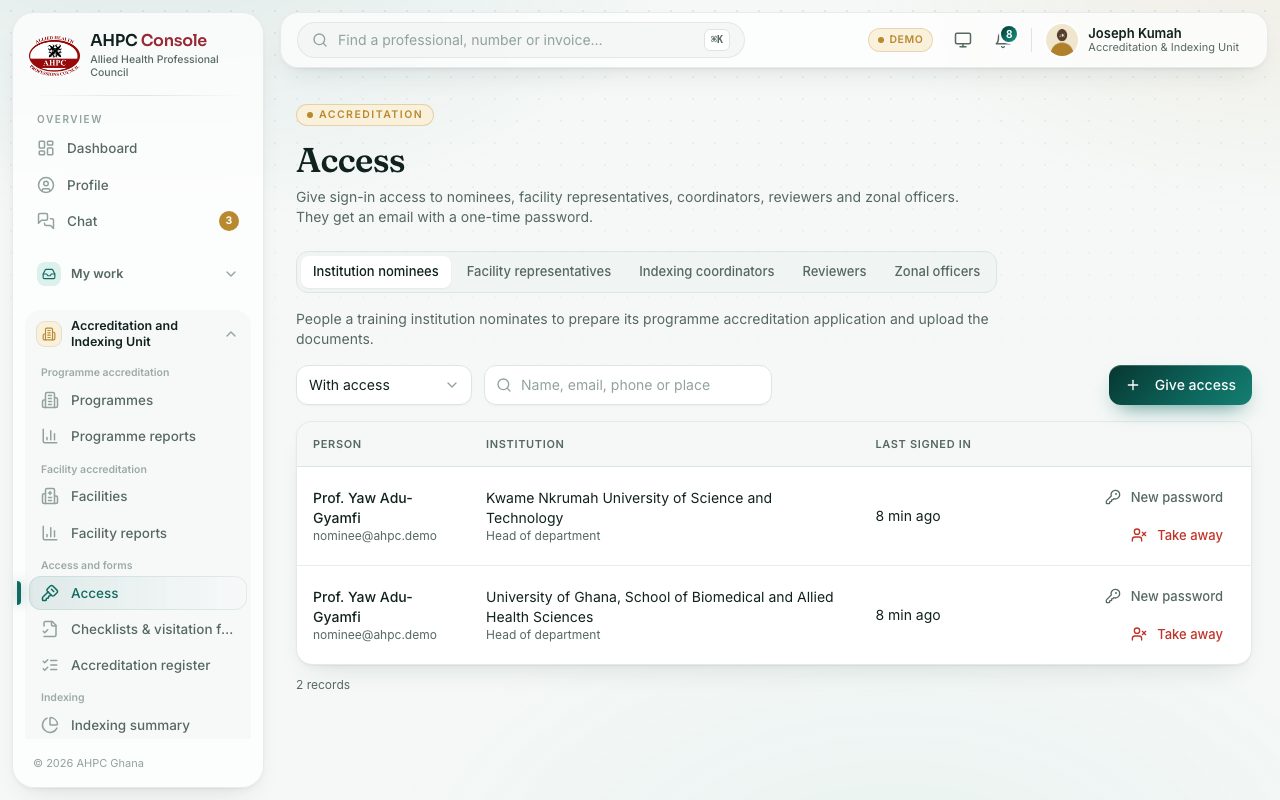
- Open Accreditation and Indexing Unit → Access and forms → Access.
- Choose the tab for the kind of person:
- Institution nominees: prepare a training institution’s programme accreditation application.
- Facility representatives: prepare a health facility’s application.
- Indexing coordinators: check and approve their institution’s students for indexing.
- Reviewers: outside reviewers who can be chosen to score the visitation form.
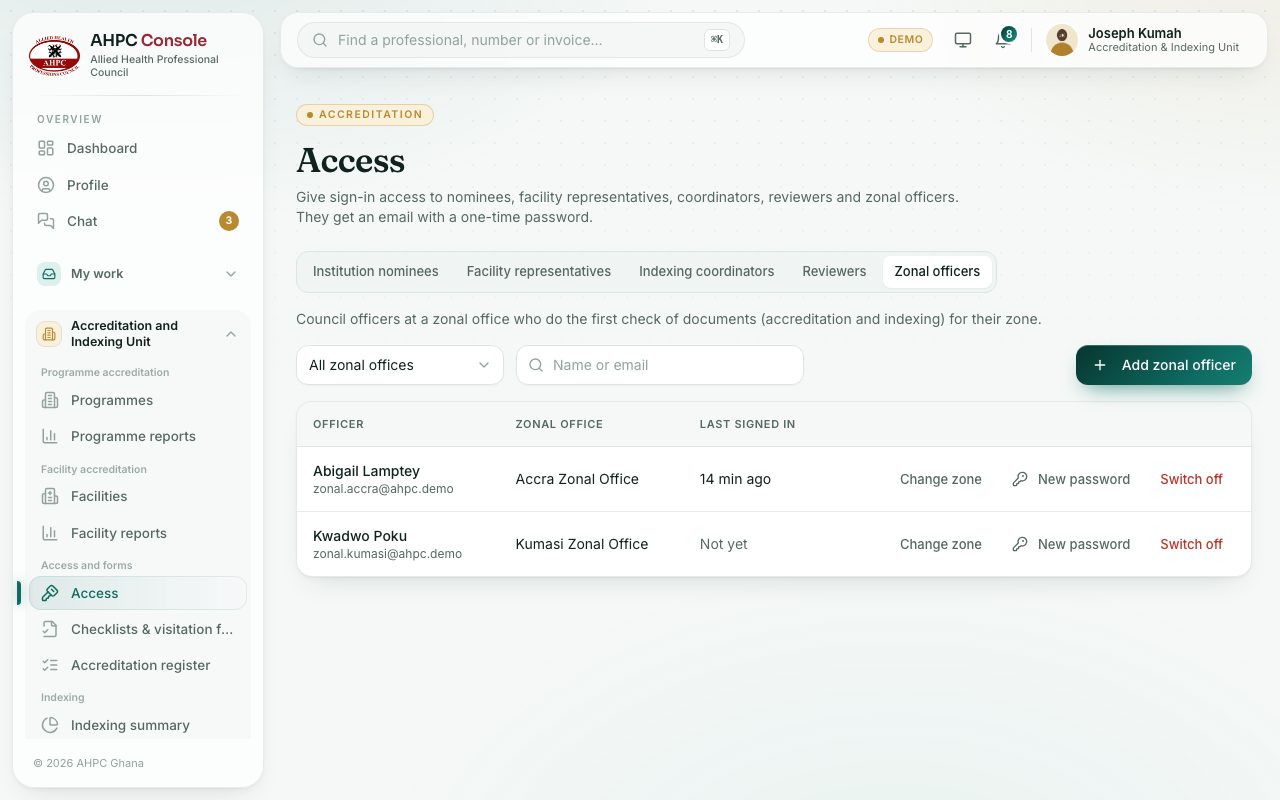
- Zonal officers: Council officers who do the first check for their zone.
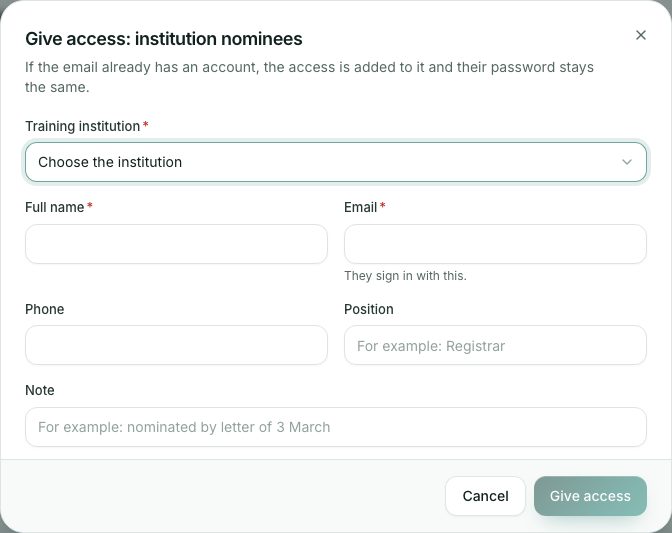
- Press Give access.
- Choose the Training institution or Health facility the access is for. For a reviewer, choose what they Can review: programmes, facilities or both.
- Fill in Full name, Email (they sign in with it), Phone and Position, and a Note such as nominated by letter of 3 March.
- Press Give access. A box shows the one-time password. Press Copy if you need to give it to them another safe way, then Done.
Passwords, taking away and giving back
Press New password on a row to send a new one-time password. Press Take away and confirm to stop the access; the row then shows Taken away. Choose Access taken away in the box above the list and press Give back to restore it.
Zonal officers
On the Zonal officers tab, press Add zonal officer, choose the Zonal office, type the name, email and phone and press Add. Use Change zone to move an officer, and Switch off or Switch on to stop or restore their sign-in.
What you will see
- Last signed in shows when each person last signed in, or Not yet.
- If the email already has an account, the access is added to it and their password stays the same.
Check yourself
Pick an answer for each question, then press Check my answers. Nothing is saved or sent.