
Upload attendance and association lists
Upload one list after an event, or an association’s mandatory points, so everyone on it gets their points; then match anyone not found.
What you will learn
- Know the three kinds of list
- Upload a list
- Match a row the portal couldn’t find
- Undo a list uploaded by mistake
demo.ahpcghana.com/staff/cpd/uploads
demo.ahpcghana.com/staff/cpd/uploads
demo.ahpcghana.com/staff/cpd/uploads
Step by step
- Open Accreditation and Indexing Unit → CPD → Attendance & association lists.
- Pick the kind of list. Each has a Blank template to download:
- Attendance list: the list an organiser sends after an event. Everyone found gets the points, already approved.
- Association mandatory points: an association’s members and the mandatory points each earned.
- Waivers: professionals excused from all or part of a year’s points.
- Press Upload a list (or Upload on the kind you want).
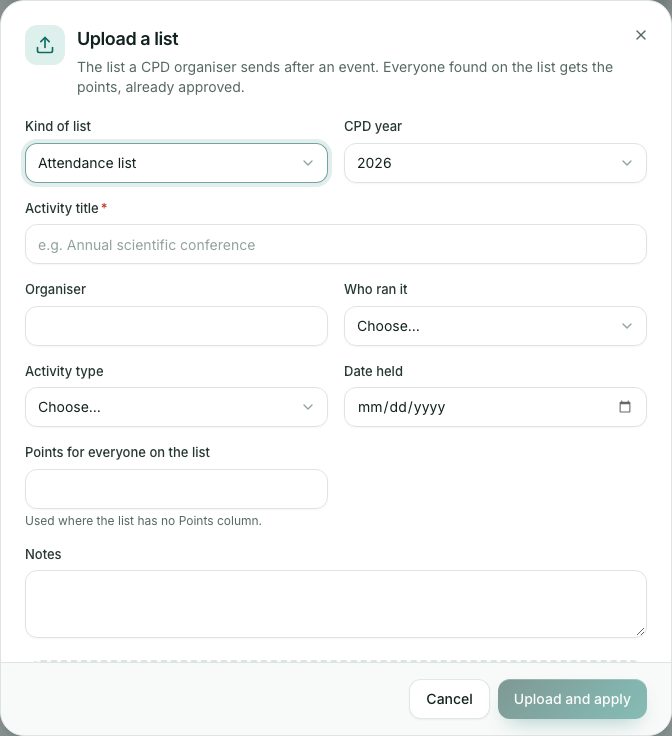
- Choose the Kind of list and CPD year. Type the Activity title, for example Annual scientific conference.
- Fill in the Organiser (or Association), Who ran it, Activity type, Date held and Points for everyone on the list (used where the list has no Points column).
- Drop the file (CSV or Excel) on the box and press Upload and apply.
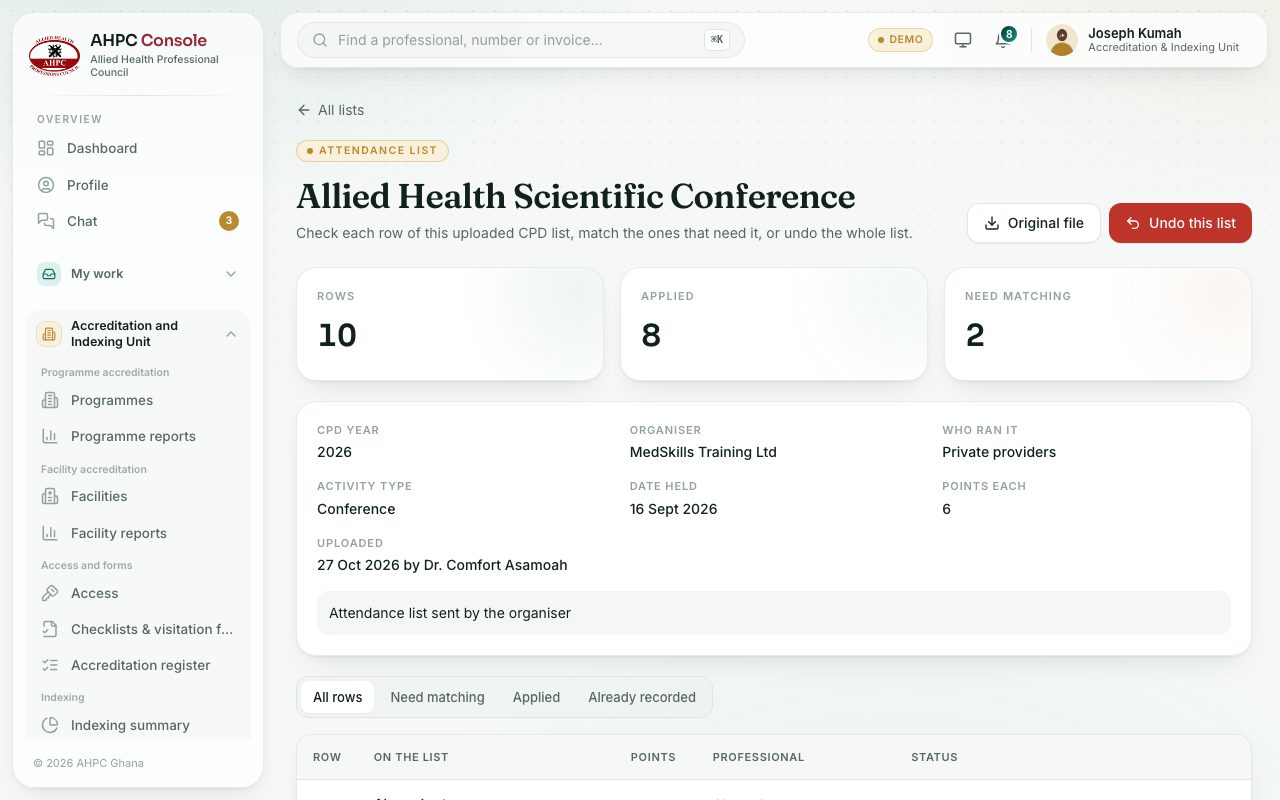
- The list opens. For each row under Need matching, press Match, find the professional and press Match and apply.
Undoing a list
If a list was uploaded by mistake, open it and press Undo this list, then Undo the list. Every activity it created is removed and the points come off those professionals (or, for a waivers list, every waiver it created is removed).
What you will see
- Each row of the file needs a name and a registration number, PIN, index number, Ghana Card, email or phone.
- The list shows Rows, Applied and Need matching. Original file downloads what was uploaded.
Check yourself
Pick an answer for each question, then press Check my answers. Nothing is saved or sent.