
Upload student lists and give coordinator access
Upload an institution’s list of students so each gets a sign-in, give the coordinator access, and remind students who haven’t sent.
What you will learn
- Upload a student list
- Read the result of the upload
- Give the institution coordinator access
- Add students or remind them
demo.ahpcghana.com/staff/indexing/batches
demo.ahpcghana.com/staff/indexing/batches
demo.ahpcghana.com/staff/indexing/batches
Step by step
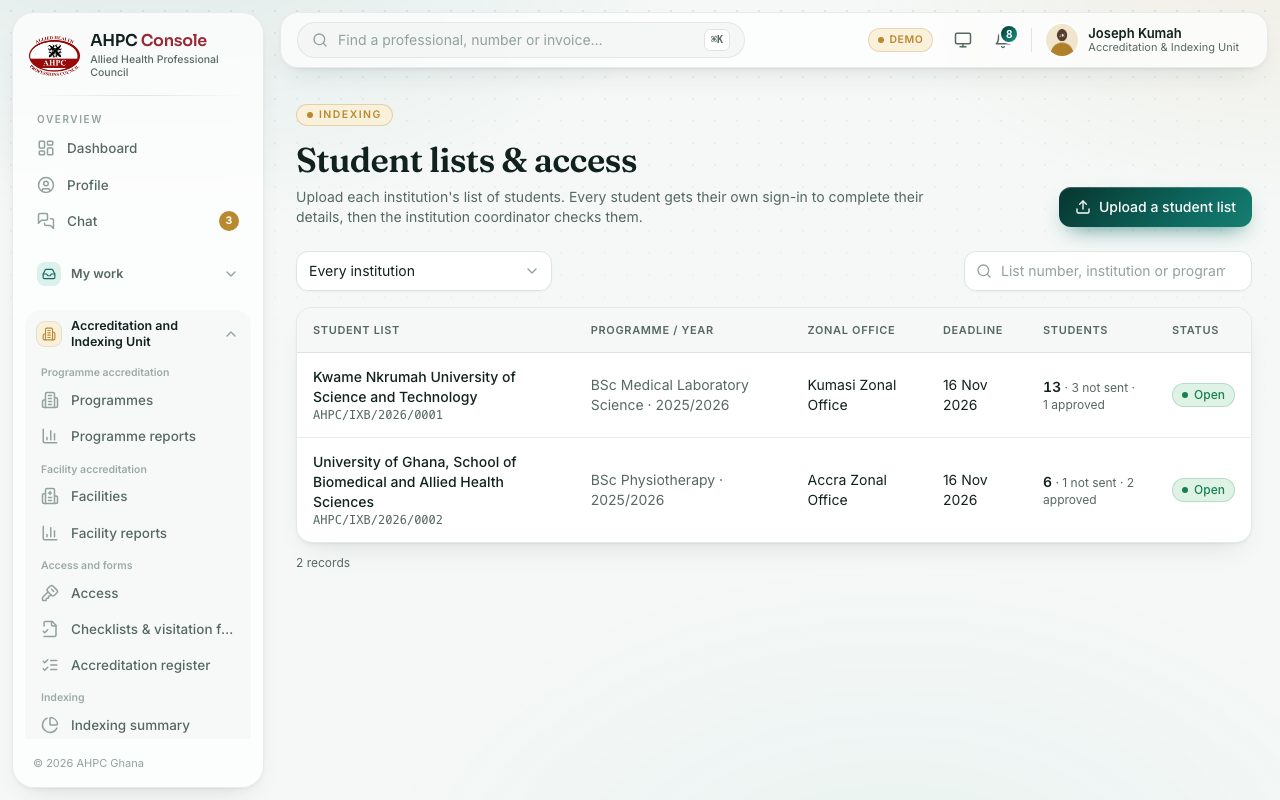
- Open Accreditation and Indexing Unit → Indexing → Upload & access. The page is called Student lists & access.
- Press Upload a student list.
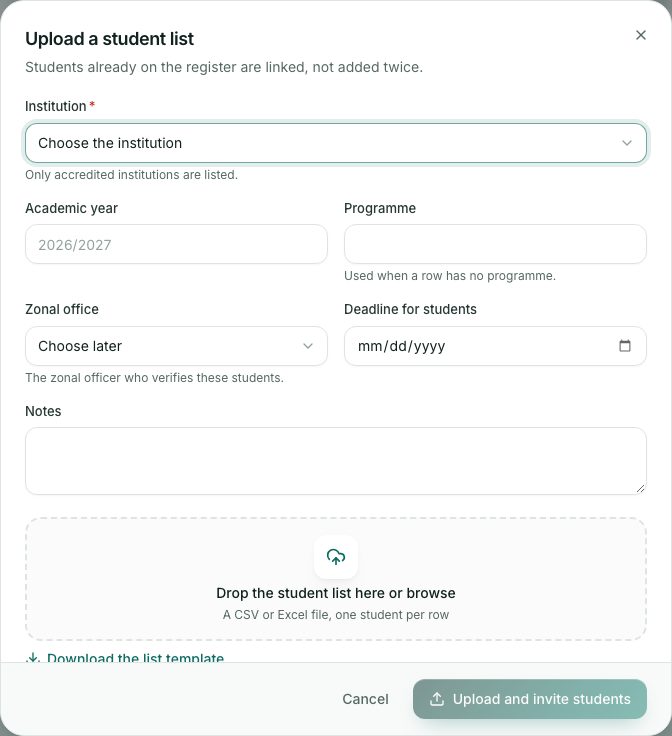
- Choose the Institution. Add the Academic year (for example 2026/2027) and the Programme (used where a row has none).
- Choose the Zonal office whose officer verifies these students, and the Deadline for students.
- Download the blank template if you need it. Drop the filled-in list (CSV or Excel, one student per row) on the box.
- Press Upload and invite students. A box shows how many students were added and any rows with problems.
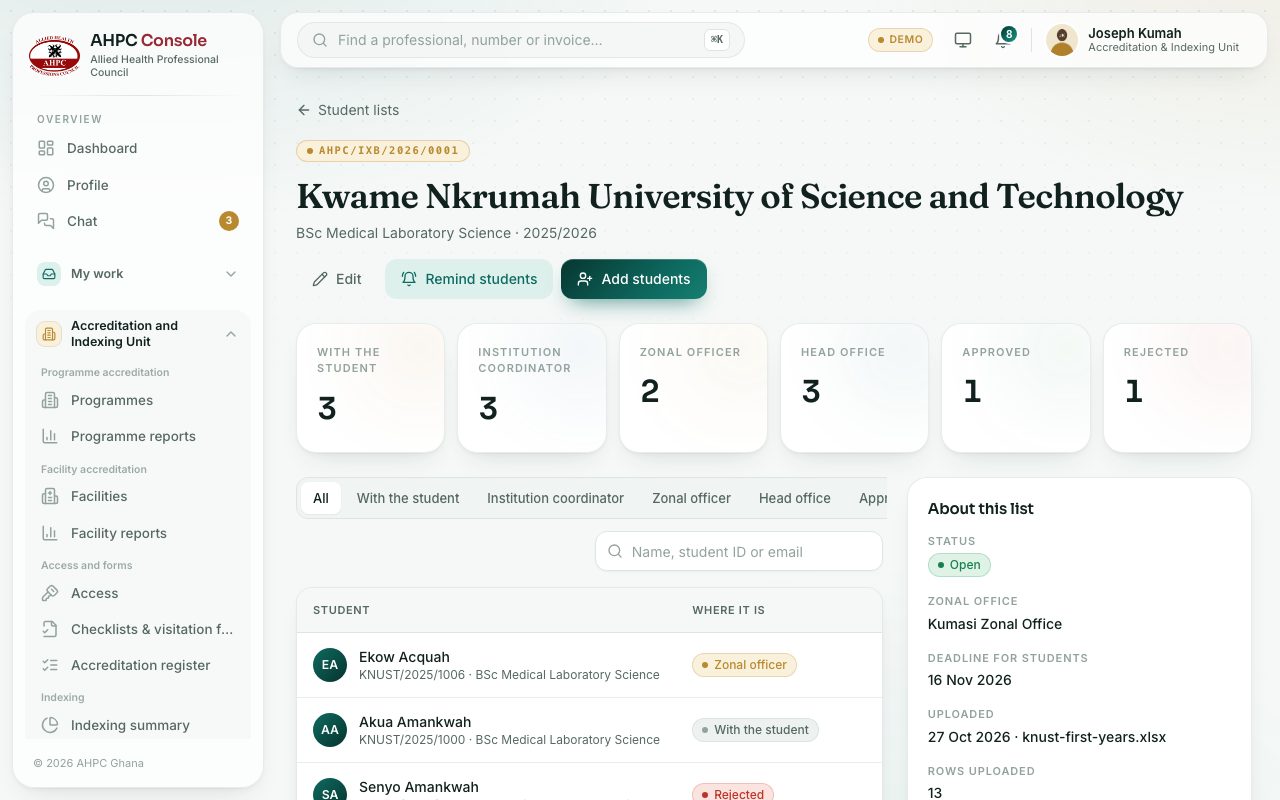
- Press the list to open it. Under Institution coordinators, press Give access, fill in the coordinator’s name, position, email and phone, and press Give access.
After the upload
On the list page: Add students uploads a file with just the new students. Remind students sends an email and SMS to everyone who hasn’t sent their application. Edit changes the deadline, the zonal office or closes the list. Changing the zonal office moves every student not yet approved to that office.
What you will see
- Each list has a number such as AHPC/IXB/2026/0001 and shows 13 · 3 not sent · 1 approved.
- Students already on the register are linked, not added twice.
- If a list has no coordinator, the page warns No coordinator yet.
Check yourself
Pick an answer for each question, then press Check my answers. Nothing is saved or sent.