
Keep the checklists and visitation forms
Set which documents applicants must upload, add blank forms for them to download, and set the lines reviewers score.
What you will learn
- Add or change a document on the checklist
- Upload a blank form
- Add a line to the visitation form
demo.ahpcghana.com/staff/accreditation/forms
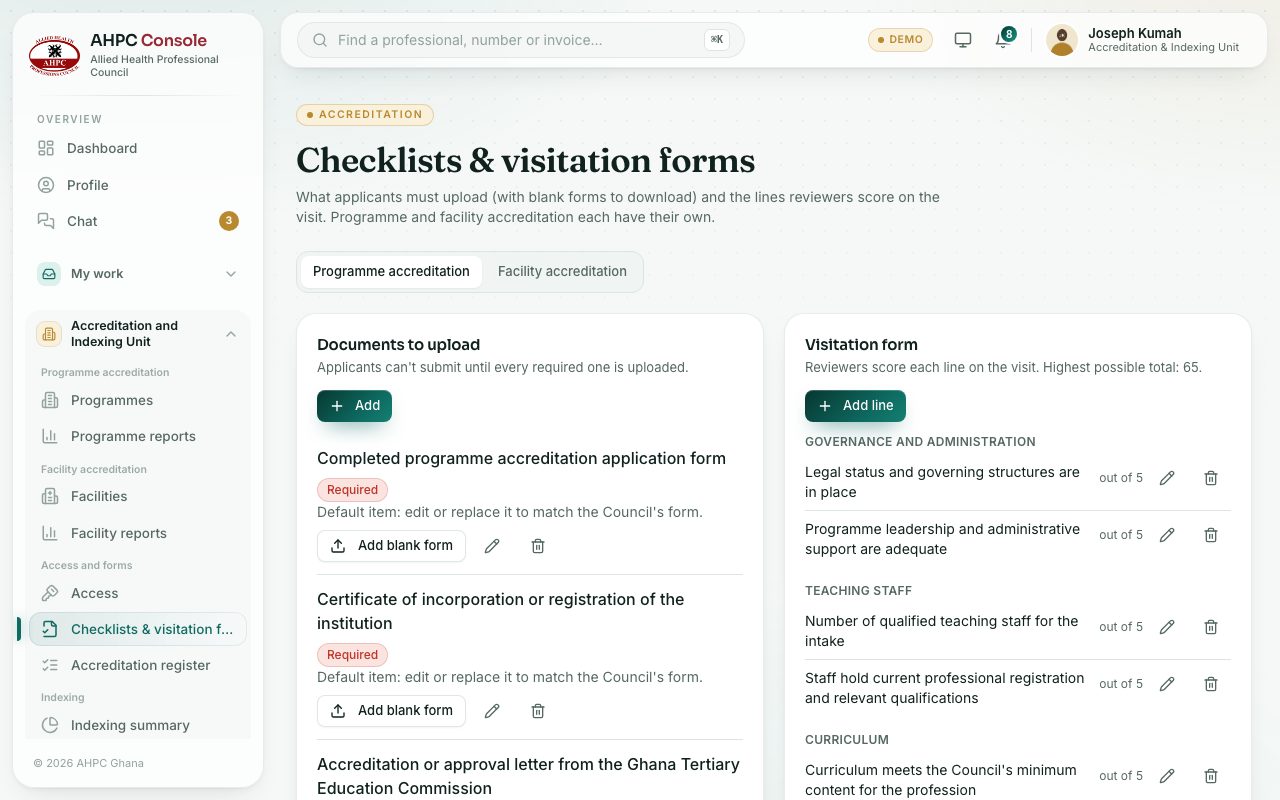
Step by step
- Open Accreditation and Indexing Unit → Access and forms → Checklists & visitation forms.
- Choose the tab Programme accreditation or Facility accreditation. Each has its own lists.
- Documents to upload. Press Add to add one:
- Type the Document name and What to upload.
- Tick Required if the application can’t be submitted without it.
- Untick Ask for it to stop asking for a document without removing it.
- Press Save.
- To give applicants a form to fill in, press Add blank form next to the document and choose the file (PDF, Word or Excel). Applicants then see Blank form next to it.
- Visitation form. Press Add line:
- Pick or type the Section, for example Teaching staff.
- Type What the reviewer checks and the Highest score for the line.
- Press Save.
What you will see
- The visitation form shows the highest possible total, for example Highest possible total: 65.
- A document already used by applications is kept but marked Not asked for when you remove it.
- A line taken off the form shows Off the form.
Check yourself
Pick an answer for each question, then press Check my answers. Nothing is saved or sent.