
Renew your PIN every year
Your PIN is your licence to practise. Renew it every year during the renewal period, with a passport photo on your profile, a quick face check, your fee paid and enough CPD points approved.
What you will learn
- Check the renewal checks
- Take the face check and apply
- Pay the renewal invoice
- Get your new PIN and Annual Practising Licence
demo.ahpcghana.com/portal/renewal
Step by step
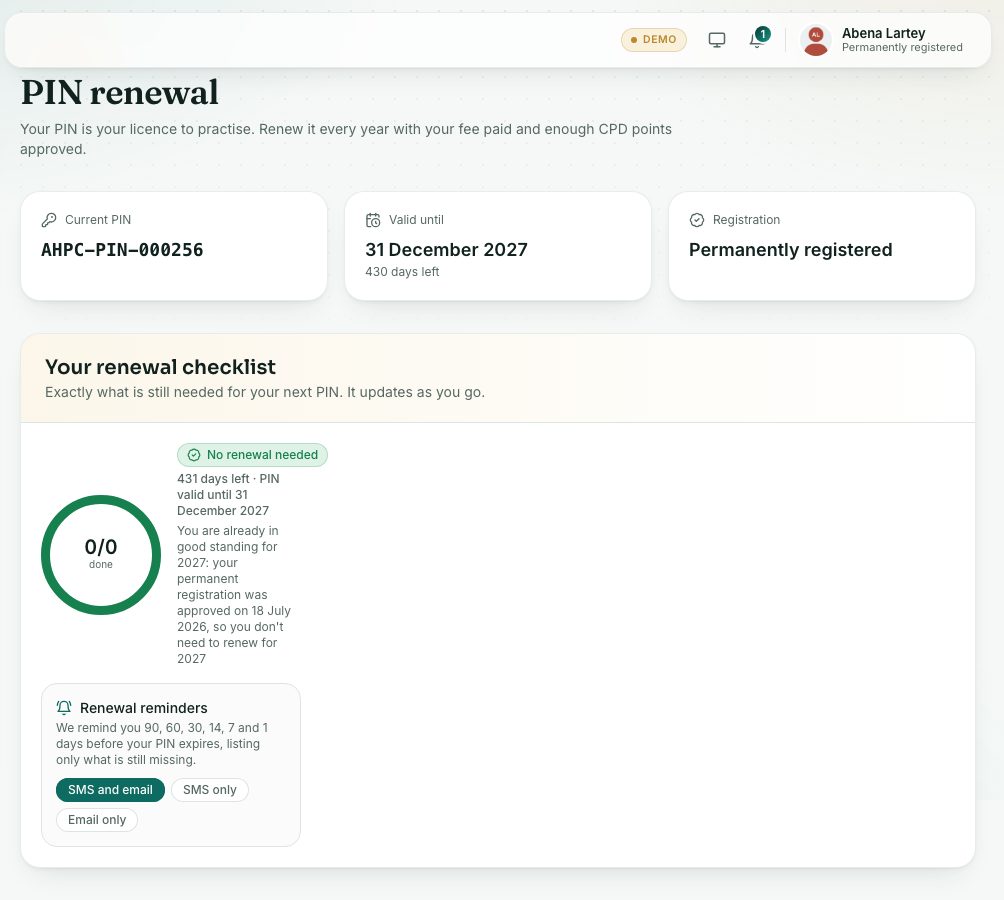
- Press PIN renewal under Registration in the left menu (or Renew your PIN now on the dashboard).
- At the top, check your Current PIN, Valid until and Registration.
- Your renewal checklist shows what is still missing. The next lesson explains it.
- Read the open renewal period. It shows the dates it is open and any late renewal dates, then three checks:
- Registered and in good standing: only registered professionals in good standing can renew.
- CPD: your approved points for the year before, against your target. If short, press Log CPD.
- Fee: the renewal fee in GH₵, plus a Late penalty in the late period, and the Total.
- No passport photo on your profile? A yellow note says Add a passport photo to your profile before you renew. Press Add photo and upload one first.
- Press Renew my PIN.
- Take the face check in the window that opens:
- Press Start the camera and allow the browser to use your camera.
- Put your face inside the oval and press Take my selfie. Blink and turn your head a little when asked: three pictures are taken.
- The portal compares your selfie with your passport photo and shows the result.
- Then press Renew. An invoice for the total is created.
- Pay the invoice on the renewal card or in Invoices & payments.
- The Council approves your renewal once the fee is paid and your CPD points are approved.
The face check
The face check makes sure it is really you renewing, not someone using your account.
- Checked: Thank you. Your selfie matches your passport photo.
- Staff will take a look: the portal wasn’t sure, or the selfie didn’t look like your photo. You can carry on: a member of staff compares the photos. You can also press Try again in better light.
- Try again: no clear face was found. Face the camera in good light, with nobody else in the picture.
You have 3 tries a day. Find good light, take off sunglasses or a face mask, and make sure nobody else is in the picture. If the camera won’t open, allow camera access in your browser (the camera icon in the address bar). Only Council staff checking identity see these photos.
What you will see
- When approved: Your new PIN and its Valid until date on the renewal card. The dashboard shows the new PIN too.
- A new Annual Practising Licence appears in Certificates, and your ID card follows the new expiry date.
- Renewal statuses: Submitted, Under review, Info needed, Resubmitted, Approved, Rejected and Cancelled. Open History to see each step.
- If the Council asks for more, do it (for example log missing CPD activities) and press Send again.
- Renewal isn’t open right now: the Council opens renewal for the coming year towards the end of each year, and tells you by SMS and email.
- Permanently registered this year? The page may say you are already in good standing for the year, so you don’t need to renew.
Check yourself
Pick an answer for each question, then press Check my answers. Nothing is saved or sent.