
Upload your documents
Upload your Ghana Card, certificates, transcripts and other papers once, then reuse them in every application.
What you will learn
- See what the Council asks for
- Upload a document
- Read the check status of each document
demo.ahpcghana.com/portal/documents
Step by step
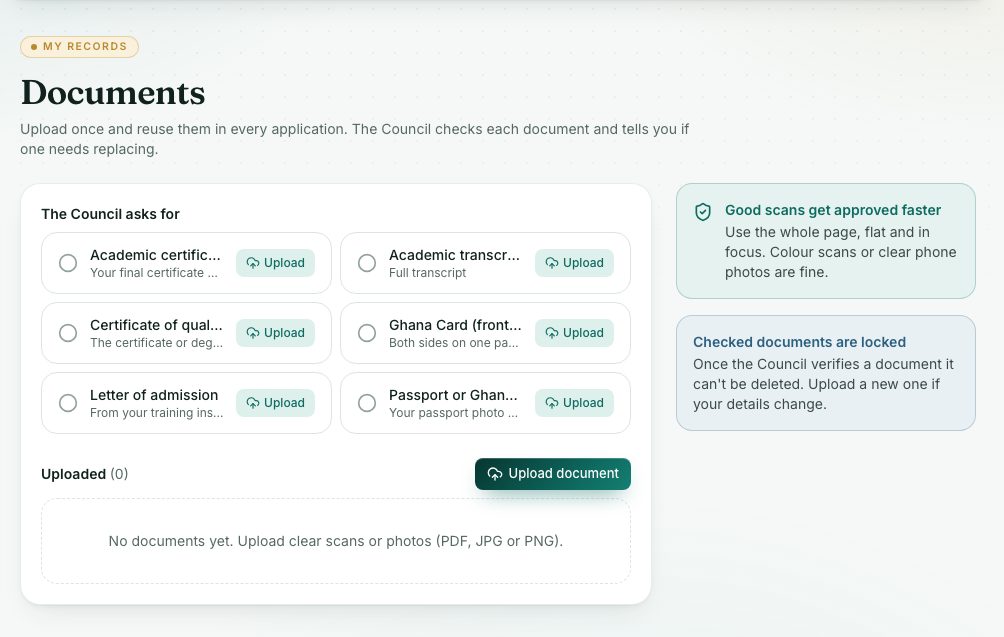
- Press Documents under Overview in the left menu. (The same list is in My profile → Documents.)
- Look at The Council asks for. A green tick means you have uploaded that one; an empty circle means it is still needed.
- Press Upload next to a missing document, or Upload document above your list.
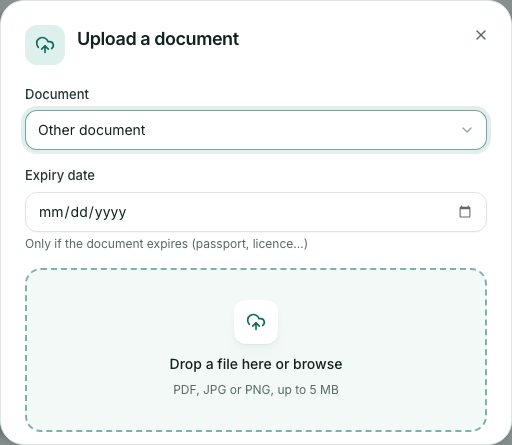
- In Upload a document:
- Choose the Document type, for example Academic certificate or Academic transcript.
- Fill in Expiry date only if the document expires (a passport, a licence).
- Drop the file on the box, or press it to browse. PDF, JPG or PNG, up to 5 MB.
- The document appears under Uploaded. Press the eye icon to view it.
demo.ahpcghana.com/portal/documents
What you will see
- Not yet checked: the Council hasn’t looked at it yet.
- Verified: the Council checked it. A verified document is locked and can’t be deleted.
- Rejected: not accepted. The reason shows in red as Not accepted: …. Upload a new, clear copy.
- You can delete a document that isn’t verified with the bin icon.
Check yourself
Pick an answer for each question, then press Check my answers. Nothing is saved or sent.