
Get indexed as a student
Students are indexed by the Council while they train. Your school sends your name to the Council, you complete the application and your WAEC result slips, and it passes four desks before you get your index number.
What you will learn
- Find the indexing application your school started for you
- Complete the form and add up to 4 WAEC result slips
- Send it and pay the indexing fee
- Follow it past the coordinator, the zonal office and head office to your index number
Indexing happens in four steps, called faces. 1. Your school sends the Council its list of new students, and the Council creates your account and a draft indexing application. 2. You complete it and send it. 3. Your institution coordinator checks it, then the zonal officer verifies it. 4. Head office checks your WAEC results with WAEC and gives the final approval, which issues your index number.
Step by step
- Look for the SMS and email from the Council: Complete your indexing application.
- It names your school, the email to sign in with and the date to send it by.
- If it gives a one-time password, sign in with it and then change it (press your name at the top right, then Change password).
- Sign in and finish My profile first (Overview → My profile), then press Confirm my profile. You can’t send the application until your profile is confirmed.
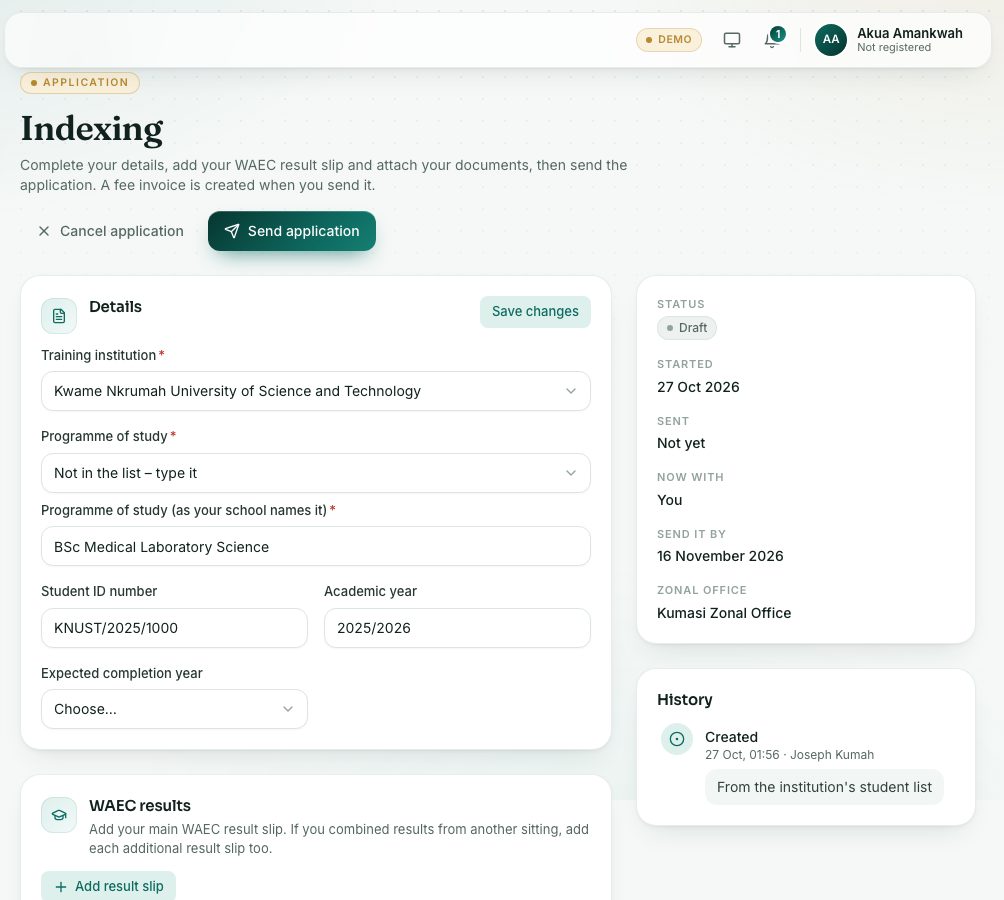
- Press Applications under Registration. Under My applications, press Indexing (it shows Draft).
- Check Details. The form is already filled in from your school’s list or your profile:
- Training institution: your school.
- Programme of study: pick it from the list of your school’s programmes. Not there? Choose Not in the list – type it and type it as your school names it.
- Student ID number, Academic year (for example 2025/2026) and Expected completion year.
- Press Save changes if you changed anything.
- Under WAEC results, press Add result slip:
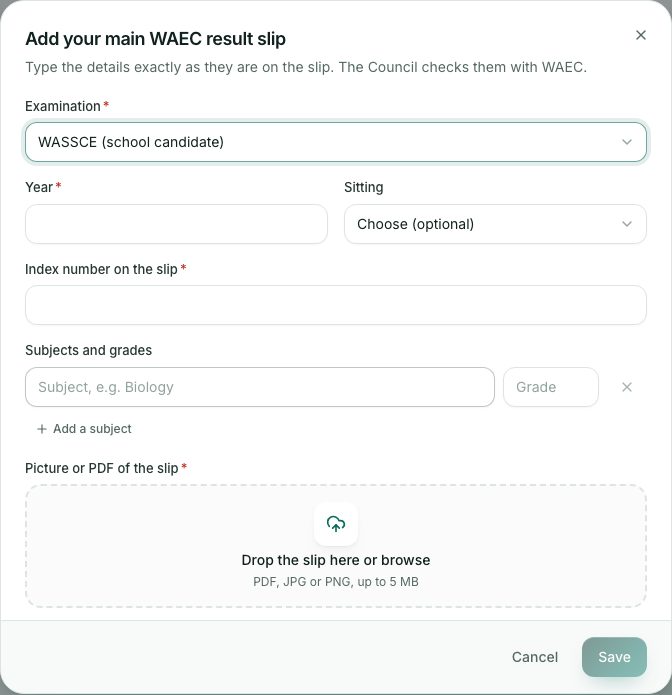
- Choose the Examination, for example WASSCE (school candidate), the Year and the Sitting.
- Type the Index number on the slip and each subject with its grade. Press Add a subject for more lines.
- Add a picture or PDF of the slip, then press Save.
- Combined results from another sitting? Press Add an additional slip for each one. You can add up to 4 slips.
- Under Supporting documents, press Attach and add what the Council asks for, for example your Letter of admission.
- Press Send application before the Send it by date on the right. Then pay the Indexing fee on the same page or in Records → Invoices & payments.
Who has your application now
After you send it, Now with on the right (and on the Applications page) shows the desk:
- Institution coordinator: your school checks your details first.
- Zonal officer: your zonal office verifies your details.
- Head office (WAEC check): the Council checks each WAEC result slip with WAEC, then gives final approval.
Any desk can send it back to you. It then shows Returned to you with the reason. Make the changes and press Send again.
Starting it yourself
If your school hasn’t sent your name, you can still press Indexing under Start an application. The form is filled in from a qualification on your profile when there is one. The same four desks follow.
What you will see
- Each slip shows Main result slip or Additional result slip 1, 2, 3, with the check result once head office has looked at it.
- You can’t send the application without at least your main WAEC result slip and a picture of every slip you added.
- A school marked (not accredited) can’t be used: its students can’t be indexed yet.
- When approved, your Indexing number shows on the application and the dashboard, and an Indexing Confirmation appears in Records → Certificates.
- Your registration status becomes Indexed (student). You can then request a student index card (see the ID card lesson).
Check yourself
Pick an answer for each question, then press Check my answers. Nothing is saved or sent.