
Log your CPD and find courses
Log the learning you do through the year, see the points your association and organisers add for you, and find recommended courses that close your gap.
What you will learn
- Log a CPD activity with evidence
- Send it for approval
- Read your points and association mandatory points for the year
- Use Recommended for you
Step by step
- Press CPD under Registration in the left menu.
- Press Log activity.
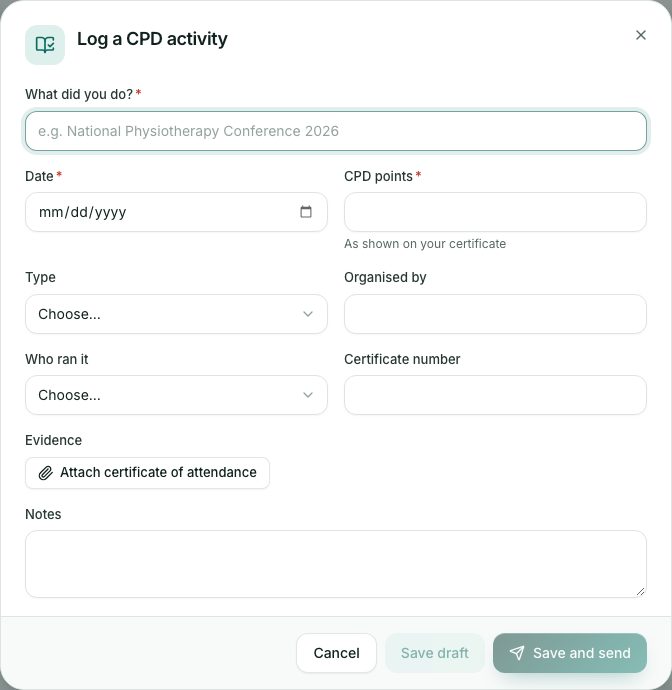
- Fill in Log a CPD activity:
- What did you do?, for example National Physiotherapy Conference 2026.
- Date (it can’t be in the future) and CPD points as shown on your certificate (up to 50 for one activity).
- Type, such as Conference, Workshop, Seminar, Online course or In-service training, and Organised by.
- Who ran it: Private providers, Professional associations, Training institutions, Health facilities, The Council or Other.
- Certificate number, if there is one.
- Press Attach certificate of attendance to add your evidence.
- Press Save and send to send it for approval, or Save draft to finish later.
- A draft has Send for approval, Edit and Delete buttons.
Points added for you
You don’t always need to log an activity yourself:
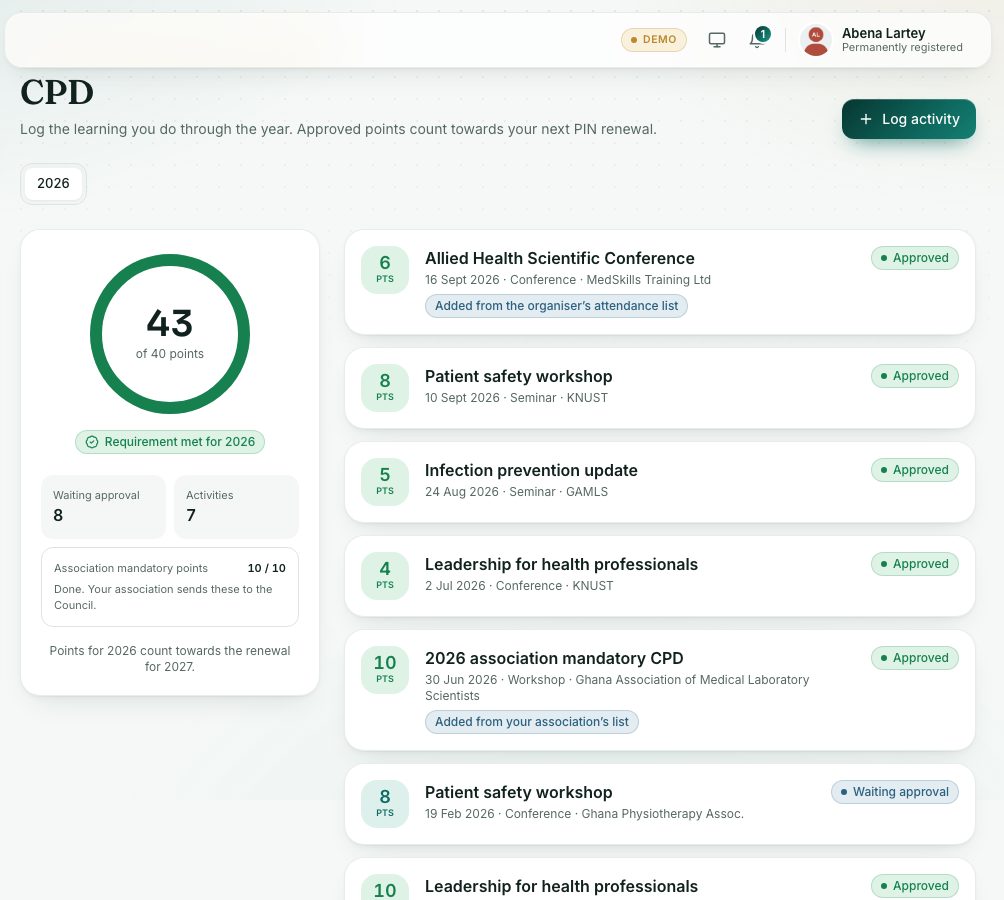
- Added from the organiser’s attendance list: the organiser sent the Council the list of people who attended.
- Added from your association’s list: your professional association sent your mandatory points.
If your profession has Association mandatory points, a box under the ring shows them, for example 10 / 10. Your association sends these to the Council; they appear once uploaded. They are part of what you need to renew.
Recommended for you
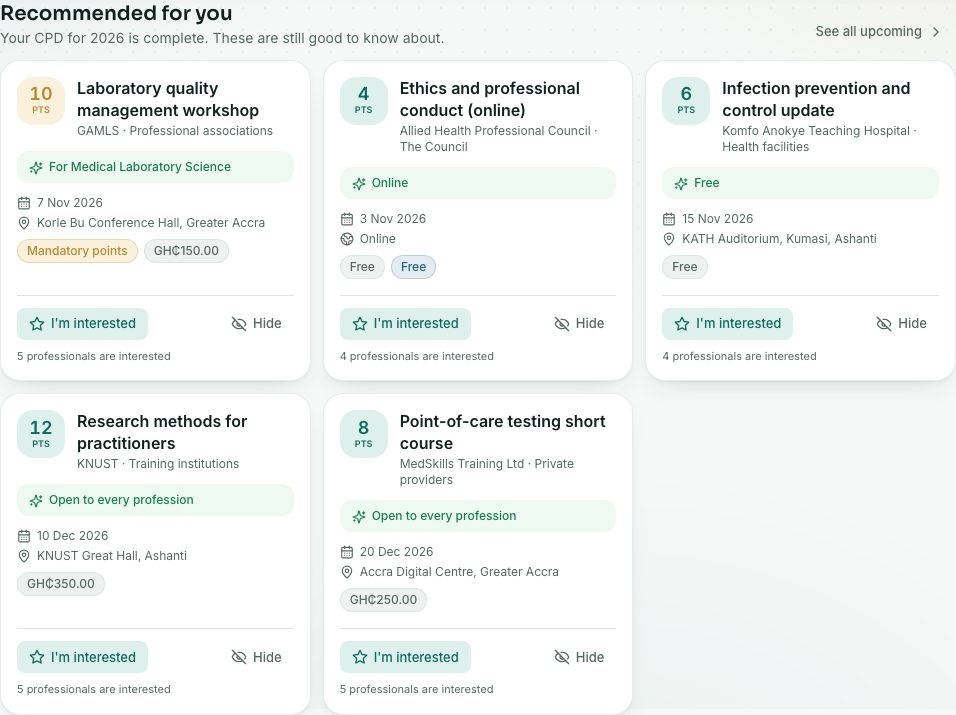
Lower down the page, Recommended for you lists upcoming courses and events picked for your profession, the points you still need and where you are. Each card shows the points, the organiser, the date, the place (or Online), the fee or Free, and why it suits you, for example Covers your 10 missing mandatory points or Near you in Ashanti. A gold Mandatory points label marks courses that give association mandatory points.
- Press I'm interested to keep it on your list. Press Details to open the organiser’s page.
- Press Hide to take it off your list.
- Press See all upcoming to see every course, not only your top picks.
Attending is arranged with the organiser. After the event, log it (or wait for the organiser’s attendance list).
What you will see
- The ring shows your approved points against your target, for example 28 of 40 points.
- Requirement met for … when you reach the target, or … points still needed.
- Waiting approval shows points sent but not yet approved.
- If the Council waived some or all of your CPD for the year, a blue note says so, with the reason.
- Activity statuses: Draft, Waiting approval, Approved and Rejected (with the reason as Not approved: …). Press Send again after fixing a rejected one.
- Use the year tabs at the top to see another year.
Check yourself
Pick an answer for each question, then press Check my answers. Nothing is saved or sent.