
Check uploaded documents and referees
Uploaded documents and referees from every professional, waiting to be checked. Open a file before you decide.
What you will learn
- Find documents waiting to be checked
- Verify or reject a document
- Confirm or decline a referee
demo.ahpcghana.com/staff/documents
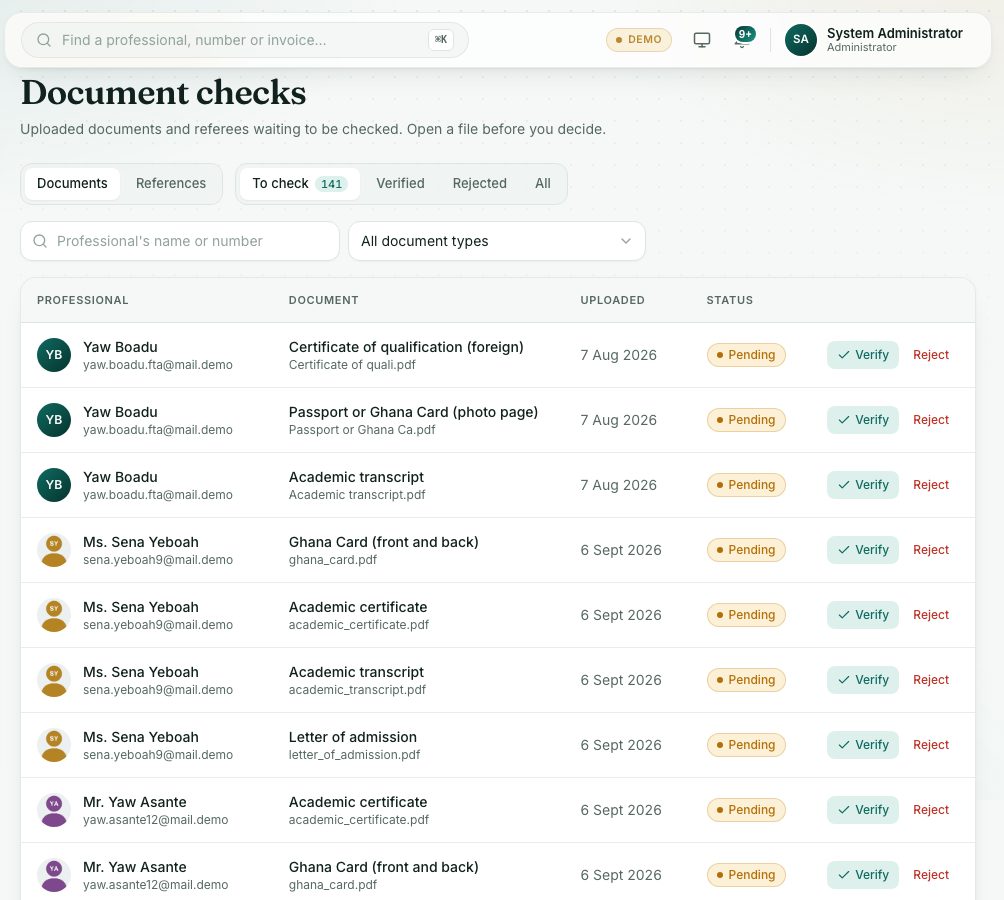
Step by step
- Open System administration → Document checks.
- The Documents tab opens on To check. Search by the professional’s name or number, or pick a document type.
- Click a row to open the file and look at it.
- Press Verify if it is in order. Or press Reject and type What is wrong with it: the professional is told why, so they can upload a new one.
- Open the References tab for referees. Contact the referee, then press Confirm or Decline and note how you checked (call, email, letter).
What you will see
- Documents: To check, Verified, Rejected. References: To check, Confirmed, Declined.
- When the list is clear you see “All documents are checked”.
Check yourself
Pick an answer for each question, then press Check my answers. Nothing is saved or sent.