
All reports and the audit log
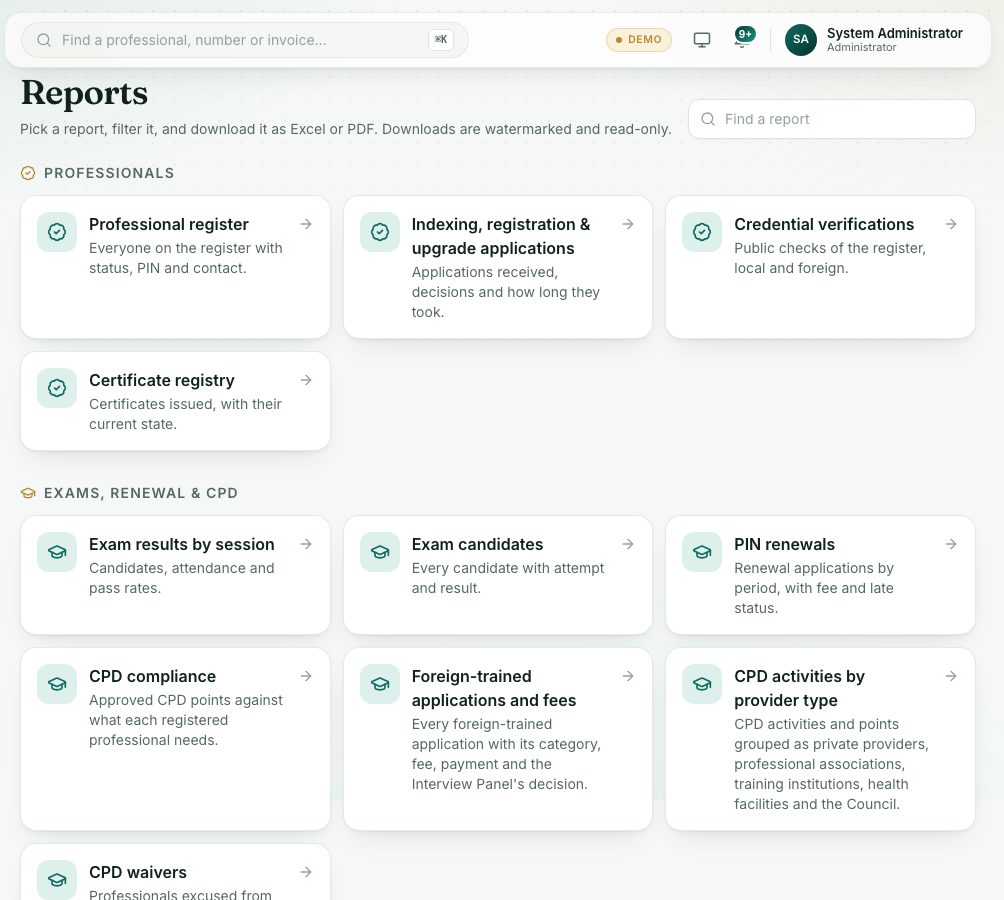
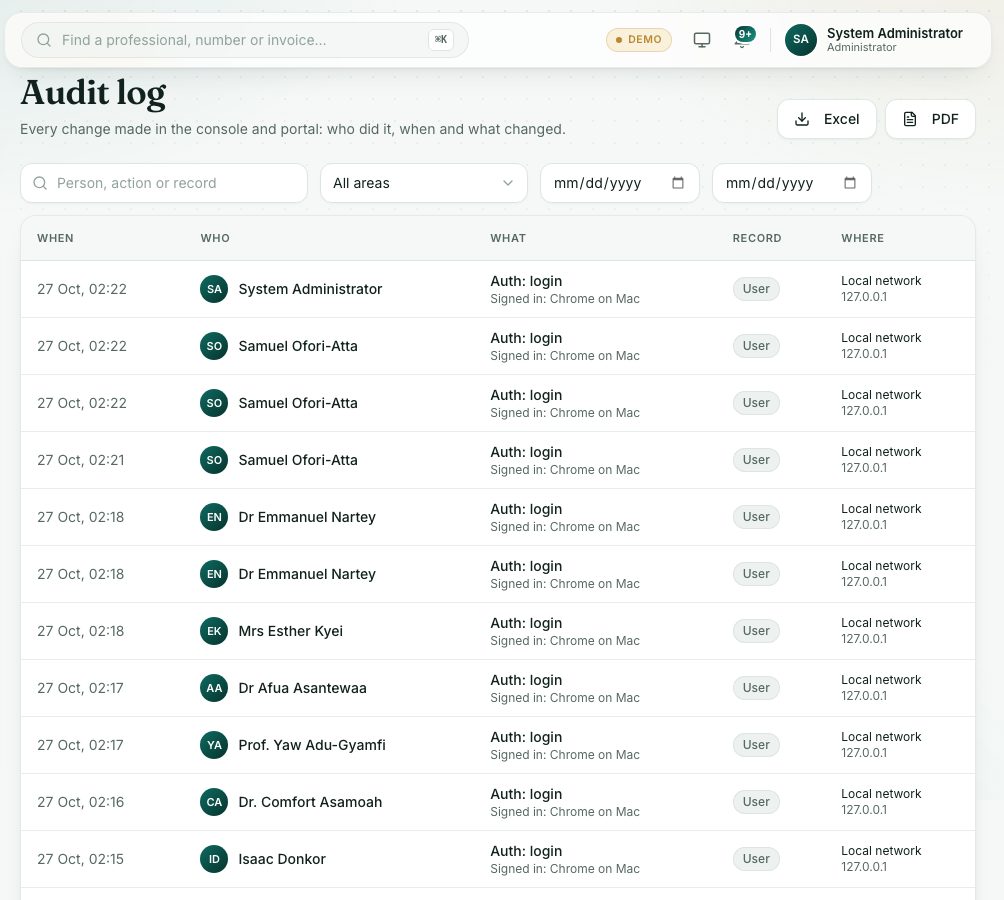
Open any report you are allowed to see and download it. Use the audit log to see who changed what, when, and from where.
What you will learn
- Find and download a report as PDF or Excel
- Search the audit log
- Read what changed in an entry, and where it was done from
demo.ahpcghana.com/staff/reports
demo.ahpcghana.com/staff/audit
Step by step
- Open System administration → All reports. Reports are grouped, for example Professionals, Finance and Stores.
- Type in Find a report to narrow the list, then click a report.
- Set its filters and download it with PDF or Excel. Every download carries your name and the date as a light watermark, and Excel files open read-only. Report downloads that used to be CSV now come as Excel.
- For the audit log, open Secretariat in the left menu and press Audit. The page is called Audit log.
- Search by person, action or record, pick an area in All areas (for example Staff accounts or Connections), and set the dates.
- Read the Where column: the place (town or city) and the IP address the change was made from.
- Click an entry to see Who, Record, Summary, IP address, Place and the details. Changed fields show before and after.
- Press Excel or PDF at the top to download every matching entry (up to 5,000).
What you will see
- Every change in the console and portal is in the audit log: sign-ins, accounts, roles, reference lists, message wording, connections and more.
- Entries made by the portal itself show System as who did it.
Check yourself
Pick an answer for each question, then press Check my answers. Nothing is saved or sent.