
Message wording and the sent messages log
Change the wording of every SMS, email and portal notification, and see every message that went out. Send a failed one again.
What you will learn
- Change the wording of a message
- Insert details like the person’s name
- Find a failed message and send it again
demo.ahpcghana.com/staff/messages
demo.ahpcghana.com/staff/messages
Step by step
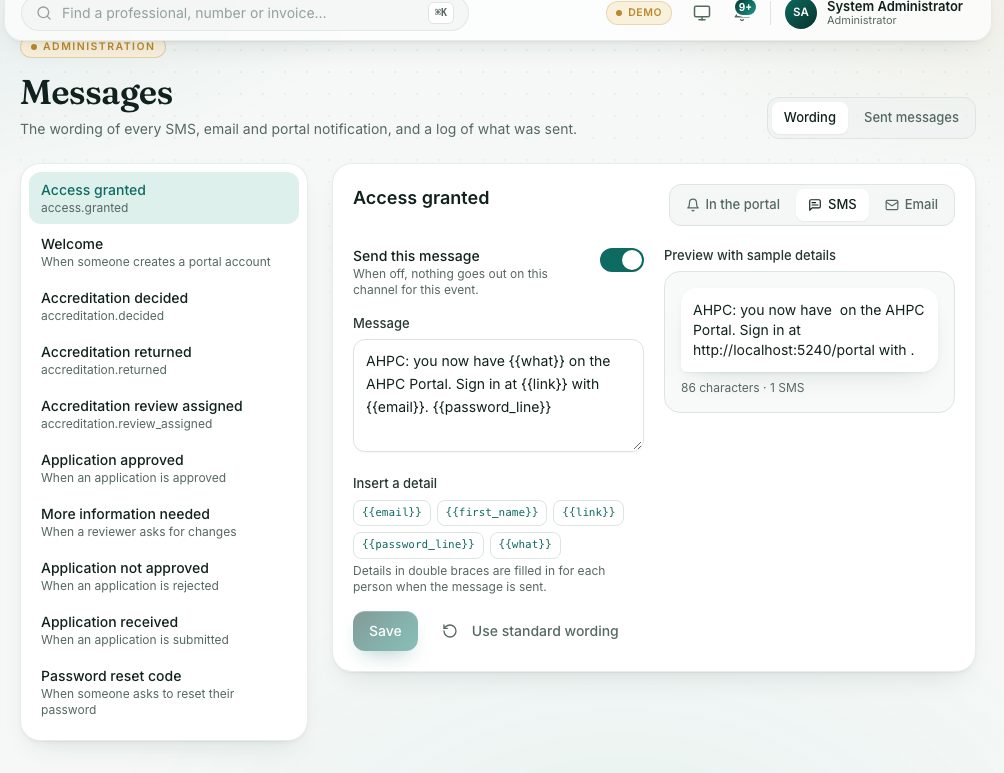
- Open System administration → Messages. The Wording tab opens first.
- Pick an event on the left, for example Application approved or PIN expiring soon.
- At the top right, pick the channel: In the portal, SMS or Email.
- Change the Message (and the Subject for email). Press a detail under Insert a detail to add it where the cursor is, for example {{first_name}}.
- Check the Preview with sample details on the right. For SMS it shows the characters and how many SMS it takes.
- Press Save. To undo all your changes, press Use standard wording.
- Turn off Send this message to stop that channel for that event.
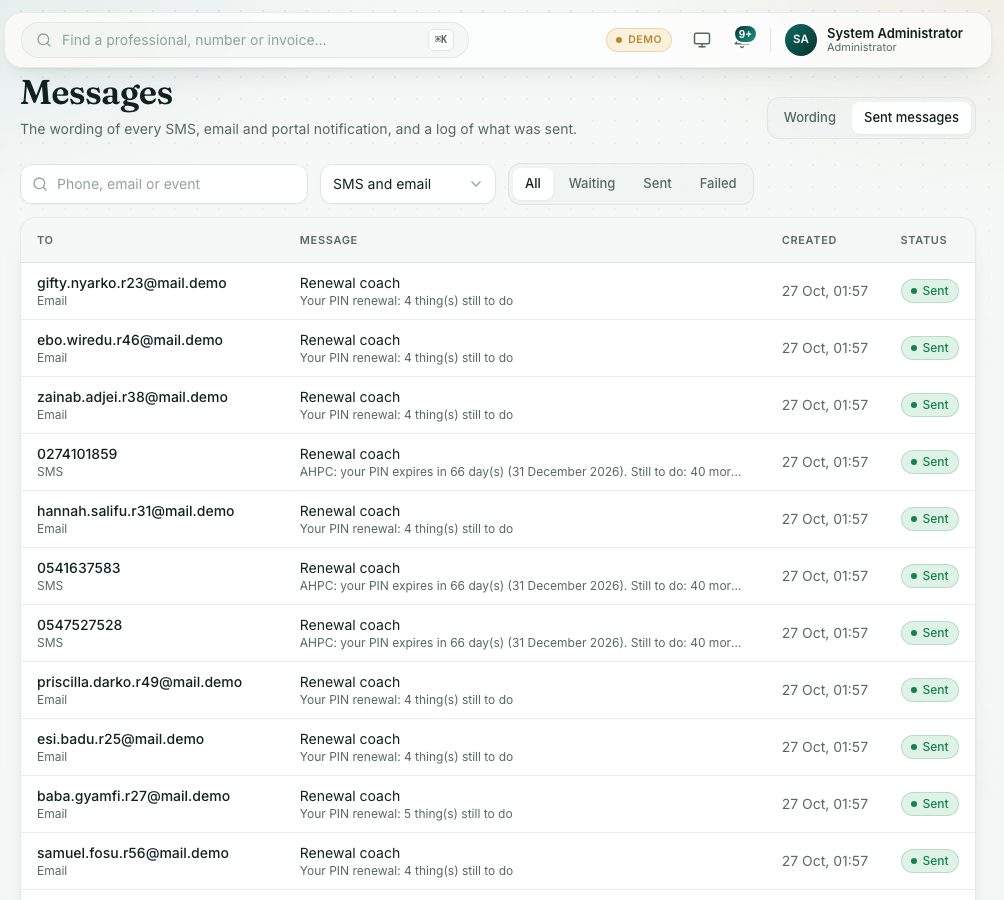
- Open the Sent messages tab to see what went out. Filter by Waiting, Sent or Failed, or search by phone, email or event.
- Click a message to read it and see any error. Press Send again to try once more.
What you will see
- Details in double braces are filled in for each person when the message is sent.
- An SMS longer than 160 characters is sent as more than one SMS. The most allowed is 640 characters.
Check yourself
Pick an answer for each question, then press Check my answers. Nothing is saved or sent.