
Keep the reference lists
The lists behind every form: regions, districts, facilities, training institutions, professions, specialties, qualification types, documents and exam subjects.
What you will learn
- Add or change an item on a list
- Import a list from Excel
- Remove an item safely
demo.ahpcghana.com/staff/setup/institutions
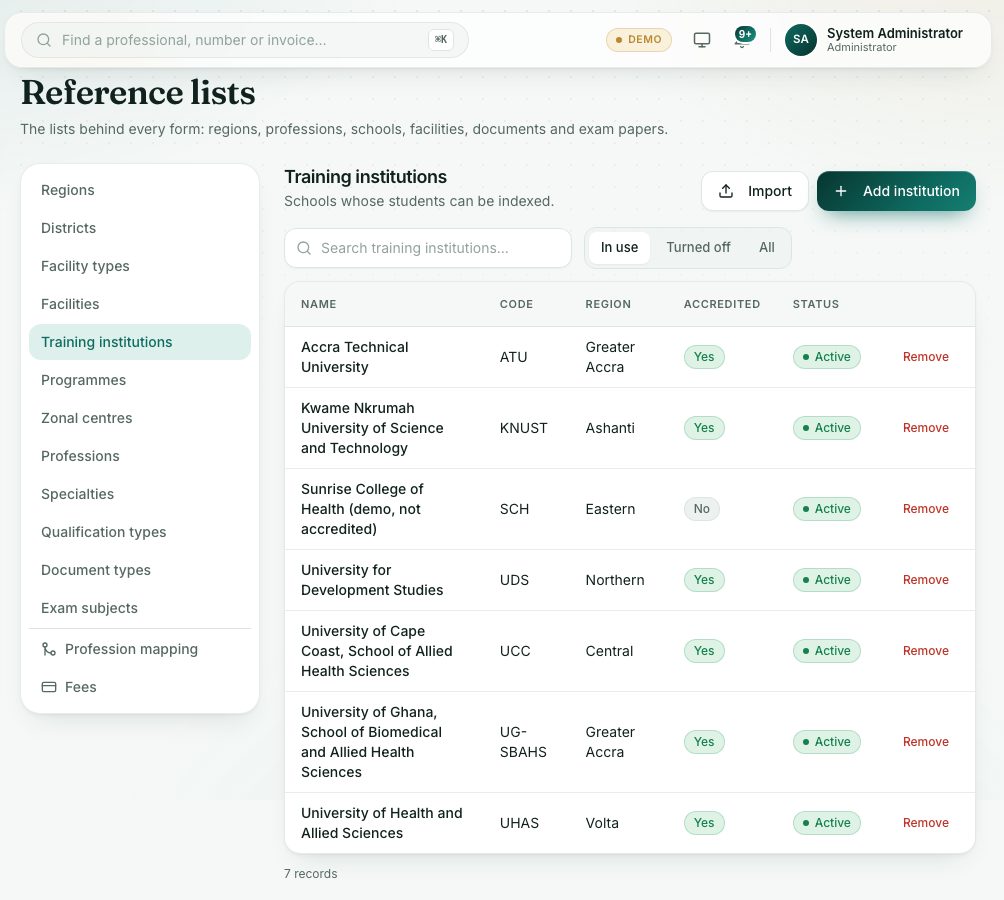
Step by step
- Open System administration → Reference lists.
- Pick a list on the left:
- Regions, Districts, Facility types, Facilities, Training institutions, Zonal centres
- Professions, Specialties, Qualification types, Document types, Exam subjects
- Search the list, and use the tabs In use, Turned off and All.
- Press Add with the item name (for example Add institution), fill in the form and press Add.
- Click a row to change it, then press Save changes.
- To add many at once, press Import:
- Press Download a blank template to get the right column names.
- Fill it in and drop the Excel or CSV file in the box. Rows with a name that already exists are updated; new names are added.
- To take an item away, press Remove on its row and confirm.
What you will see
- If nothing uses an item yet, Remove deletes it. If records already use it, it is turned off instead: past records keep it, but it no longer appears in pick lists.
- Press Turn on to bring a turned-off item back.
Check yourself
Pick an answer for each question, then press Check my answers. Nothing is saved or sent.