
Connect SMS and email, and send a test
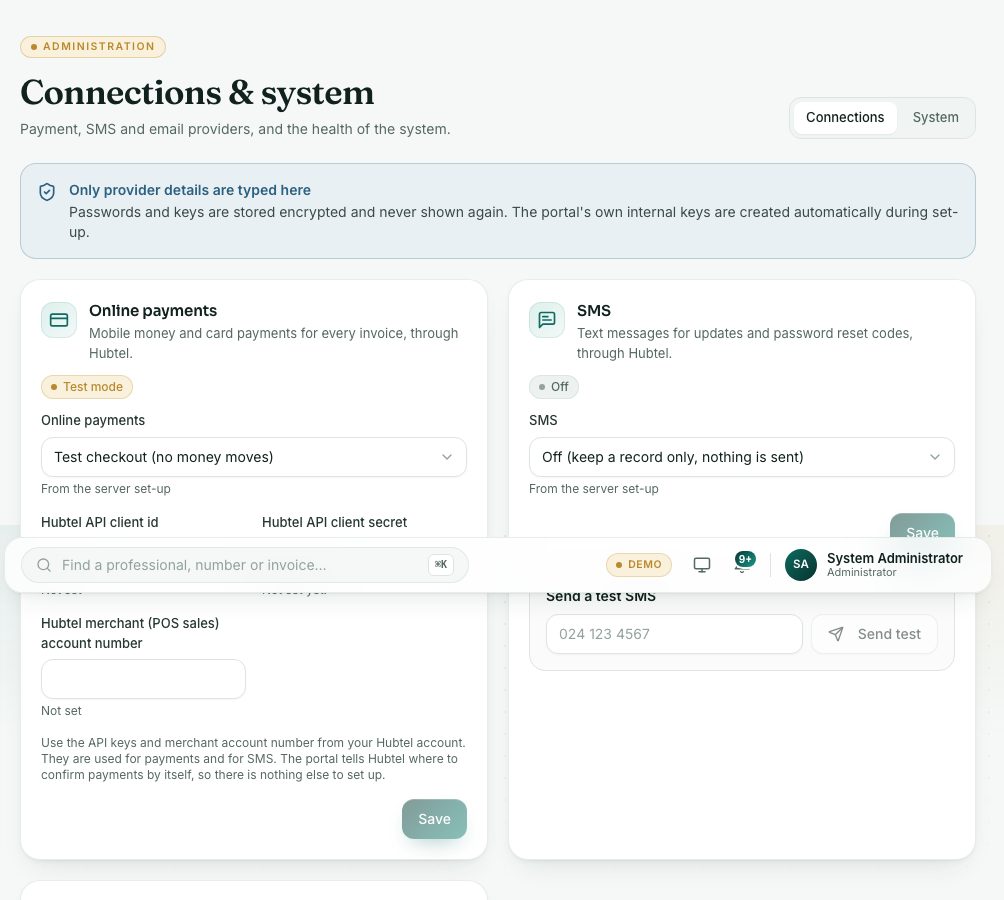
Send text messages through Hubtel with the Council’s sender id, and emails through the Council’s email server. Then send a test of each.
What you will learn
- Turn on SMS through Hubtel with a sender id
- Turn on email through an email server (SMTP)
- Send a test SMS and a test email
demo.ahpcghana.com/staff/settings
Step by step
- On the SMS card:
- In SMS, choose Hubtel.
- Type the SMS sender id (max 11 characters), for example AHPC.
- Press Save.
- If you see “SMS goes through Hubtel: also enter the Hubtel API client id and secret under Online payments”, fill in the Online payments card first.
- Under Send a test SMS, type your phone number, for example 024 123 4567, and press Send test.
- On the Email card:
- In Email, choose Email server (SMTP).
- Type the details from your email provider: Email from, SMTP host, SMTP port, SMTP security, SMTP username and SMTP password.
- Press Save.
- Under Send a test email, type your email address and press Send test.
- Check your phone and inbox.
What you will see
- “Sent. Check that it arrived.”: the test went out.
- “Not sent:” with a reason: check the details you typed and try again.
- “Recorded, but not sent: this channel is off.”: the channel is set to Off (keep a record only, nothing is sent).
Check yourself
Pick an answer for each question, then press Check my answers. Nothing is saved or sent.