
Connect online payments (Hubtel)
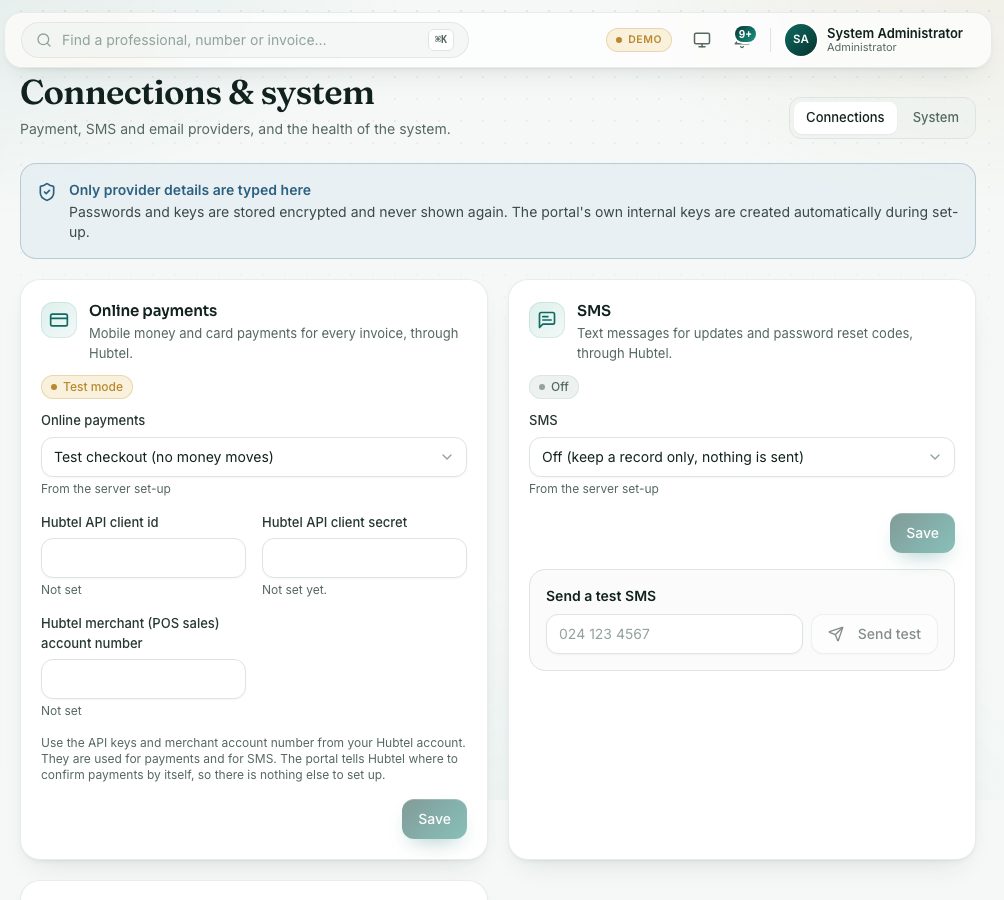
Turn on mobile money and card payments for every invoice by entering the details from the Council’s Hubtel account.
What you will learn
- Open Connections & system
- Choose Hubtel and enter the Hubtel account details
- Check the card shows Connected
You type only the provider details here. Passwords and keys are stored encrypted and never shown again. The portal’s own internal keys are made for you, so there is nothing else to set up.
demo.ahpcghana.com/staff/settings
Step by step
- In the left menu, open System administration and press Connections & system.
- Stay on the Connections tab. Find the Online payments card.
- In Online payments, choose Hubtel.
- Type the details from your Hubtel account:
- Hubtel API client id
- Hubtel API client secret
- Hubtel merchant (POS sales) account number
- Press Save.
- Check the badge at the top right of the card. It should say Connected.
What you will see
- Connected (green): payments go through Hubtel.
- Test mode (gold): the test checkout is chosen and no money moves. It is only offered on the demo.
- Needs details (amber): something is missing.
- A saved secret shows dots. Leave the box empty to keep it, or type to replace it.
Check yourself
Pick an answer for each question, then press Check my answers. Nothing is saved or sent.