
Send a bulk SMS
Send one text message to a group: professionals picked by registration, profession, region or PIN, staff by role, or a list of numbers.
What you will learn
- Choose who gets the message
- Write it with personal details
- Send a test, then send now or later
- Stop or cancel a message
demo.ahpcghana.com/staff/bulk-sms
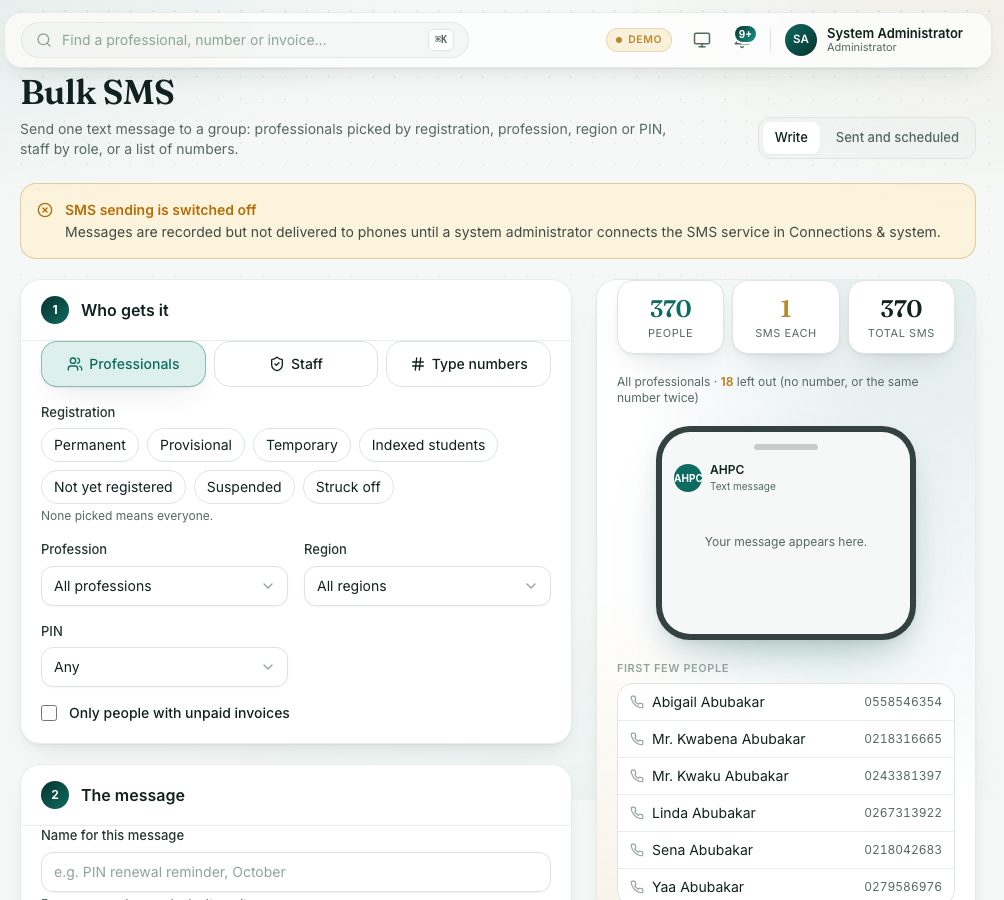
Step by step
- Open System administration → Bulk SMS. The Write tab opens.
- 1. Who gets it: choose Professionals, Staff or Type numbers.
- For professionals, pick registration types, Profession, Region and PIN (for example PIN expiring soon). You can tick Only people with unpaid invoices. None picked means everyone.
- For staff, pick roles. None picked means all staff.
- For numbers, type them one per line or separated by commas.
- 2. The message: type a Name for this message for your records, then the Text. Press a detail such as First name or PIN expiry to add it.
- 3. When: choose Send now or Send later and set the date and time (Ghana time).
- Check the boxes on the right: People, SMS each and Total SMS, and the first few people.
- Press Send a test to my phone to see it on your own phone.
- Press the send button (it shows how many people) or Schedule, and confirm.
What you will see
- The Sent and scheduled tab lists every bulk SMS with how many people it went to and its status: Sent, Scheduled or Cancelled.
- Open one to see each message: Sent, Failed, Waiting or Stopped.
- People with no number, or the same number twice, are left out and counted.
Check yourself
Pick an answer for each question, then press Check my answers. Nothing is saved or sent.